MS Outlook is one of the most popular email clients which has been used by so many users. And if you are an Outlook user, you must have been using Outlook Notes. If you are also searching for straightforward methods to export Outlook notes to text files, we are here to help you. It is used to take notes of important information or reminders. But, when it comes to access those notes Outside Outlook or keep a backup copy, then users may face challenges.
In this blog, we will provide two methods to convert Outlook notes to text files. here, both free and automated solutions have been shared. Additionally, we will discuss some key benefits of saving Outlook notes.
Why to Export Outlook Notes to Text Files?
There are various benefits to export Outlook notes to text files. Some of the major advantages are discussed below-
- Text files are simple and easily compatible. This means you can easily transfer and access them on different devices like computers, phones, or operating systems.
- You don’t need Outlook to view the text files. Also, you can edit them anytime with any common text editor.
- The text files are smaller in size and highly compatible, so you can send them easily via email or store them on any cloud storage services.
- Having a backup copy of Outlook Notes can be helpful for you in case of data corruption or an error occurs.
- If your Outlook data is in text file format, you can apply your formatting with fonts, spacing, or symbols.
Users want to export data for various reasons, such as backup, easy access, or sharing. The number of notes and the chosen method play a major role. For a few notes, the manual method is helpful. However, for many notes, such as hundreds, a professional tool is recommended. In the next section, we explain both methods. Choose the method that best suits your needs.
How to Export Outlook Notes to Text Files Manually?
You can save the files into text formats for free directly within Outlook. Follow these steps to manually export the data:
- Launch Outlook and click on the Notes icon to view all saved notes.
- Select the notes you would like to save.
- Click the “File” option in the top menu and then select “Save As.”

- Select a folder on your computer where you want to save the exported note.
- Give your note a filename that will make it easy to identify.
- In the Save as type, go down and choose Text Only.
- Then click the Save button.

Done! By following the above manual steps, you can export Outlook notes to text files and open them with any text editor. But this method comes with certain limitations that we discussed below.
Drawbacks of the Manual Method
While the manual approach is simple and freely available, there are some loopholes in this method.
- No bulk export option: This method allows you to repeat the steps for each note, which isn’t sufficient for large numbers of notes.
- Time-consuming: Exporting individual notes is complex and can be extremely time-consuming for large note collections.
How to Convert Outlook Notes to TXT Format Automatically?
Users have a large number of Outlook notes and want a faster, more reliable, and secure way to export them. The Yota PST Converter Tool allows you to export Outlook notes to text files. This tool is designed not only for notes, but also for emails, contacts, calendars, journals, and more. It lets you convert multiple notes from an Outlook account at once.
It supports 5+ file formats to save your emails to the computer, including all email attachments. You can also convert PST to Text and many other file formats. This makes the process hassle-free. A free demo version of this software is also available.
Steps to Export Outlook Notes to Text Files are as follows-
- Download and install the tool on your Windows computer.
- Then go to the Open >>Desktop Email Clients >> Outlook Account.

- Now, select the Outlook notes you want to convert and preview them before conversion.
- Click the Export option and choose TEXT as the output format.

- Select a destination folder where you want to export and hit Save to start the export.
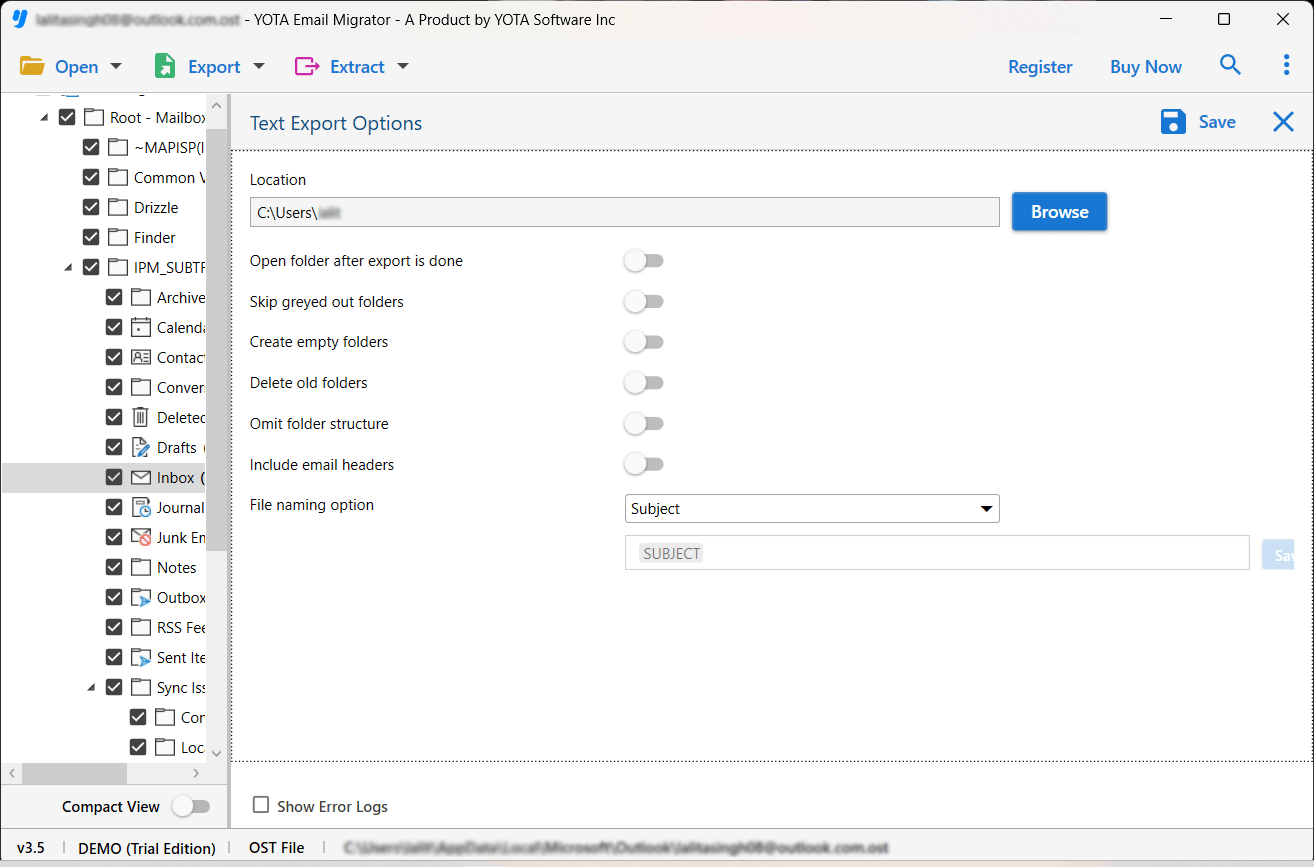
That’s it! This is how you can export the notes to text files effortlessly.
Summing Up
Here, we have mentioned the benefits and methods to export Outlook notes to Text files. If you have a few notes in Outlook, then use the manual method. However, if you use the professional method, it can handle bulk conversion efficiently with minimal effort. So you can choose the one that best fits your needs. It is the smarter choice to use the automated method to accomplish the task. Experts also recommend this tool to convert the data in TXT and other file formats without much efforts.

