Are you looking to export all emails from Outlook? Maybe you’re getting a new computer. Or you want to move your emails to another email client. Or you just want to backup Outlook emails, in case something goes wrong. Whatever is the reason, you’re in the right place.
In this guide, you’ll learn two simple ways to save Outlook emails to local PC:
- Manually, using Outlook’s built-in export feature
- Automatically, using a professional tool for fast and safe results
Let’s get started!
Reasons to Export All Emails from Outlook
Export multiple emails from Outlook is a smart way to create backups, free up mailbox space, and ensure data safety. Here we will explore some common reasons, why we need to download all emails from Outlook. Here are some following reasons
- To avoid losing important emails due to system crashes, accidental deletions or any Outlook error.
- To easily move emails from your old system to a new one.
- You can store older emails on your local PC to create some space in your mailbox.
- You can even access your emails even when you’re not connected to the internet.
Now you know why users want to save all emails from Outlook, let’s talk about the reliable solutions.
Method 1. Manual Method to Export All Emails from Outlook
You can manually export all your Outlook emails using the Import/Export feature built into the Outlook application. Here are the steps to download all emails from Outlook manually:
Step 1. Open the MS Outlook email client on your system.
Step 2. Click on File >> Info >> Add Account.

Step 3. Select ‘Open & Export’ > ‘Import/Export.
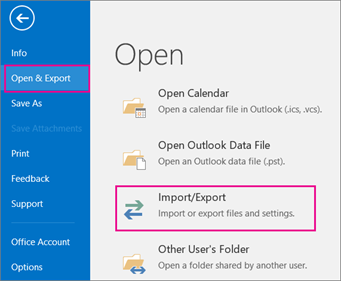
Step 4. Choose the ‘Export to a File’ option.

Step 5. Select ‘Outlook Data File (.pst).
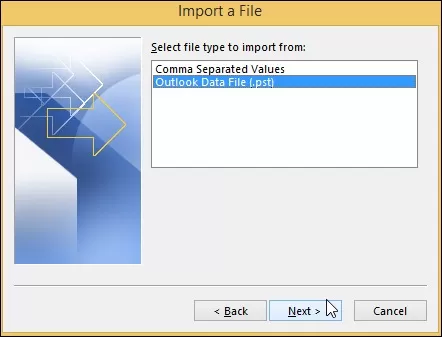
Step 6. Choose the Email Folder to export all emails from Outlook.

Step 7. Choose Destination to Save the File and click the finish button.
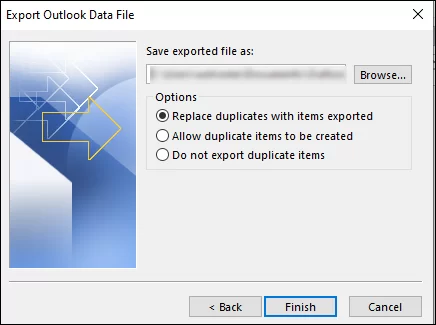
Your emails will now be exported as a .pst file on your local system. You can import this file into another Outlook account or keep it as a backup. But this process comes with certain limitations.
Limitations of Manual Method
- Cannot filter emails by date, sender, or subject.
- Requires Outlook to be installed in your PC.
- Can be complex for non-technical users.
- No option to export in formats like PDF, EML, or MBOX.
- Cannot export large mailboxes from Outlook account.
Method 2. Professional Tool to Download All Emails from Outlook
Try Yota Outlook Migrator Tool to export all emails from Outlook without any hassle. This software effortlessly moves all your Outlook emails without losing data integrity. One of its standout features is that it is capable to maintain the original folder hierarchy and metadata, so that your data remains well-organized and intact throughout the process. You can download the free version of this software to export multiple from Outlook at once.
Steps to Export All Emails from Outlook are as follows:
- Run the Yota Email Migration Tool and click on Open > Desktop Email Clients > Outlook Account.

- Select the Outlook profile or manually add your account and preview the emails.
- Click Export and choose the desired format.

- Choose a location to store the exported emails and click Save.

That’s it. You have successfully exported all emails from Outlook.
Why Automated Tools Are the Smart Choice for Email Export from Outlook?
The software provides many advanced features that are not available in the manual solution. Some of them are:
- Batch Export: Easily export multiple Outlook accounts or profiles in one go, saving time.
- Multiple File Formats: Export all emails from Outlook to PST, PDF, EML, MBOX, and more — giving you flexibility based on your needs.
- Filtered Export: Select specific emails by date, sender, or folder for more precise backup.
- Data Integrity: Ensures that no data is lost, and your folder structure stays intact throughout the export process.
- No Outlook Required: You don’t need Outlook installed to use the software — just load your PST/OST files and go.
- Secure Backup: With encrypted export options, your data remains safe during the process.
These advanced features make automated tools more efficient and reliable than doing it manually.
Final Thoughts
In the above article both, manual and professional method has been given in detail. This article compares both manual and professional methods to export all emails from Outlook. Although, the manual process is free, but it can be time-consuming and has some limitations. Therefore, experts recommend to use a professional tool like the Yota Outlook Migrator. It offers a clean interface and streamline steps to save the Outlook emails.
Ready to try it? Download the Free Demo of the tool and see how this tool can export emails from Outlook.