In this blog, we’ll show you the best ways to import EML files to Thunderbird. If you also want to open EML file in Thunderbird, follow this post to the end and learn the best methods.
Before proceeding, let’s take a quick overview of EML and why users need to import EML to Thunderbird client.
EML files are used to store individual email messages, particularly when exporting emails from various email clients, such as Windows Live Mail, Outlook Express, and Apple Mail. However, users have difficulty transferring EML files into Thunderbird.
Why Do Users Want to Import EML Files to Thunderbird?
Here are the common reasons to import EML to Thunderbird:
- Mozilla Thunderbird is a free, open-source platform that offers multiple advanced features that help individuals and organizations manage their data effortlessly.
- By importing EML files into Thunderbird, one can access their emails without an Internet connection.
- You’ve backed up your emails in EML file format and now want to open them in Thunderbird.
In the section below, we will discuss different methods to open EML file in Thunderbird. Let’s read to know the step-by-step solutions of both methods. So, you can prefer the best one that best fits your needs.
Method 1: Import EML to Thunderbird via Drag and Drop
- Open your Thunderbird application on your system.
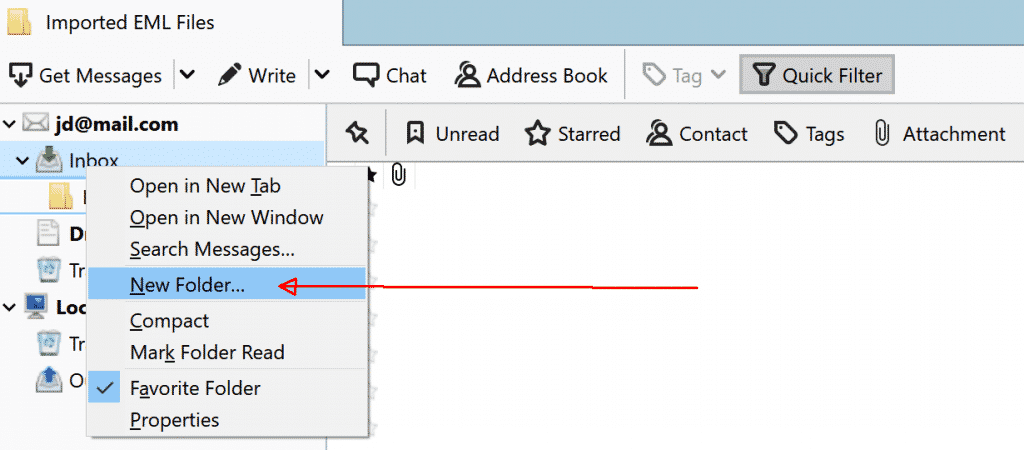
- Then Right-click on Local Folder and select New Folder.
- After that, name the folder and click on the OK button.
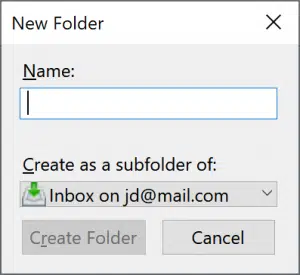
- Select the folder you created.
- Now, select the EML files and drag and drop them into the Thunderbird folder.
This works, but is suitable only for a small number of emails. Do not import files in bulk.
Method 2: Open EML File in Thunderbird via Add-on
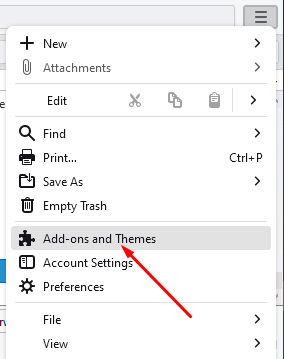
- In Thunderbird, go to the Tools and select the Add-ons and Themes option.
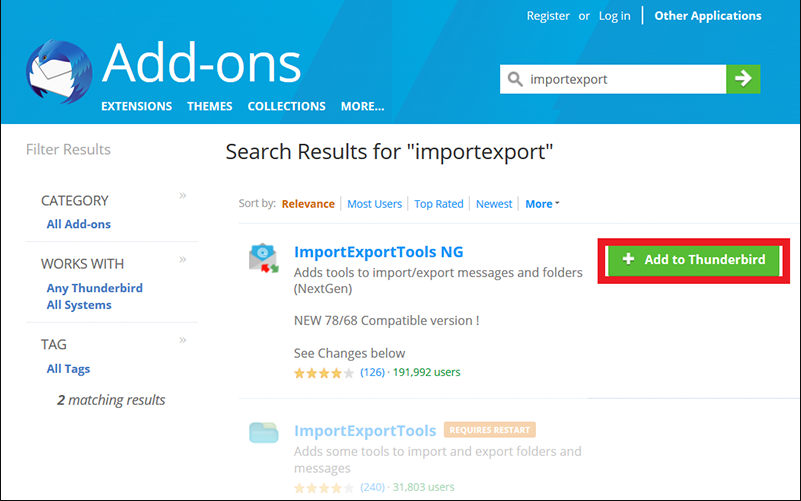
- Search for ImportExportTool NG.
- Now, click on Add to Thunderbird button.
- Then, restart Thunderbird.
- Right-click on Local Folder and select New Folder.
- Afterward, give the name to the folder and click on the Enter button.
- Right-click on the newly created folder > ImportExportTools NG > Import messages.
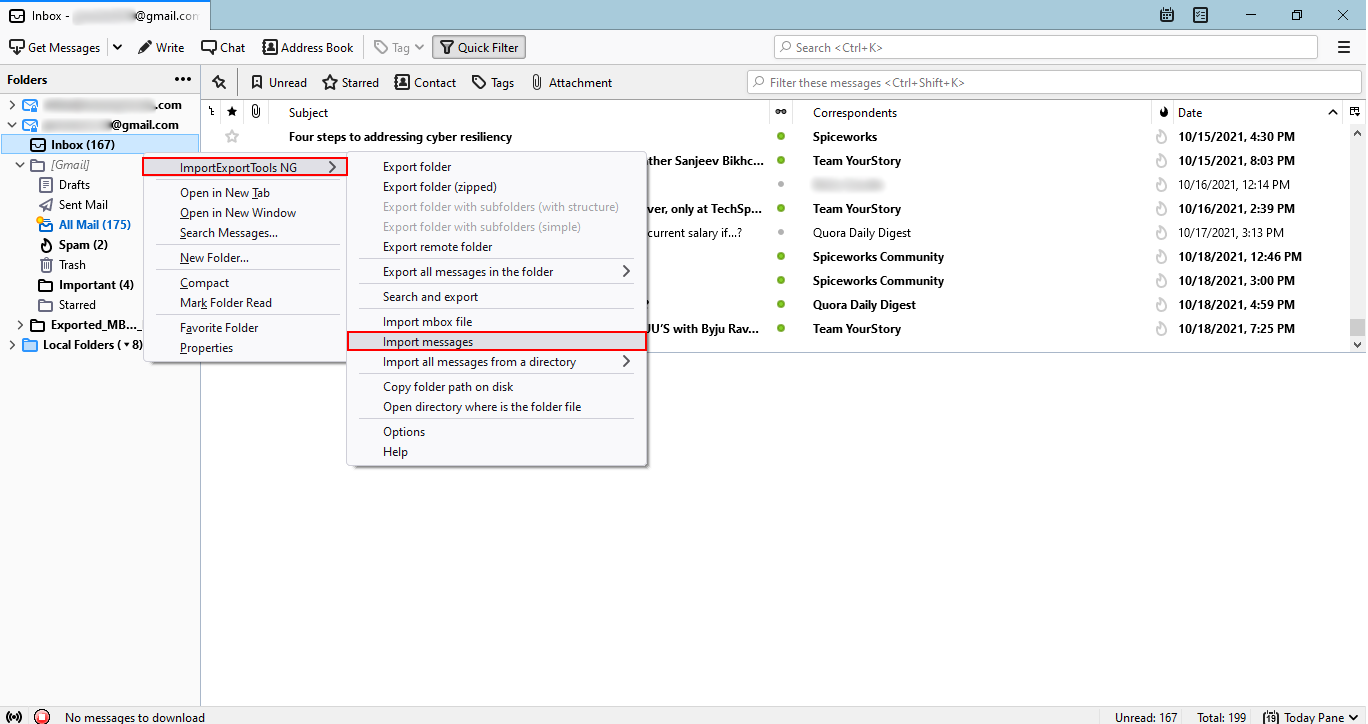
- Now, choose the EML files you want to import and click Open.
That’s it!
Drawbacks of Manual Methods-
- Can’t handle large batches easily.
- Time-consuming process for bulk import.
- Requires some technical comfort.
- May not preserve formatting or attachments well.
Method 3: Directly Import EML to Thunderbird in Bulk
You can use Yota EML Converter to import EML files to Thunderbird profile directly. It supports importing multiple EML files at once to the desired Thunderbird profile. Additionally, the software supports EML files of all supported email clients without installation.
It allows you to transfer unlimited EML files and even offers the direct option to import EML to Gmail, and over 100 other email platforms. In the following section, we’ll guide you step-by-step on how to use this wizard to successfully open EML file in Thunderbird profile.
Steps to Import EML Files to Thunderbird are as Follows:
- Download and launch Yota EML to Thunderbird Converter on your computer.
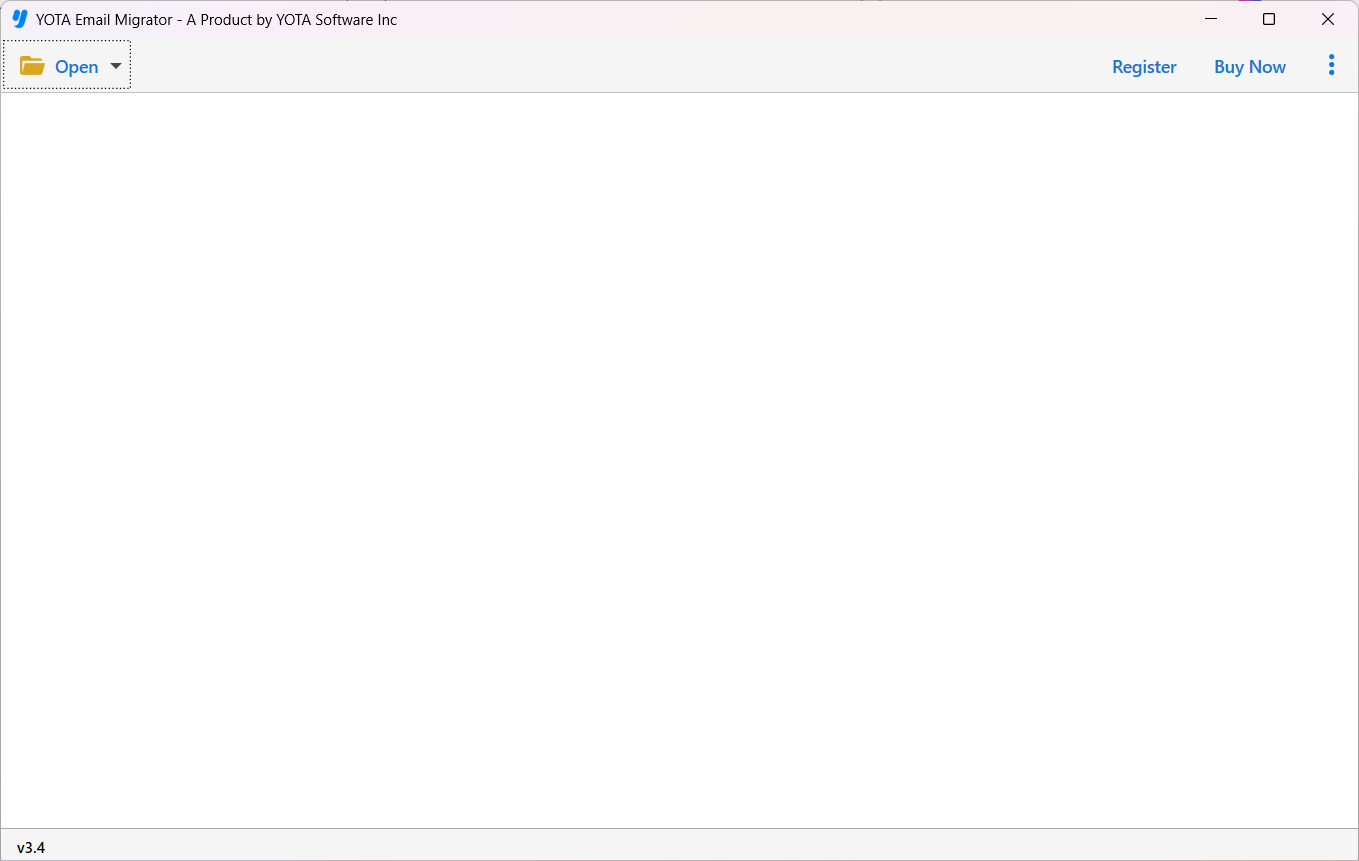
- Go to the Open > Email Data Files > EML Files.

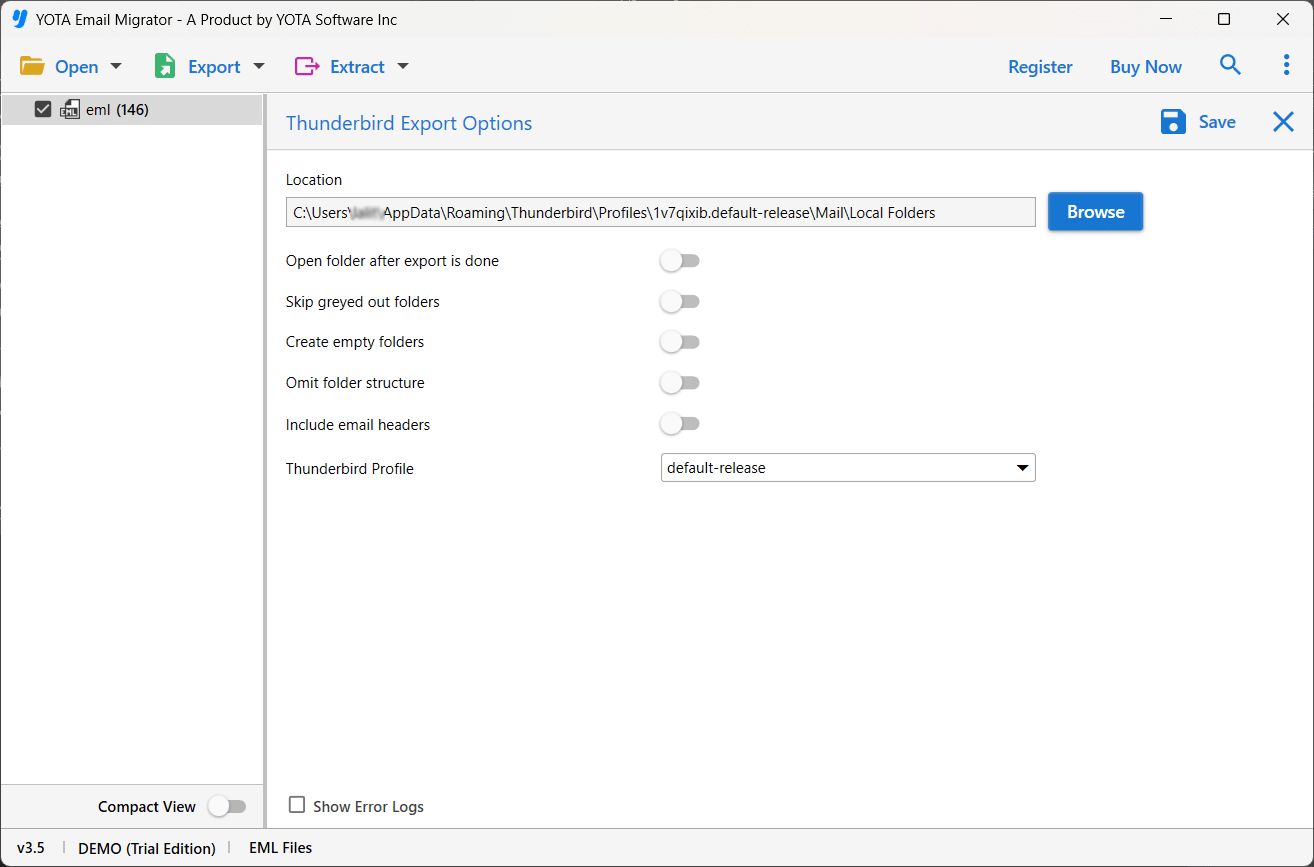
- Add EML files, click Export, and choose Thunderbird from the saving options.

- Select the destination folder, then click Save to start the import process.
That’s it!
Why Choose a Professional Tool Over Manual Methods?
- Faster: Import thousands of emails in one go, no need to repeat the steps.
- Accurate: Keeps formatting, attachments, and folder structure in their original way.
- Safe: There is no risk of data loss or errors to import EML files to Thunderbird.
- Easy: No need for add-ons or Outlook installed for migration.
- Reliable: Works with all EML files, even large or complex ones.
Conclusion
In this article, we have shared three simple methods to import EML to Thunderbird. While manual methods, like using the ImportExportTools NG add-ons, are available, they require extra setup and some technical skills.
Manual methods are okay for small tasks or but for bulk migration, organized, and error-free imports, a professional tool is a better choice. It lets you directly import EML files to Thunderbird in bulk.