Summary: These days, a lot of users are wondering how to migrate Thunderbird to Apple Mail when moving from Windows computers to Mac for various reasons—better performance, design, or personal preference. This can seem tricky, especially if you want to keep all your attachments and folders. But don’t worry—we have got you covered!
In this guide, we’ll walk you through simple methods to export Thunderbird emails and import them into Apple Mail. Whether you’re a beginner or someone with some tech knowledge, you’ll find easy steps to import Thunderbird emails to Apple Mail without losing your data.
Mozilla Thunderbird is a free and popular email app, especially for Windows users. It’s known for being easy to use and packed with useful features. But when people move from a Windows computer to a Mac, they often want to switch to Apple Mail, which is the default email app on macOS. In this write-up, we’ll show you how to move your emails, contacts, and other important data from Thunderbird to Apple Mail. Let’s get started! But first, here’s a real-life example to explain the situation better.
“Hi, I recently switched from a Windows laptop to a MacBook, and I’ve been using Mozilla Thunderbird as my email client. I want to start using Apple Mail on my Mac, but I don’t know how to move all my emails and contacts from Thunderbird. Can someone guide me on how to migrate Thunderbird to Apple Mail everything safely without losing any important data?”
Why Import Thunderbird Emails to Apple Mail?
Many people move from Windows computers to Mac, and when they do, they often switch email apps too. Here’s why:
- Apple Mail is built into Mac: It comes pre-installed, so it’s easy to use right away without downloading anything.
- Works better with Mac: Apple Mail connects smoothly with other Mac apps like Calendar and Contacts.
- Simple and clean look: The design is easy to understand, even for beginners.
- Faster and more stable on Mac: Since it’s made by Apple, it runs better on macOS than other email apps.
- Easier to manage everything in one place: Using Apple Mail helps users keep emails, contacts, and tasks all in one system.
Manual Process to Migrate Thunderbird to Apple Mail
Here is the step-by-step guide on how to import Thunderbird emails to Apple Mail –
1. Set Up Apple Mail
Open Apple Mail on your Mac and add your email account.
2. Export Thunderbird Emails
- Open Thunderbird on your Windows PC.
- Select the email folder you want to move (e.g., Inbox).
- Right-click on it and choose Export (you might need an add-on for this).
- Save the emails as an MBOX file.
3. Transfer the MBOX File to Your Mac
- Copy the MBOX file to a USB drive or cloud storage.
- Transfer it to your Mac and save it in a folder.
4. Import the MBOX File into Apple Mail
- Open Apple Mail and go to File > Import Mailboxes.
- Select the MBOX format and find the file you transferred.
- Choose where you want to import the emails (like Inbox).
By following this method, you can migrate Thunderbird to Apple Mail. However, this process comes with certain limitations, which we’ll discuss in the next section.
Loopholes of the Manual Method
- No Transfer of Settings: Account settings and preferences don’t move to Apple Mail.
- Risk of Data Loss: Errors during export/import can cause data loss.
- Manual Contact Transfer: Contacts need to be exported and imported separately.
- Attachment & Formatting Issues: Some attachments or formatting may not transfer correctly.
- No Sync for New Emails: New emails won’t sync automatically after migration.
- Time-Consuming: The process can be slow, especially with large mailboxes.
Automated Solution Thunderbird to Apple Mail Migration Made Simple
You can easily import Thunderbird emails to Apple Mail using the Yota Thunderbird Converter on a Windows PC. This tool allows you to transfer multiple Thunderbird files to Apple Mail at once with just a few simple steps. It supports batch migration without any file size limitations and ensures your data is transferred smoothly. The software also lets you backup Thunderbird emails to the PC in 5 plus popular file formats. One can effortlessly export Thunderbird to PST to open emails in the Outlook application.
The software also offers advanced features like selective migration, the ability to save contacts in CSV or vCard format, and exporting emails to over 30 different formats. It retains your folder hierarchy, automatically detects your Thunderbird profile, and even lets users import Thunderbird to Outlook, Thunderbird to Gmail, and other email platforms, all while keeping your email data, formatting, and attachments intact.
Steps to Migrate Thunderbird to Apple Mail are as follows:
- Download and install the Yota Thunderbird Converter on your system.
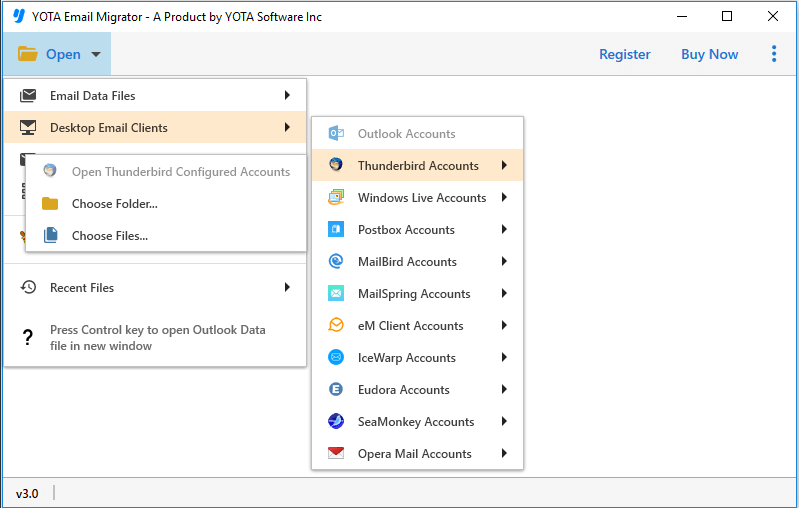
- Launch the tool and select the Thunderbird files you want to export.
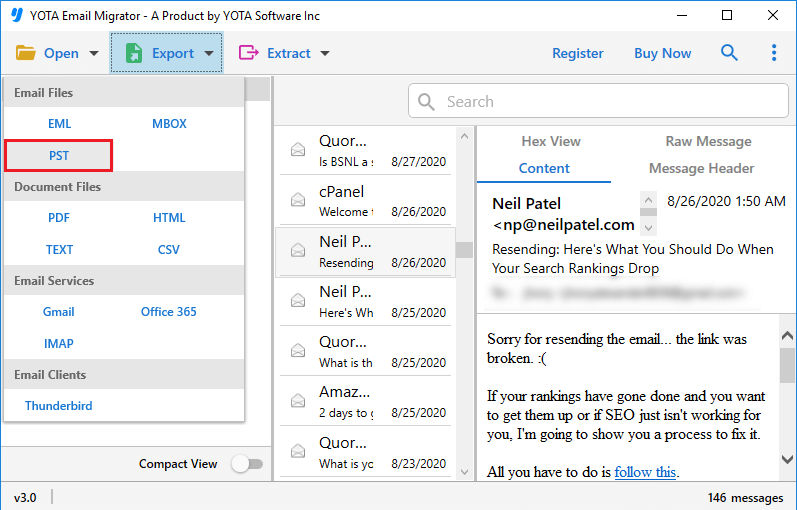
- Click Export and select the MBOX format to initiate the conversion.
- Transfer the converted files to your Mac using a USB or cloud storage.

- Import the files into Apple Mail via File > Import Mailboxes.
Done! With these simple steps, you can easily import Thunderbird emails to Apple Mail effortlessly and without any hassle. No technical skills needed—experts also recommend using this trusted tool for a smooth experience.
Smart Features of Thunderbird to Apple Mail Migrator
- Batch Export- Migrate multiple Thunderbird files or entire folders in one go—saves time and effort.
- Auto-Detect Thunderbird Profile- No need to search for your files manually. The tool automatically locates and loads your Thunderbird data.
- Supports 30+ Export Formats- Easily convert emails into various formats like MBOX, PST, PDF, EML, HTML, and more—great for flexibility.
- Advanced Email Filters- Transfer only what you need using filters like date range, sender, subject, etc.—no clutter in the final export.
- Maintains Folder Hierarchy- Keeps your email folders organized just like they were in Thunderbird.
- Contact & Calendar Migration- Export contacts as CSV/vCard and calendars as ICS—ideal for syncing with Mac apps.
- Direct Webmail Migration- Move your emails directly to platforms like Gmail, Outlook.com, Yahoo Mail, Office 365, and more—no extra steps needed.
- User-Friendly Interface- Clean and easy to navigate—designed for beginners, no tech skills required.
Frequently Asked Questions (FAQs)
Question 1. Can I migrate Thunderbird to Apple Mail without losing any data?
Answer. Yes, the Yota Thunderbird Migrator ensures complete data integrity, including email formatting, attachments, and folder structure.
Question 2. Do I need Thunderbird installed to use this tool?
Answer. No, the tool can auto-detect Thunderbird data even if the email client is not installed.
Question 3. Can I transfer contacts and calendars too?
Answer. Yes, the tool supports exporting Thunderbird contacts in CSV or vCard format and calendars in ICS format.
Question 4. Is there any file size limitation for migration?
Answer. No, the software allows batch import Thunderbird emails to Apple Mail without any file size restrictions.
Question 5. Will the folder structure remain the same in Apple Mail?
Answer. Absolutely. The tool preserves the original folder hierarchy during export.
Conclusion
In this write-up, we explored both the manual and automated methods to migrate Thunderbird to Apple Mail. You can choose the method that best fits your needs, whether you prefer a free manual approach or a faster, more reliable automated solution like an email converter. For better clarity and confidence, you can also try the free demo version of the tool before purchasing. It’s a great way to test the features and ensure it meets your requirements.
