Are you struggling with a cluttered Outlook inbox? Or, do you want to access your Outlook emails, attachment, or folder from anywhere, without even launching Outlook? Here is the simplest solution! You can save Outlook emails to OneDrive with attachments. Doing that, it will free up your space in the mailbox and you will be able to access the Outlook emails from Any device.
In this article, we are going to discuss the smartest solutions to move Outlook emails to OneDrive. Keep reading this article to learn the manual as well as the automated solution to save Outlook emails to OneDrive.
Microsoft Outlook and OneDrive are both Microsoft services, but they serve different purposes. Microsoft Outlook is primarily used for managing email, calendars, contacts, and tasks. This will be making it an essential for communication and scheduling. On the other hand, OneDrive is a cloud storage service that allows users to save, access, and share files across devices. While Outlook helps you stay organized with messages and appointments, OneDrive ensures your documents and media are safely stored and easily accessible online.
Why to Save Outlook Emails to OneDrive
You can open your emails and attachments from any device, without Outlook.
Keep your inbox clutter-free while storing messages securely.
Store and sort emails in OneDrive folders for quick searching.
Keep a safe backup in case Outlook crashes or your account is hacked.
Share specific emails without forwarding the entire message.
Manual Solution to Export Outlook Emails to OneDrive
In this below section, we will guide you step by step instructions to backup outlook emails to OneDrive.
- Open the Outlook and click on the File tab.
- Go to the Open & Export >> Import/Export.
- Choose Export to a File, then click on the Next button.
- Select Outlook Data File (.pst) and click Next.
- Pick the folders or entire mailbox you want to export.
- Choose a destination folder to save the .pst file and click Finish.
- Sign in to your OneDrive at onedrive.live.com.
- Click the Add New or Upload > Files.
- Locate the .pst file you exported and click Open to upload.
Done, with these steps you can save emails from Outlook to OneDrive. But the manual process come with the certain limitations. It is time consuming, and You need to re-import the PST to Outlook later to view emails. So, expert recommend the professional tool to save Outlook emails to OneDrive.
Automated Tool to Move Outlook emails to OneDrive effortlessly
Using Yota Outlook Migrator Tool is one of the most efficient ways to backup Outlook emails, contacts, calendars, and the entire mailbox to OneDrive. This tool simplifies the migration process by automatically detecting your configured Outlook profile. It allows you to select only the folders or items you wish to export.
Additionally, it supports all major Outlook versions and preserves the original folder structure and metadata. This tool will be ensuring the integrity of your data during transfer. With features like multi-mode preview, selective export, and broad compatibility. It stands out as a user-friendly, reliable solution for anyone needing a quick and professional email migration.
Steps to Save Outlook Emails to OneDrive are:
- Download and install Outlook Migrator Tool on your computer.
- Lunch the tool and go to Open>>Desktop Email Client>>Outlook Accounts.
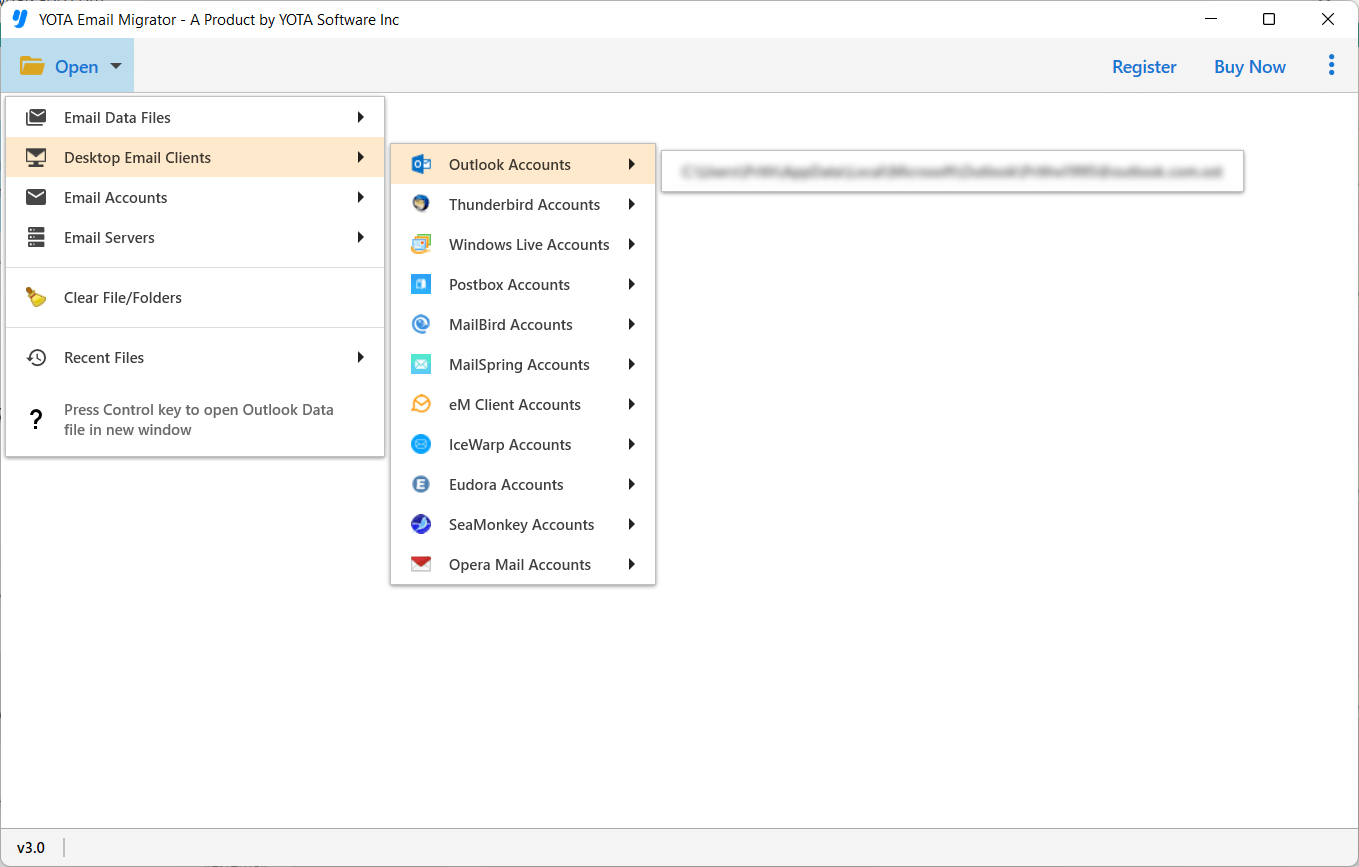
- Select the mailbox folder which you want to backup.
- Then click the Export option and select your desired format.

- Browse the destination path and hit the save button.

That’s it! Now you can upload the exported files to your OneDrive account.
Conclusion
In the above section, we have discussed the best methods to save Outlook emails to OneDrive. We have provided a step-by-step guide for both the manual method and the professional tool. Now the choice is yours to select the method that best suits your needs. However, experts always recommend using a professional tool to save Outlook emails to OneDrive for better efficiency and reliability. You can also try the demo version of the software before making a full version purchase.


