Summary: Are you facing difficulty with your Outlook not opening emails when clicked? You are not alone; many users face issues with Outlook. In this post, we will discuss an easy and reliable method for resolving the issue of Outlook not loading emails. It is important to know the common cause behind this issue. We will go through the causes and solutions to fix Outlook not responding when clicking on email to get back to smooth working in Outlook.
MS Outlook is the most widely used email service. It is used in professional environments, mostly with the rise in remote work. When the user cannot open emails in Outlook, it can disrupt the whole workflow. It is frustrating for the users, so we are here to come up with proven solutions to resolve this problem.
Why Are My Emails Not Opening in Outlook?
There are several reasons why Outlook not opening emails when clicked. Here are some of the most common causes are as follows-
- Problematic Add-ins: Some add-ins can interfere with Outlook’s normal functioning. It can prevent emails from opening.
- Corrupt Emails or Data Files: A damaged or corrupt email or an Outlook data file (.pst/.ost) can block your access to your messages.
- Outdated Software: If you are running the old versions of Outlook, then it can create compatibility issues.
- Offline Mode Enabled: When Outlook is working in offline mode, messages may not load or open correctly.
How to Fix Outlook Not Opening Emails When Clicked?
Multiple ways to fix the issue of Outlook not responding when clicking on email. The following section provides step-by-step solutions:
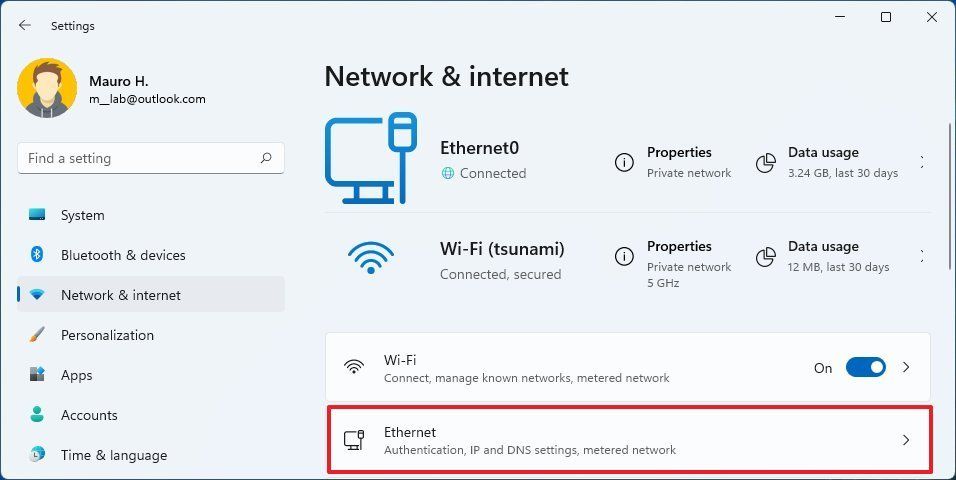
1. Check Internet Connectivity
You can first check your internet connection, so you can make sure to check your internet connectivity. So, you can restart your router or try to switch to another network to test connectivity.
2. Start Outlook in Safe Mode
You can run your Outlook in safe mode and disable all add-ins. You can run the app with minimal features. It can help you identify the faulty add-ins that are causing Outlook not opening emails when clicked on Windows.
- Firstly, press Windows + R to open the Run dialog.
- After that, type outlook.exe /safe and hit the OK button.
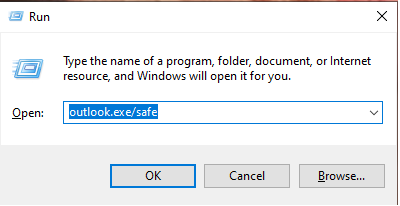
- Choose your profile and click OK, and try to open the emails in safe mode.
3. Disable Outlook’s Offline Mode
If your Outlook is working in offline mode, you may experience problems loading new emails or messages properly.
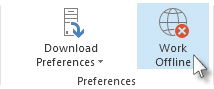
- Run Outlook and move to the “Send/Receive“ tab.
- Afterward, click the “Work Offline” button to disable offline mode.
4. Turn Off Add-ins
If Outlook not responding when clicking an email in Windows 10 occurs with the add-ins. Then you will turn off the add-ins. Here are the steps to turn off add-ins-
- Go to the File >> Options >> Add-ins.

- At the bottom, select COM Add-ins and click Go.
- Then uncheck all add-ins and click OK.
- Now, restart your Outlook app and try accessing your emails again.
5. Check or Recreate Your Outlook Profile
A damaged Outlook profile can prevent you from opening emails. You can repair it and create a new one.
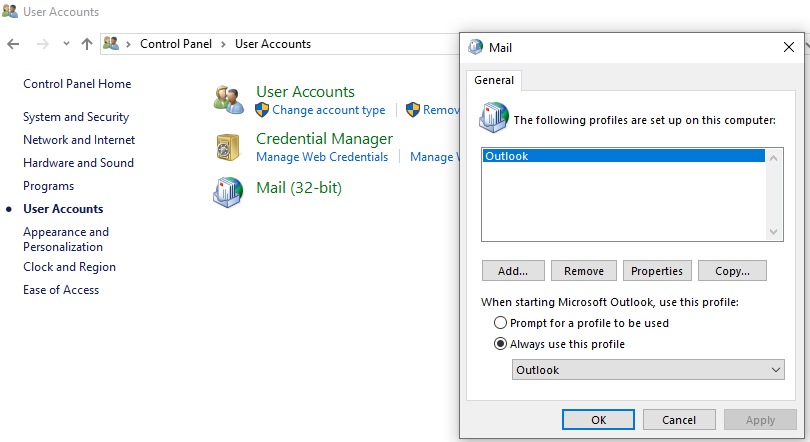
- For this, go to the Control Panel >>Mail >>Show Profiles.
- Then click the Add button to create a new profile.
- Set the new profile as the default and launch Outlook to see if the Outlook not opening emails when clicked persists.
6. Temporarily Disable Antivirus Software
In some cases, there is antivirus software that can interfere with Outlook’s working. It can temporarily disable your antivirus and allow you to check your emails. This can resolve the cannot open emails in Outlook issue and add Outlook to your antivirus exception list.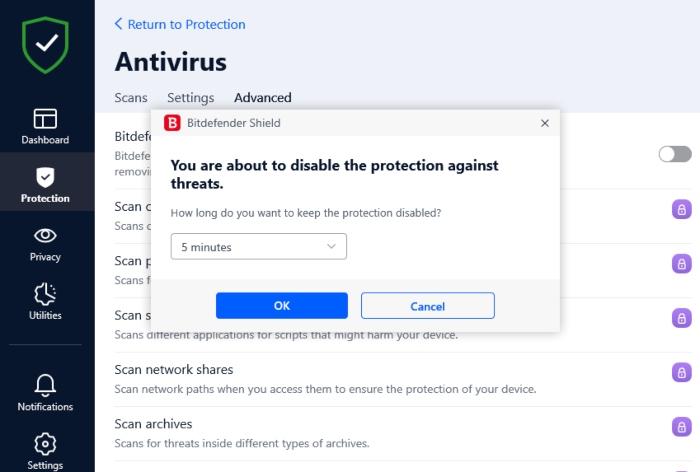
7. Update Outlook Application
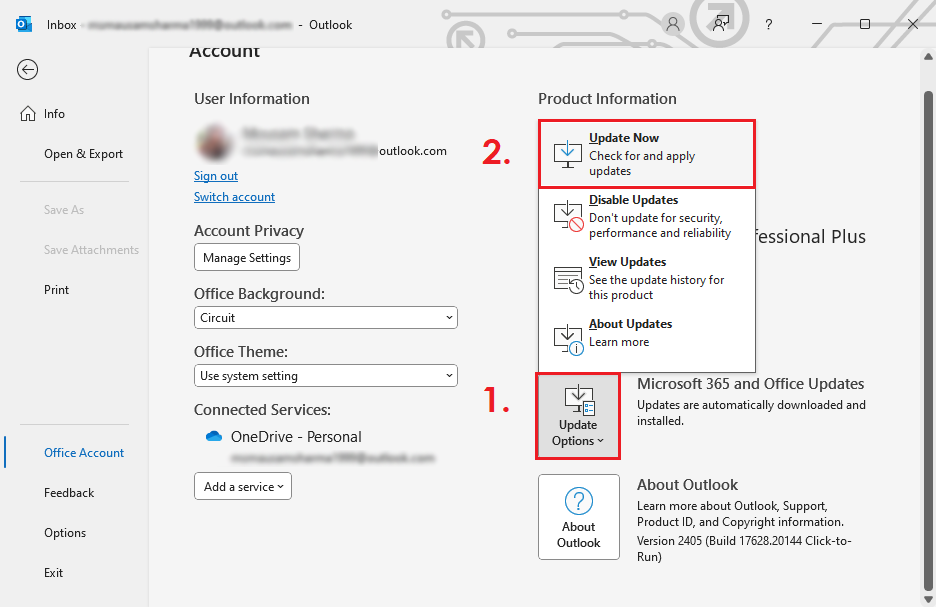
Using an outdated version of Outlook may cause compatibility issues. Follow these steps to update Outlook:
- Go to File >>Office Account >> Update Options.
- Click Update Now and allow Outlook to install the latest updates.
If the Outlook not opening emails when clicked, still cannot be resolved, then there may be a deeper technical issue. You should require a technical inspection. So you can take the help of the Microsoft Support Team for technical inspection. You can reach the Team through the Microsoft Support Contact page.
Prevent the Outlook for Future Data Loss
If you are constantly facing issues like Outlook not opening emails or crashing the Outlook data. It is wise to back up your data to avoid any risk of permanent loss. So, you can use the Yota Outlook Migrator for Windows that lets you save Outlook emails, contacts, and other items in PST, MBOX, PDF, and many more file formats. The software also helps you resolve many Outlook errors, like Outlook automatically closes after opening in Windows.
Summing Up
In the above guide, we will explore the best ways to fix Outlook not opening emails when clicked. If none of the above methods resolve the issue of not being able to open emails in Outlook for Windows 10, contact Microsoft Support.