If you’re unable to open attachments in Gmail, don’t worry! Many users experience difficulties opening attachments, or find that they don’t display correctly or even disappear altogether. This guide will help you troubleshoot and fix unable to open Gmail attachments problem.
In the next section, we will also explore the common causes and learn the step-by-step process to fix this issue.
Why Am I Unable to Open Gmail Attachments?
If you are unable to open attachments in Gmail, several possible reasons could be causing Gmail errors. When you understand these causes can help you fix the problem quickly and prevent this error from happening again. Here are some of the reasons:
- Attachment is too large: Your Gmail account supports attachments up to 25 MB. If your attachment exceeds this size, it cannot be opened in Gmail. Ask the sender to share the file via Google Drive instead.
- Unsupported or blocked file type: Gmail automatically blocks unusual or potentially dangerous file types such as .exe, .bat, or .vbs, to protect users from potential threats.
- Corrupted file: If the file was corrupted during sending, it may not open correctly in Gmail.
- Gmail security restrictions: Sometimes Gmail blocks attachments if viruses, malware, or suspicious code are detected.
- Browser extensions: Some browser extensions, such as ad blockers, antivirus programs, or pop-up blockers, can block or interfere with the loading or opening of attachments in Gmail.
How to Fix Unable to Open Attachments in Gmail Error?
If attachments aren’t opening in Gmail, you can try the following fixes to resolve this error.
1. Make Sure you have a Stable Internet Connection: If your internet connection is weak, it may cause an error when opening Gmail attachments. The attachments will then fail to load in Google. Therefore, make sure you have a stable internet connection. You can reset your Wi-Fi or router if necessary to ensure a more reliable internet connection.
2. Make sure the attachment isn’t corrupted: Sometimes the files you’re trying to upload are corrupted, so you are unable to view attachments in Gmail. You can fix this by opening the file on different devices and restarting your Gmail session. Also, ask the sender to resend the file.
3. Check Gmail and Browser Settings: Incorrect browser settings can block attachments from loading in Gmail. Make sure your browser allows pop-ups and downloads. Disable your privacy settings and security extensions for a while. Also, check your Gmail settings to see if any security features are blocking attachments.
4. Check Gmail’s file size limits: Gmail typically allows attachments up to 25 MB. If the file exceeds the limit, check the file size in the attachment icon. If it’s too large, ask the sender to send the file via Google Drive. You can also download the emails with attachments and open them manually.
5. Clear your browser’s cache: Outdated and corrupted cache and cookies can affect Gmail functionality, and you are unable to open attachments in Gmail.
- Go to Browser Settings >> Privacy and Security >>Clear Browsing Data.
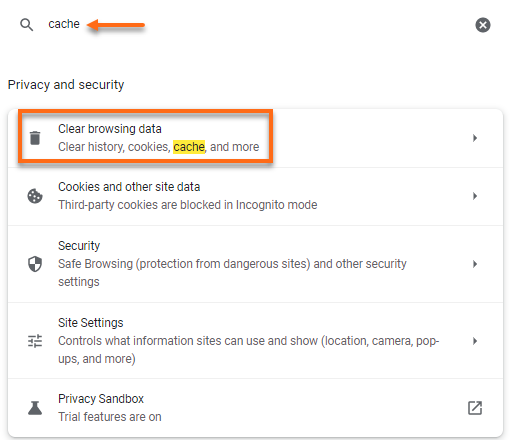
- Select Cached images and files, then click on the Clear Data option.
- Then restart your browser and try again.
6. Disable Extensions: If other browser extensions, such as antivirus tools, ad blockers, or plugins, can also block the loading of attachments, you can fix this by following these steps:
- Go to the “Manage Extensions” section of your browser settings.
- Disable extensions one by one to find the one causing the error.
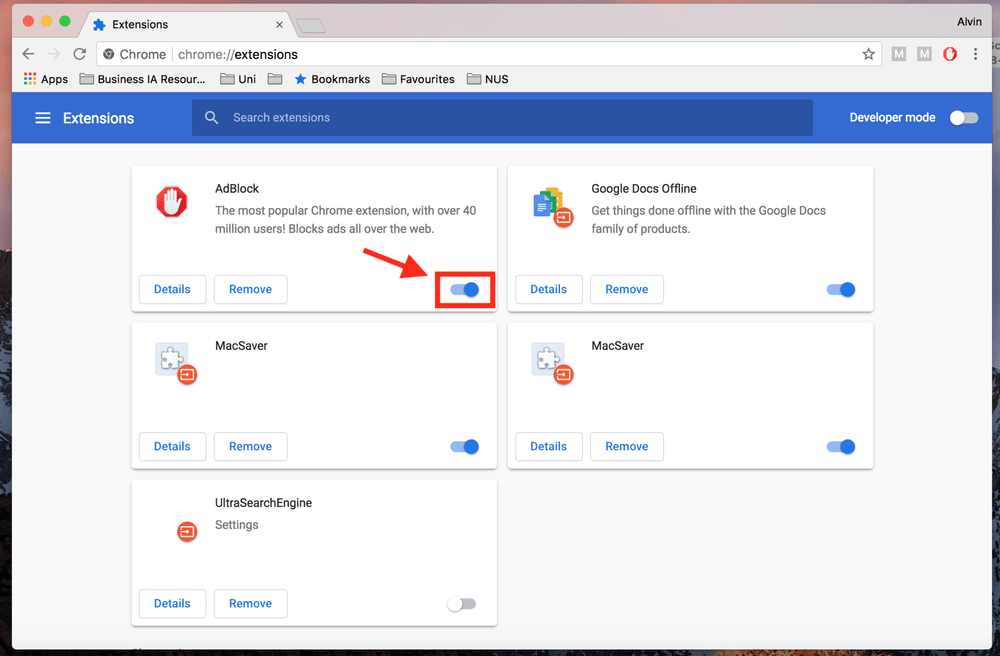
- Reload Gmail in an incognito mode to create a clean test environment.
If these methods still don’t work and you are unable to open attachments in Gmail, you can go with the automated method. It helps you open Gmail attachments without any restrictions. In the next section, we’ll introduce you to the professional tool for backing up and protecting all your attachments.
Alternate Method to Resolve Unable to Open Gmail Attachments Error
If you are constantly facing issues like being unable to view attachments in Gmail. You can download and install the Yota Gmail Backup Tool on your Windows system. This is a secure tool to extract attachments from Gmail account in bulk mode. It is a user-friendly solution to open files, and it helps to manage multiple attachments at once.
This is the best choice to download Gmail emails in bulk to the computer without losing a single message. It maintains the file folders and structures during the process.
Click the link below to download the free demo version of this software.
Steps to View Attachments in Gmail
- Launch the software and click the Open button.
- Then click on Email Accounts and then Add Account.

- Now, enter your Gmail account login ID and app password.

- Hit the Extract button and select the Attachments option.

- Choose a location to store the attachments and click Save.

You are done now!

