If you’ve recently switched from Microsoft Outlook to Google Workspace, you’re probably wondering how to import PST to Gmail account. Transferring data from a desktop client to a cloud email account isn’t always straightforward. I recently migrated my Outlook data file to my Gmail account. In this guide, I’ll show you all the methods I’ve tested for importing PST files into Gmail account.
Continue reading and select the method that best suits your needs.
PST file is a personal storage table used by MS Outlook for storing various data, such as calendar events, contacts, and email messages.
On the other hand, Gmail is one of the most popular email services. It is used by billions of users worldwide to send/receive emails and manage other tasks.
Before moving to the methods, it is important to know the reasons behind this migration.
Why Import PST to Gmail?
Here are some reasons why users prefer to transfer PST file to Gmail mailbox.
| Advantages | Why it Matters |
|---|---|
| Ease-of-Access | Gmail is cloud-based, so you can access your data from anywhere. |
| Avoid Outlook Dependency | You don’t need to install MS Outlook to open your emails. |
| Enhanced Security | Gmail provides strong security, 2FA, and spam protection. |
| Integration with Google Apps | Importing PST to Gmail enables you to use Google Meet, Sheets, Docs, Calendar, etc. Calendar, etc. |
Let’s move on to solutions without any further delay!
3 Methods to Open PST File in Gmail Account
I have tried these methods to import PST file to Gmail account:
1. Migrate PST to Gmail Using Outlook
You can manually import PST file to Gmail using the Outlook application. Follow these steps for this:
- Start by opening the Outlook application on your computer and clicking on the File tab.

- Then click on the Add Account option.

- Enter your Gmail address and click Connect.

- Now, type in your Gmail password and click Connect to complete the setup process.

- After configuration, your Gmail mailbox is visible in Outlook.
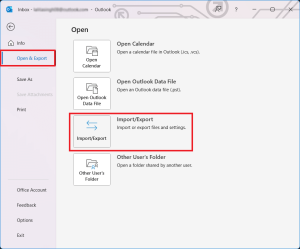
- Now, Go to File > Open & Export > Import/Export.
- Select Import from another program or file and press Next.
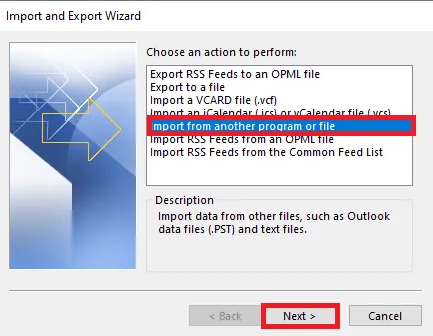
- Choose Outlook Data File (.pst) and again click Next.

- Browse and select the PST file that you want to import.

- Select your Gmail account as the destination and click Finish.

2. Import PST to Gmail Using GWMMO
Gmail import PST file using the GWMMO tool by following the steps below:
- Download and install the GWMMO Tool.
- Launch the GWMMO application on your PC.
- Enter your Gmail account email address and click on the Continue button.
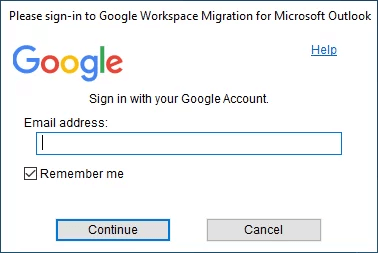
- Click the “Allow” button to give the tool permission to migrate.

- Select the PST file with specific options to migrate and click Next.

- After that, set the migration settings as required and click Migrate.

- Now the tool will display the full running progress on your computer screen.
- A message will appear when the process is completed. Click OK.
- After the PST files are successfully migrated, open your Gmail account and check if all the items have been imported.

Important Note:
- The interface of the GWMMO Tool is difficult to understand even for a non-technical user.
- Only writable PST files can be imported into Gmail, not read-only PST files.
- This method requires the installation of the GWMMO Tool and the Outlook application.
- If the Gmail import PST task is interrupted, it must be restarted.
- It does not include importing journal entries, Outlook notes, tasks, or RSS feeds to your Gmail account.
- If you are trying to migrate lost data into your Gmail account, it takes a long time to complete.
3. Import PST File to Gmail Directly Without Outlook
Yota PST File Converter tool is designed to take care of all your migration needs. It allows you to directly import PST to Gmail without Outlook application. It can migrate PST file to Gmail in batches. All your emails, contacts, tasks, notes, calendar entries, and other mailbox items are preserved during the process. Also, it maintains the original structure of mailbox folders even after the process.
Steps to Import PST to Gmail Without Outlook
- Download and install the tool.
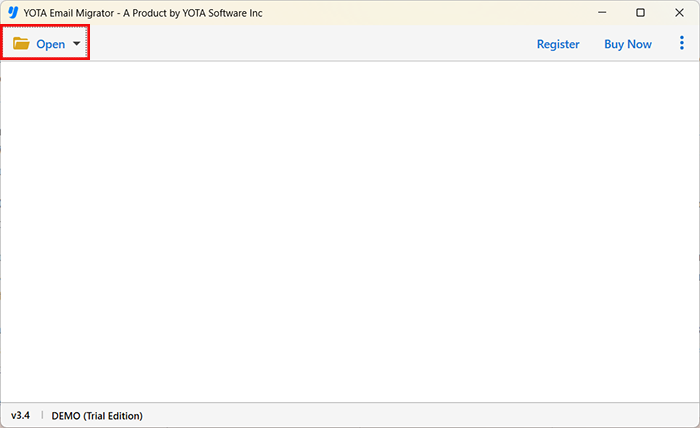
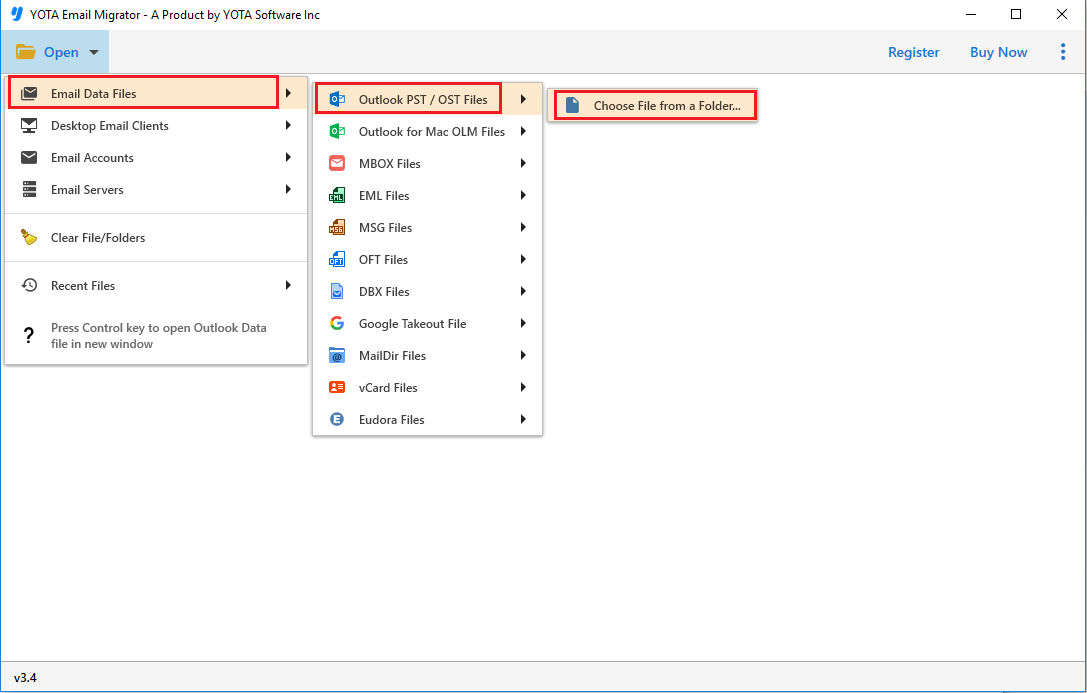
- Click on Email Data Files and select PST File.
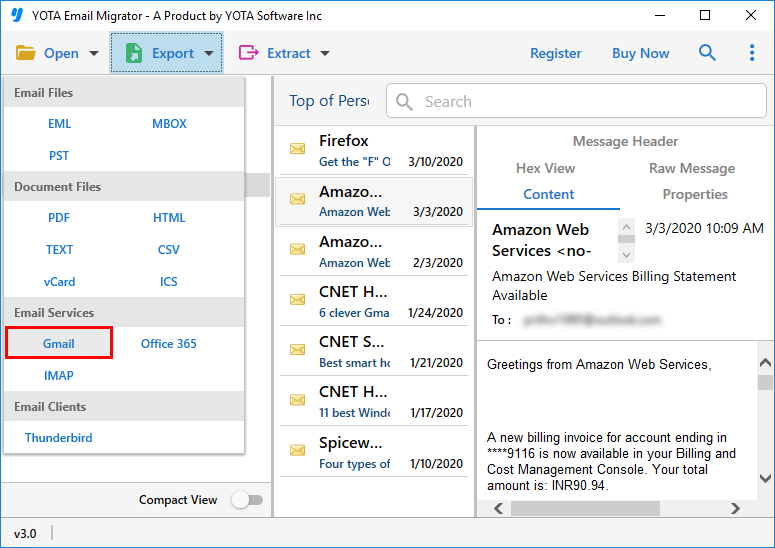
- Click on the Export button and select Gmail.
- Enter your Gmail Email ID and App Password, then click Save.

Done!
Watch: How to Import PST to Gmail Without Outlook
What did I like best about this tool?
- The software provides an option to import PST to Gmail without Outlook application.
- It helps maintain data integrity while preserving meta properties like “to”, “bcc”, “cc”, “date”, and so on.
- The folder structure is also maintained throughout the migration.
- It also offers a demo/trial version to try out before starting the PST file import to Gmail task.
| Method | Outlook Requirement | Speed | Recommended For |
|---|---|---|---|
| Outlook | Yes | Medium | Few PST Files |
| GWMMO | Yes | Slow | Technical Users |
| PST Converter | No | Fast | All Types of Users |
Conclusion
In this guide, I have shared my experience about importing PST files into Gmail account. I have explained three methods I’ve personally tried for transferring my data files. All methods work flawlessly and deliver accurate results. However, the manual solutions are somewhat time-consuming. So, if you have plenty of time, feel free to use them. If you’re short on time and don’t want to install any additional software, I recommend using a conversion tool. With one of these, I was able to directly import PST to Gmail without Outlook in just a few steps.
Frequently Asked Questions
Can I import PST to Gmail without Outlook?
Manually, you cannot transfer your file without installing Outlook. However, the PST file converter tool helps you directly import PST file to Gmail without Outlook application.
Can I install this tool on a Windows 11 OS?
Yes, the software works on all Windows OS, including Windows 11, 10, 8, etc.
How much time does it take to migrate PST to Gmail?
It totally depends on the number and size of your files. If you have a few emails, then you can easily complete this task in a few minutes. However, the software makes it easy to migrate multiple emails at once.
Can I use the PST to Gmail migration tool on a Mac computer?
No, it works only on Windows OS. You cannot install this software on Mac OS.


