Are you looking for a solution to migrate emails from Hostinger to Gmail with attachments? If yes, then you are on the right page. In this article, we will show you how to move emails to Google Workspace using two best methods.
Migrating emails from Hostinger webmail is easy when users know the right solution. It is always recommended to choose a reliable method to transfer your emails and avoid data loss.
Why Transfer Emails from Hostinger to Gmail?
- Offers better search and advanced filter options.
- Gmail can block spam and phishing emails in a better way.
- It has a clean and simple interface used by anyone.
- Gmail works smoothly with Google Drive, Calendar, and Meet.
- It provides more stable performance as compared to Hostinger.
These are a few reasons why users are looking for migration. Now, let’s move to the solution.
How to Add Hostinger Emails to Gmail Manually?
- First, log in to your Gmail account.
- Click on the Settings option and pick See all Settings.

- Next, click on the Accounts and Import and select the Add a Mail Account option.

- Now, enter your Hostinger webmail email address and click Next.

- Now enter your Hostinger Webmail server information.
- Finally, click the Add Account button to complete the setup.

Limitations of Manual Method
- You cannot add multiple accounts at once
- A long and time-consuming process
- The risk of data loss is higher
- Technical knowledge is required
- No selective email migration
How to Migrate Emails from Hostinger to Gmail Professionally?
To hassle-free migrate Hostinger webmail to Google account, you must try the IMAP Migration Tool. This expert tool enables you to import your emails directly to your account along with all the attributes like to, cc, bcc, date and time, etc.
This tool is designed to export a large number of emails in one single process. You can utilize this tool to back up Hostinger emails into different file formats. You can also directly transfer emails into IMAP server, Yahoo, Rediffmail, and 200+ email services. The software is compatible with all Windows editions so you can use it regardless of the version of Windows you are using.
Steps to Migrate Hostinger Webmail to Gmail Directly are as follows:
- Download and Run the tool on your Windows PC.
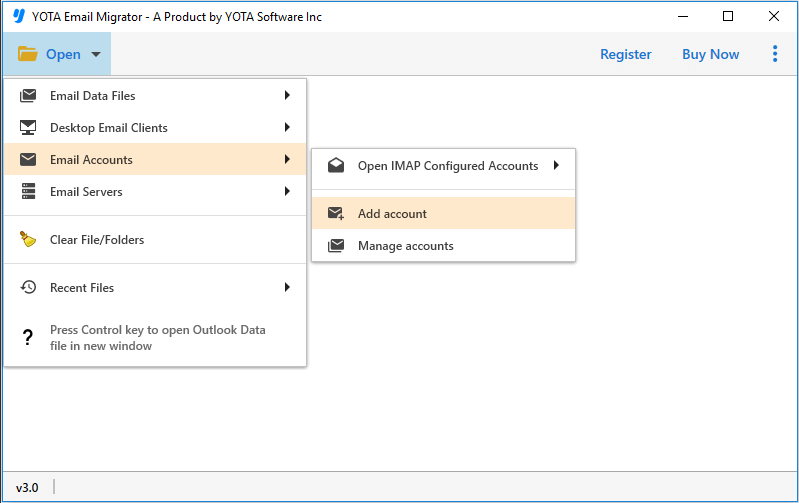
- Click on Open>> Email Accounts and select Add Accounts from the top.
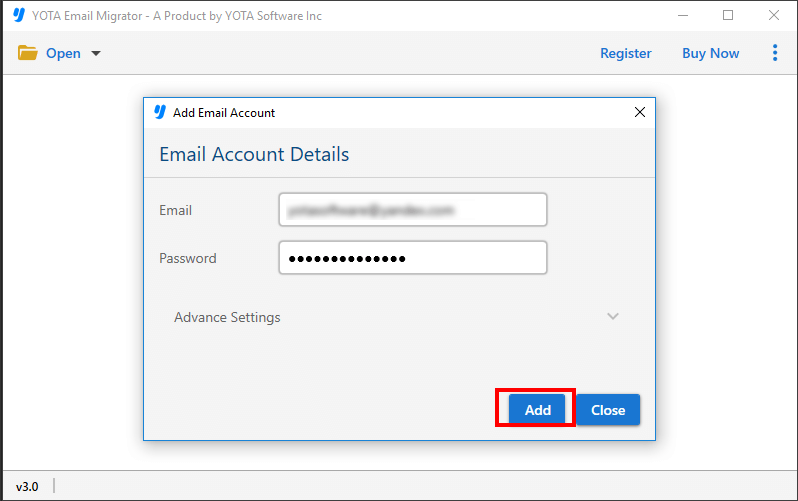
- Next, enter the login details of the Hostinger account and upload the files.
- Click on the Export tab and select Gmail.

- Finally, enter the login details of your Gmail account and hit the Save button.

Unique Features of Professional Tool
- Convert Hostinger emails into multiple formats like PST, PDF, EML, MBOX, etc.
- Import emails directly into Gmail and 200+ other email clients quickly.
- Provide option to remove duplicate emails during the process.
- Maintain the original folder structure and hierarchy.
- Use a date range filter to migrate selected emails only.
- Migrate multiple Hostinger emails in bulk in a single process.
- Export emails with or without attachments as needed.
- Compatible with all Windows OS including Windows 11, 10, and below.
Frequently Asked Questions
Is it possible to migrate Hostinger to Gmail without using a third-party tool?
Yes, you can migrate mailbox items using manual method, it can be a time-consuming and complicated process. Using a professional tool simplifies the process and makes it fast and efficient.
Will this tool affect my existing emails and contacts?
No, it will not affect your existing emails and contacts in your Gmail account. The tool only migrates emails and contacts.
What happens to my Hostinger account after I migrate to Gmail?
You can continue to use your Hostinger account as usual even after you have migrated to Gmail.
Can I use this software to migrate from other email providers to Gmail?
Yes, this tool supports migration from a wide range of email providers including Bluehost, AOL, Earthlink, etc.
Conclusion
In the above blog, we have discussed the two best methods to migrate Hostinger emails to Gmail mailbox. The manual method is very lengthy and requires technical skills to accomplish this task. However, the tool we have recommended here is the simplest way to move your mailbox data without any hassle. A free trial version of the software is also available, enabling you to evaluate the performance of the toolkit without any investment. So, download the tool, and follow the few simple steps to transfer your emails to Gmail account.


