Introduction: This blog post provides a step-by-step guide on how to import iCloud to Gmail mailbox with attachments. iCloud is Apple’s cloud storage service, which allows users to store and sync their contacts, calendars, and other data across their devices. Whereas, Gmail is a popular email service provided by Google that also offers features such as calendars, contacts, and task management.
In this post, we will walk through the two best processes of exporting data from iCloud and importing it into Gmail. We will also provide tips and troubleshooting advice to help ensure a smooth and successful import process.
Why to Import iCloud to Gmail Mailbox
Gmail is a widely used email provider, and many individuals are already using this service for their personal and professional use. People want to switch to Gmail to take advantage of advanced features and integrations, as well as to communicate with others easily.
It can be used with a broader range of devices and platforms, such as Windows PCs, Android smartphones, as well as browsers, compared to iCloud.
Gmail also offers a larger amount of storage space (15 GB) for free compared to iCloud (5 GB).
It offers a range of customization options like to create custom filters and labels and have more control over their emails and data.
How to Transfer iCloud to Gmail Manually?
To manually import mailbox data to Gmail account, follow these steps:
- Sign in to your Gmail account and go to the Settings.
- Choose “Accounts and Import” and click on “Import Mail and Contacts.”
- Enter your iCloud login details correctly.
- Provide iCloud IMAP settings and click on the “Next.”
- Select “Import Mail” from the options and click on the “Start Import.”
Limitations of Manual Process
- The manual process can be time-consuming and complex.
- Mistakes may occur during the process and you may lose your data.
- It is difficult to migrate a large number of emails.
- It is a challenging task for the users with limited technical skills.
How to Migrate iCloud to Gmail Account Directly?
Yota iCloud Backup Tool is a powerful tool that can help you to import emails in bulk. It’s super easy to use and capable to export entire mailbox without losing any data. With its top-notch design, you’ll be able to migrate emails and attachments without installing any other software on your PC.
This tool can transfer all your contacts, calendars, and emails to your Google Workspace. Apart from that, our support team is available to help you with the questions during the migration process.
Steps to Import iCloud to Gmail are as follows:
- Download and Install the tool on your PC.
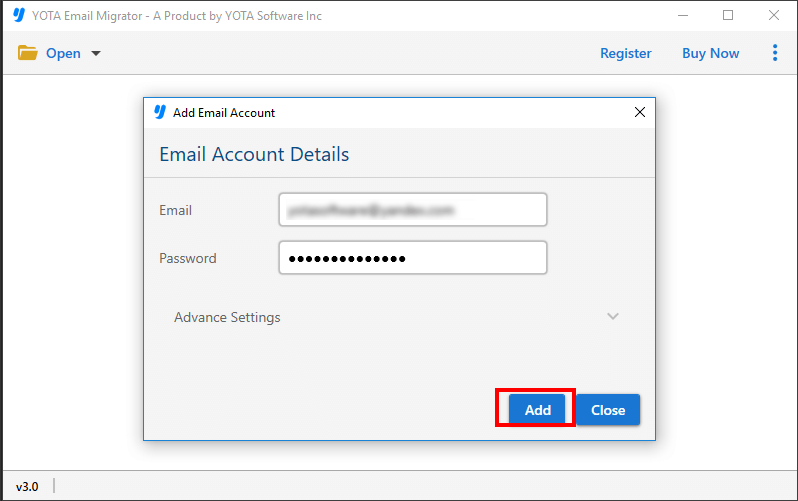
- Click on Open tab and select Email Accounts>> Add Accounts.

- Enter login credentials of your iCloud account and add the required files.
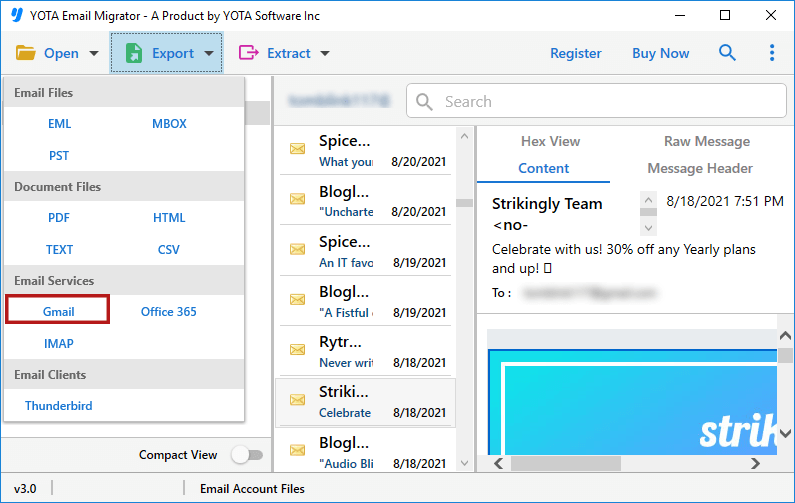
- Click on Export option and choose Gmail from the give list of options.
- Finally, enter login details of Gmail account and hit the Save button.
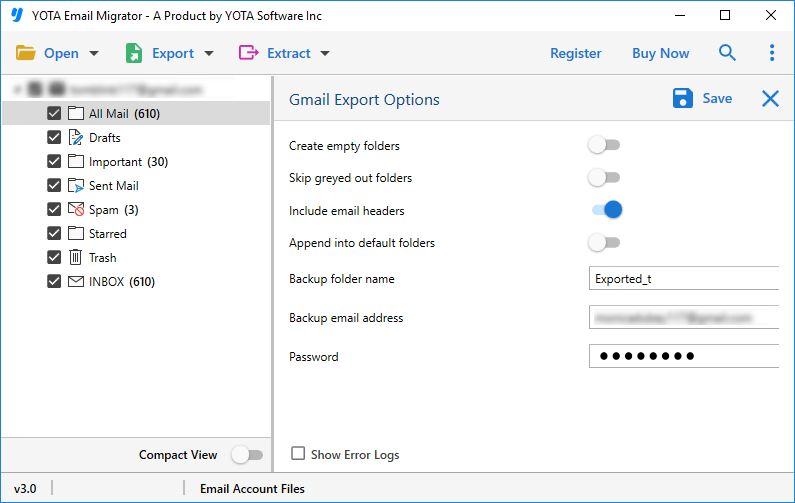
That’s it! This is how you can move your emails with attachments in easy steps.
Why Choose iCloud to Gmail Migration Tool?
- Save iCloud emails to EML, PST, MBOX, CSV, HTML, and other file formats.
- The software allows users to backup iCloud accounts easily.
- Users can move iCloud Mail data to Office 365 Mailbox, Online Archive, and Shared Folders.
- Transfer emails from iCloud Mail to Hotmail, Yahoo, HostGator, Yandex Mail, and other 200+ email clients.
- Option to save iCloud email attachments separately when backup is done in PDF format.
- Feature to Skip Duplicate Emails based on To, From, Subject, Bcc, and Body.
- It has the option to free up server space after the backup process.
- Provides an option to drop earlier backed-up emails using the Skip previously migrated items option.
- Free Demo Version of Yota iCloud Backup Tool allows users to back up 50 emails for free.
Frequently Asked Questions
Can I migrate only a few email folders to Gmail?
Yes, the tool provides an option to select specific folders for migration. Simply choose the required folders during the process.
Does the software work on older operating systems like Windows 7?
Yes, it supports all major Windows editions, including Windows 7.
How many emails I migrate simultaneously?
The software’s batch mode enables migrating multiple iCloud emails simultaneously without any limitations.
Conclusion
In conclusion, moving data from iCloud to Gmail can be a useful way to access your data on a different platform or to switch to using Gmail as your primary email and calendar service. Overall, the process to import iCloud to Gmail is generally straightforward and anyone can perform it using Yota iCloud to Gmail Import tool. If you are considering to transfer emails from iCloud to Gmail account, we encourage you to follow the steps outlined in this post and try the tool for yourself. With the help of the right tools, you should be able to migrate your data from iCloud to Gmail with no difficulty.