Are you using Thunderbird and want to move your local folders to another computer? Then you’ve come to the right place. In this blog post, we’ll explain how to transfer Thunderbird local folders to another drive.
Thunderbird is one of the most popular email clients for managing emails, contacts, attachments, and much more. In this, all your data is stored in the profile folder. Over time, this folder can become very large and take up a lot of storage space. Therefore, many users want to move their local folders to a different location.
Unfortunately, Thunderbird doesn’t have a built-in function for this. But don’t worry, you can move the data manually. Alternatively, you can also use a professional tool for transferring the local folders. We’ll discuss both methods.
Why Move Local Folders from Thunderbird to Another PC?
There are many reasons why users move Thunderbird local folders. Below are a few common ones:
- Moving Thunderbird data to another drive helps free up space.
- When a user wants to transfer Thunderbird data to a new computer.
- Exporting data to another drive can help create a backup of emails.
- Thunderbird will become faster when data is stored on another drive.
- It will help you to organize your data in a better way.
Before we explain how to transfer Thunderbird local folders to another drive, let’s look at some common user questions to understand the real problems people face.
User Query: My C: drive is almost full, and Thunderbird is using a lot of space with emails and attachments. I want to move all Thunderbird data, especially the local folders to my D drive, where I have more storage. How can I do this without losing any emails or breaking Thunderbird?
Method 1: Transfer Thunderbird Local Folders to Another Drive via ImportExportTool
Follow the steps below to export the local folders using the manual method.
- Launch the Thunderbird application on your computer.
- Click on the menu bar and select “Add-ons and Themes.”

- Next, enter “ImportExportToolsNg” in the search box.

- Click “Add to Thunderbird” to install the add-on and then restart Thunderbird.

- Now, go to the local folders on the left side.
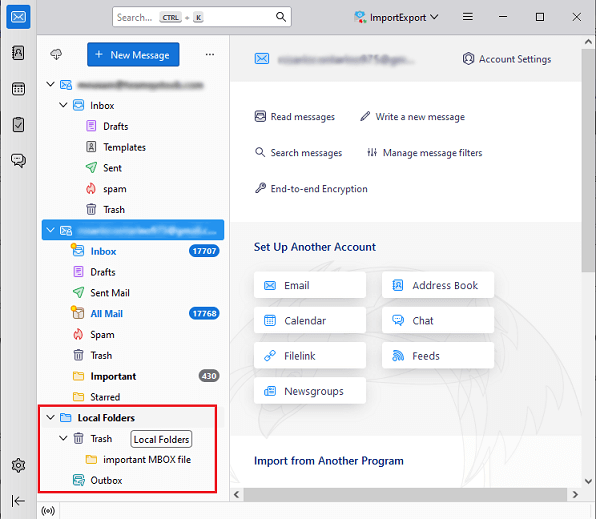
- Right-click on them and select the option “ImportExportTools NG” >> “Folder Export (mbox).”

- Finally, choose a location on your computer to save the local folders.
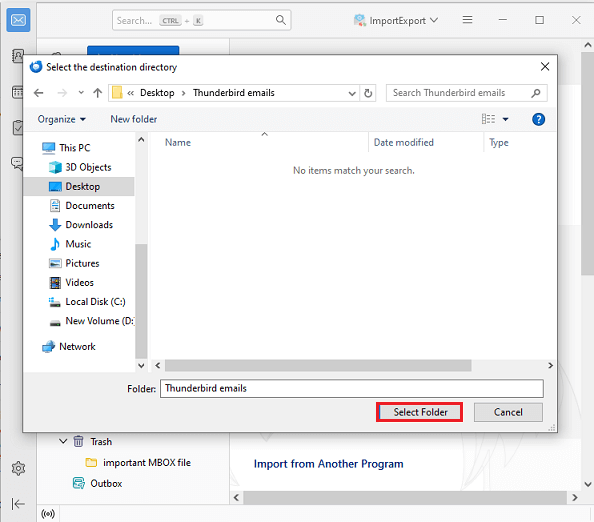
That’s all!
Method 2: Copy Local Folders from Thunderbird to Another Computer
Follow the steps below to move Thunderbird local folders to another drive-
- Make sure Thunderbird is not running. If it’s open, close it.
- Locate the Profile Folder:
- On Windows: C:\Users\<YourName>\AppData\Roaming\Thunderbird\Profiles\
- On Mac: ~/Library/Thunderbird/Profiles/
- On Linux: ~/.thunderbird/
- Copy it to a safe location on the new drive. For example:
D:\ThunderbirdBackup\Profiles\ - Open Thunderbird Profile Manager
- On Windows: Press Win + R, type thunderbird.exe -P, and press Enter
- On Mac/Linux: Open Terminal and type thunderbird -P
- Create a New Profile and give your profile a name.
- Click on Choose Folder and select the copied folder on your new drive.
- Check the box to set this profile as the default. Then restart Thunderbird.
- You cannot export multiple folders simultaneously.
- Emails may be missing if the folder paths are corrupted.
- Data can be corrupted if you move files while Thunderbird is open.
That is why experts always suggest going for a professional tool to move Thunderbird local folders to another drive.
How to Export Thunderbird Local Folders to Another Computer Instantly?
Instead of manually transferring local folders, using a professional tool like Yota Thunderbird Migrator is recommended. This software allows you to migrate Thunderbird files in bulk without worrying about file size limitations. The folder structure and email hierarchy are preserved during the process.
In addition, the software offers advanced filtering options for selective email migration. Your configured Thunderbird profile is automatically detected. The user-friendly interface is suitable even for users with limited technical expertise.
Steps to Transfer Thunderbird Local Folders to Another Drive:
- Download and install the tool on your computer.
- Click Open>> Desktop Email Clients>> Thunderbird Accounts.

- Add and preview the emails before exporting them.

- Click the Export option and select the desired file format.

- Choose a destination location to save the folders and click Save.

That’s it! Now, connect the drive to which you want to transfer the local Thunderbird folders and copy the folders to it.
Benefits of the tool
- Move multiple Thunderbird files simultaneously, without size limitations.
- The original folder structure of your emails is preserved exactly.
- Export emails to formats such as PST, MBOX, EML, PDF, and more.
- Select and move emails by subject, sender, or date.
- Your Thunderbird profile is automatically detected and loaded.
- Move your emails to Outlook, Yahoo, Gmail, and other services.
- Easily export contacts in CSV or vCard format.
- A user-friendly tool that anyone can use – no technical skills required.
- Works seamlessly with all versions of Mozilla Thunderbird and Windows.
Final Thoughts
In this article, we have explained the various ways to transfer Thunderbird local folders to another drive. Manual methods require technical expertise and are time-consuming, while an automated solution simplifies the process and minimizes the risk of data loss. Ultimately, you can choose any solution you prefer to transfer local folders from Thunderbird to another computer, according to your needs.

