Introduction: If you are still looking for a solution to convert VCF file to CSV format, your search ends here. In this blog, we will share the most popular ways to export your contacts to a CSV file. So keep reading…
Here, you will get to know about VCF and CSV files and why users want to convert VCF to CSV. Then we will move to the solutions one by one.
VCF or vCard files are mainly used to store and exchange contact information. They can store names, phone numbers, email addresses, photos, etc. These files are supported by a wide range of platforms and applications, such as email clients, mobile devices, and cloud email services. Supported versions of VCF files include versions 2.1, 3.0, and 4.0.
On the other hand, CSV is a simple file format for representing tabular data. Data is stored in a simple text format. Each line represents one row, and a delimiter separates each value. Perfect for use with spreadsheet programs like Microsoft Excel and Google Sheets. A CSV file is typically used for data import/export operations, making it easier to view, edit, and manage large data sets.
Why Users Want to Convert VCF File to CSV?
There are several benefits of a CSV file, and some of them are:
- Export Contacts to Spreadsheet: These files are compatible with spreadsheet applications like Excel and Google Sheets. This way, users can easily view, edit, and manage their contacts in a tabular format.
- Backup your Contacts: You can easily create a backup of your contacts by exporting them in CSV format.
- Sync Contacts Across Devices: If you’re transferring contacts from one device to another or one operating system to another, the CSV file is compatible across different operating systems and devices.
- Merge Contacts: When users have multiple vCard files and they want to merge them into one place, CSV is the best place.
Now, it’s time to learn the methods for this conversion.
How to Convert VCF to CSV For Free Manually?
Follow the steps below to convert VCF file to CSV manually:
- In Windows File Explorer, navigate to your Contacts folder (VCF files).
- Then click Import from the top.
- Select “vCard (VCF file)” from the list of file formats and click “Import”.
- Select the contacts file you want to import. All contact records will be displayed. Click the “OK” button for each one to import.
- Once you have finished importing contacts, click “Close”.
- Now select the contacts you want to convert to CSV format, or use CTRL + A to select all. Then click the “Export” button at the top.
- Select “Comma Separated Values (CSV)” and hit the “Export” button.
- Then enter a name for the file you want to export and use the “Browse” button to find the location where you want to save the file.
- Click “Next” to proceed with vCard to CSV conversion.
- Select the fields you want to export and click on the “Finish” button.
That’s it!
How to Convert VCF Contacts to CSV Format Automatically?
To quickly convert VCF file to CSV, it is advisable to go with the Best Email Converter Tool from Yota Software. This allows you to convert VCF to CSV with all attached information, such as name, email ID, photo, address, etc. It has the power to export multiple contact files in a single attempt without any interruption.
The software supports all versions of vCard files, such as 2.1, 3.0, and 4.0. Users can open VCF file on PC in Excel spreadsheet by converting contacts to CSV format. Moreover, the tool does not need the installation of any VCF-supported application on the system to begin the vCard to CSV conversion.
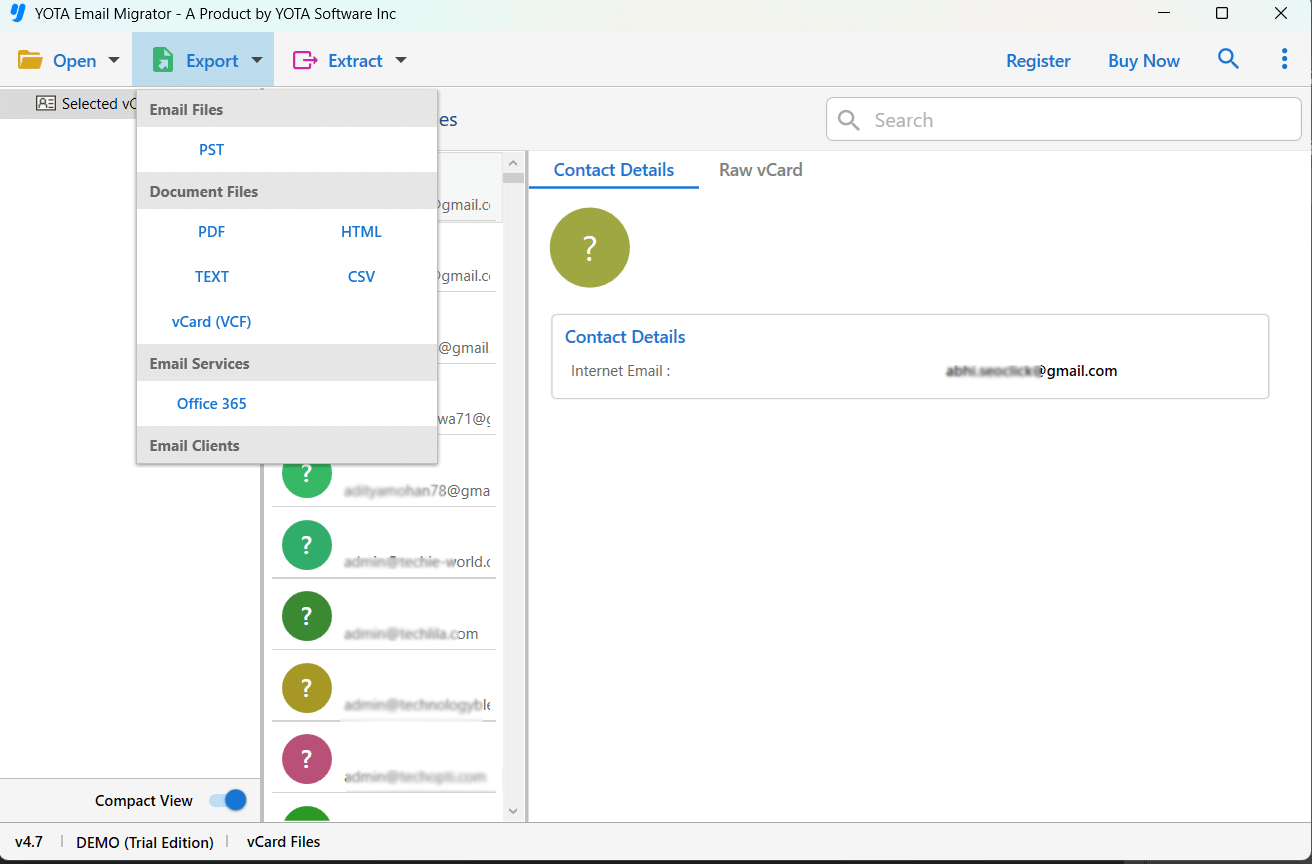
The tool is designed well and lets you export any size of contact files without trouble. Plus, one can view VCF file along with all contact information before starting the conversion. One of the best parts of this software is that it maintains the original formatting of your data even after the conversion.
So, to convert VCF contacts to CSV, feel free to download the tool on any of the Windows OS versions, including Windows 11, 10, and others.
Steps to Convert VCF File to CSV with all Contact Details are:
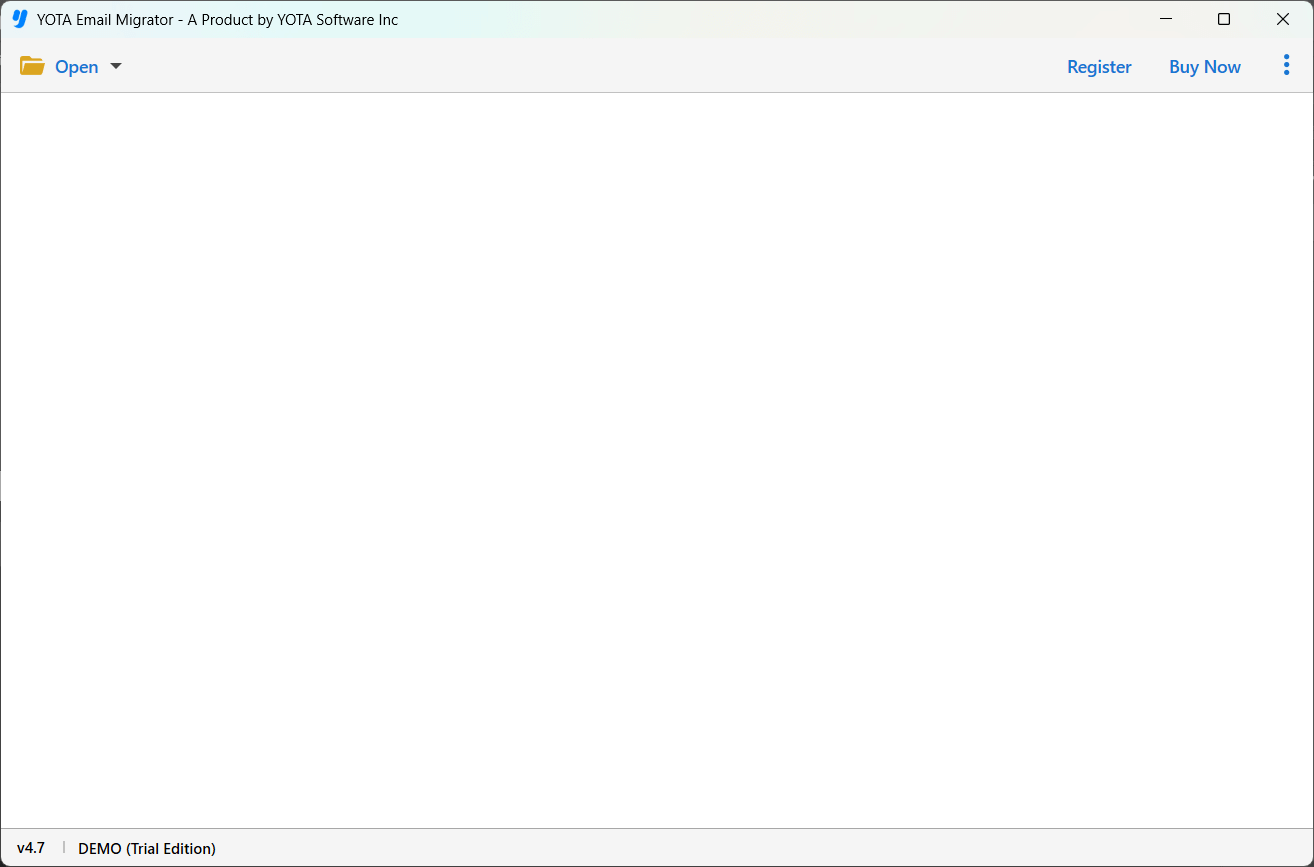
- Run the Yota VCF to CSV Converter and click Open.
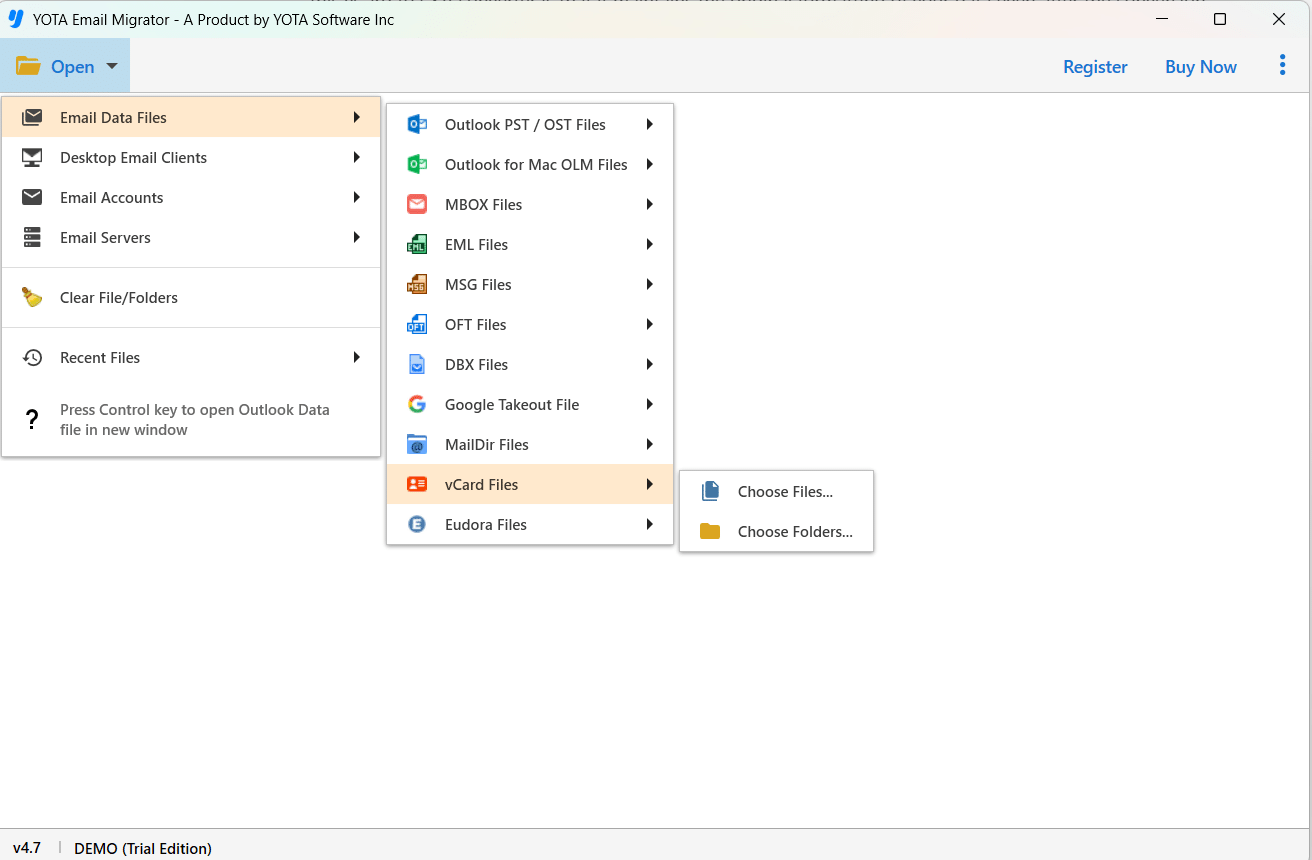
- Click on Email Data Files and select VCF files.
- Click Export and select CSV from the saving options.
- Choose a location to store CSV file and click Save.
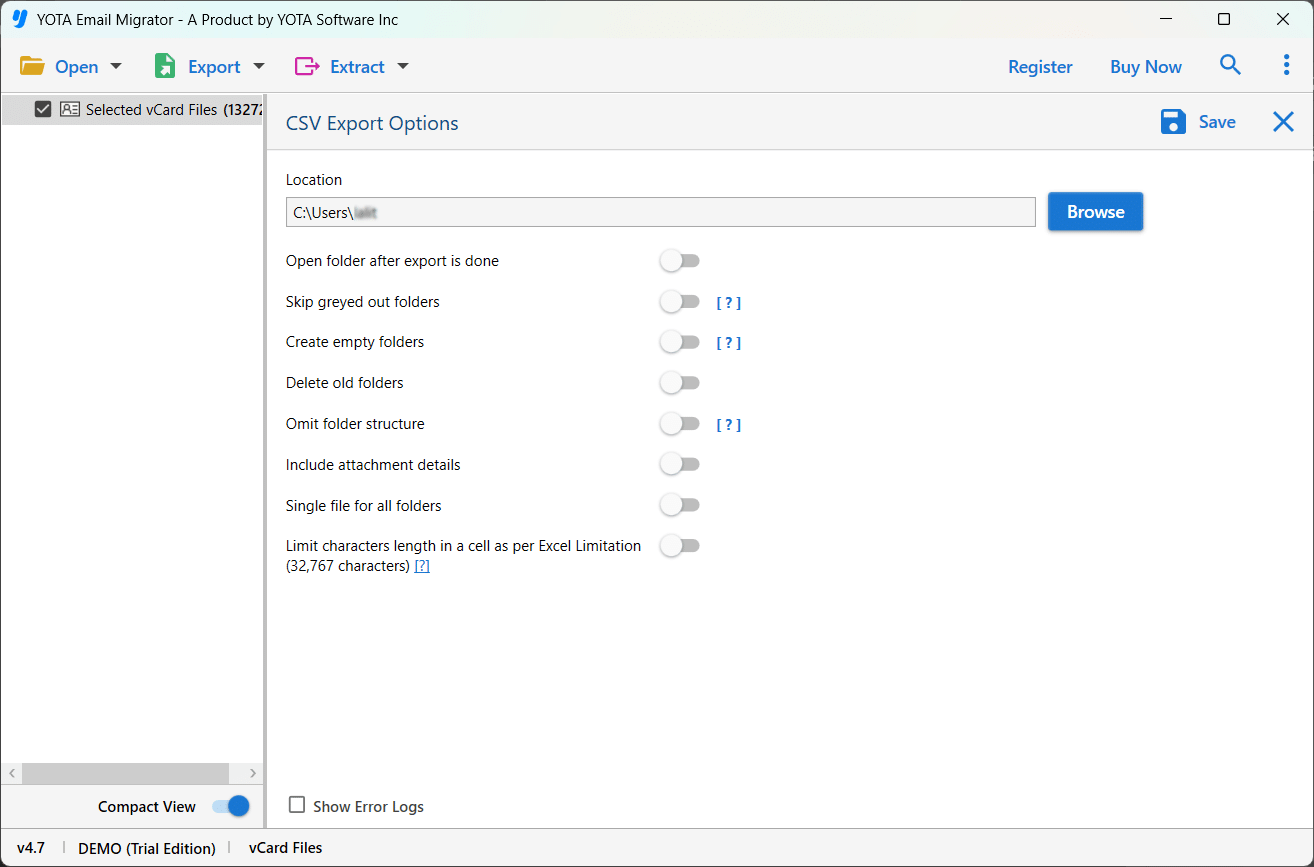
Done! You are finished with the vCard to CSV conversion task.
Conclusion
The above blog discussed the manual and automated methods to convert VCF to CSV file format. However, the manual solution is quite lengthy and takes time to complete. To make this task simple and fast, you can use the converter tool. It helps you convert VCF file to CSV along with complete contact details.
FAQs
How to convert vCard to CSV file?
You can convert vCard contacts to CSV using Excel by following the steps below:
- Open Microsoft Excel.
- Click the “File” menu and select “Open.”
- Select “All Files” in the “Save as type” drop-down menu.
- Navigate to the folder where your vCard file is saved and open it.
- After importing your file into Excel, you’ll need to map the data so that each contact field has its own column.
- Then click on the “Data” tab and select “Delimiters” in Excel.
- Select the delimiter that separates your contact information.
- Once you’ve organized your data, select “File” > “Save As.”
- In the “Save as type” drop-down menu, select “CSV.”
- Save your file.
How do I export my entire contacts from VCF to CSV?
You can use the vCard to CSV converter tool to export all your contacts with attached information in a single attempt.
Can I view VCF file before conversion?
Yes, the tool provides a full preview of VCF contacts with all details before starting the conversion.