In this blog, we will discuss the most frequently asked question, “Why Outlook 2007 search not working in Windows 11?”. Here, you will get to know the reasons behind this issue and possible solutions to fix the search option not working in Outlook 2007 problem.
First, let’s take a quick look at the actual basis of user requests:
Query 1: Hello, I can no longer search for emails in Microsoft Outlook 2007 after updating to Windows 11. I’ve rebuilt the index, disabled the Outlook index, disabled Windows Search Services, and repaired the Mail SCA, but none of these steps have worked. Has anyone out there found anything to resolve the Outlook 2007 search not working in Windows 11?
Query 2: Since upgrading to Windows 11, Outlook can no longer search for text in messages. This worked in Windows 10 and Windows 8/7. This issue is causing me a lot of headaches. I also had it when upgrading to Windows 10, but was able to resolve it through an internet search. I’ve tried everything recommended on the Microsoft support pages and many other sites but to no avail. Thank you for your help in resolving the issue.
Why Search Option Not Working in Outlook 2007?
There can be many reasons or situations behind Outlook 2007 search not working in Windows 11. Some of the main reasons are listed here:
- Compatibility Issues: Outlook 2007 was designed for older versions of Windows. Windows 11 uses a modern search index that isn’t fully compatible with the Outlook 2007 architecture.
- Old Search Index: Outlook 2007 uses Windows Desktop Search to index emails. Windows 11, however, has an advanced search engine. Older versions of Outlook are not officially supported.
- Corrupted Outlook PST Files: In some cases, corrupted PST files can interfere with search indexing.
So these are some common cases why the search option not working in Outlook 2007. Now, let us know the solution to fix this problem.
How to Fix Outlook 2007 Search Not Working in Windows 11?
In this section, we will mention all the possible methods to enable the search option in Outlook 2007. You can try any method that fits you best.
Method 1: Rebuild Search Index
- Open the Start menu and select “Control Panel.”
- After that, click “Indexing Options.”
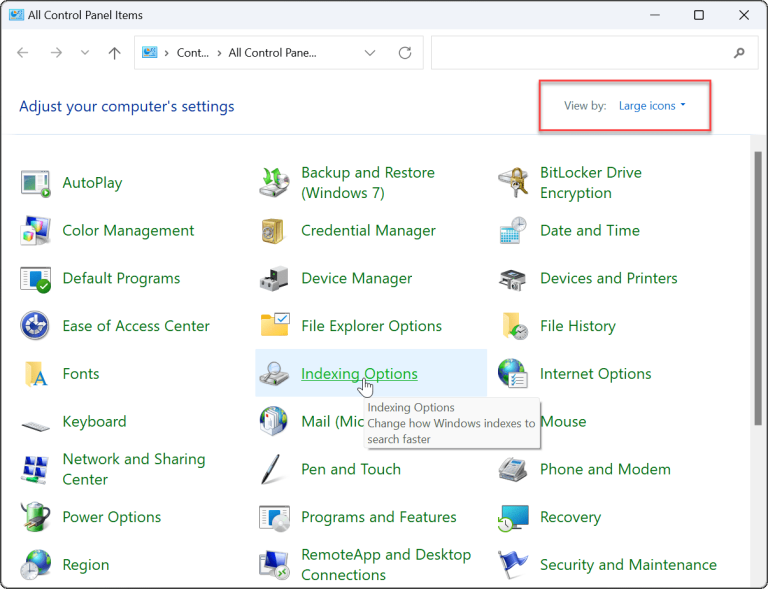
- Under “Indexing Options,” tap “Advanced.”

- Click “Rebuild” and confirm the rebuild with the “OK” button.
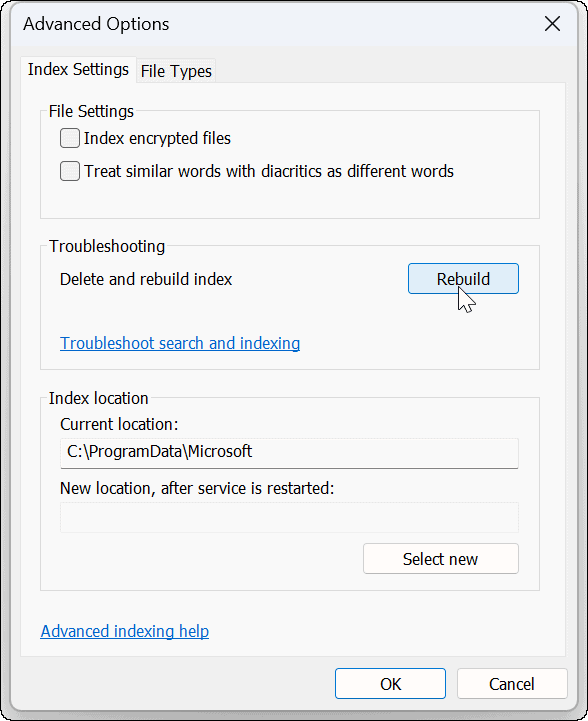
- Once the rebuild is complete, check if the Outlook 2007 search is working.
Method 2: Reset MS Outlook in Windows 11
You can reset your Outlook application in Windows 11 to resolve Outlook 2007 not working in Windows 11 problem.
- Open Settings from the Start menu.
- Hit the three dots next to the Office option and select “Advanced options.”
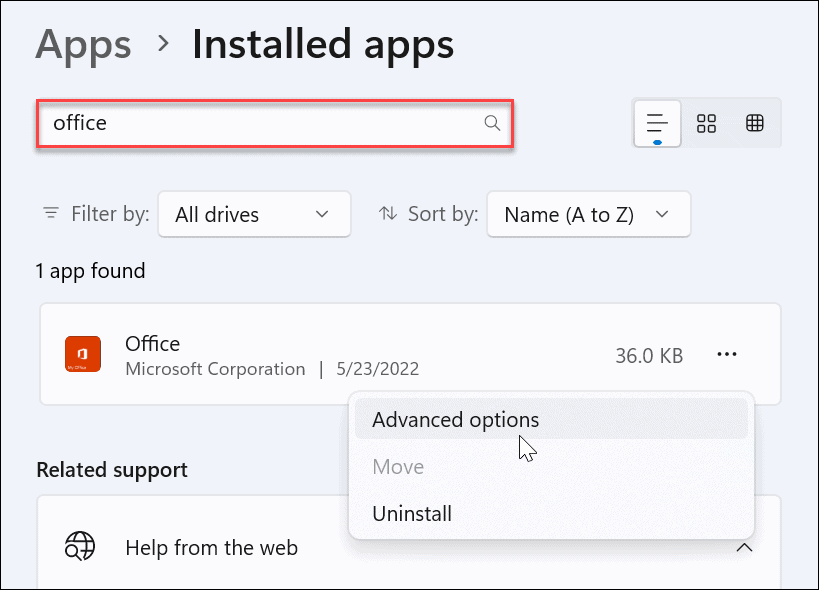
- Go to the “Reset” section and click the “Reset” button.
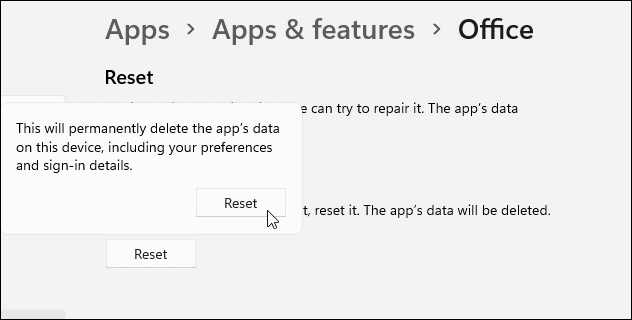
Method 3: Add Outlook for Indexing
- Click the Start menu and select “Indexing Options.”
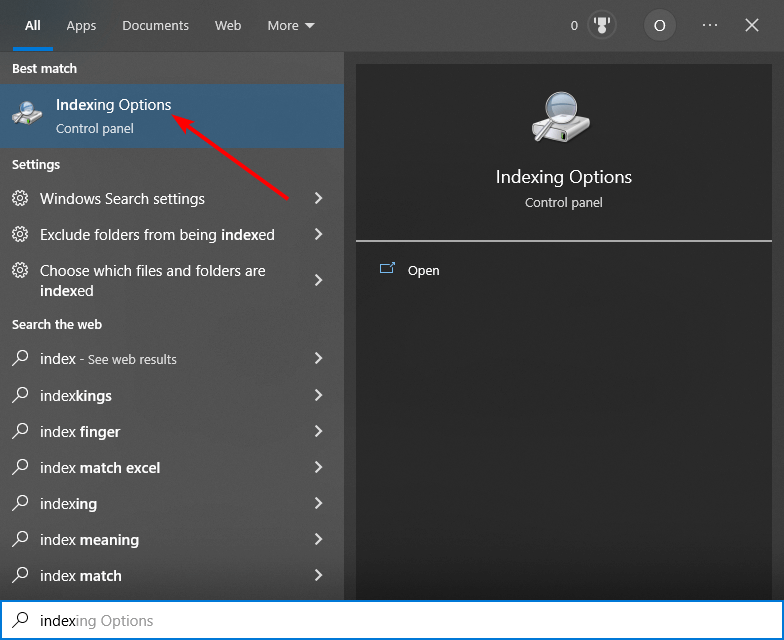
- Check if Microsoft Office Outlook is listed in the “Included Locations” section.
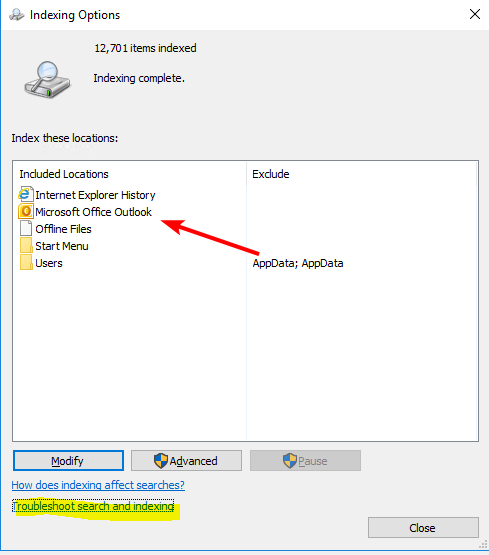
- If it isn’t, click on the “Modify” option to proceed.
- Check the box next to Microsoft Outlook to add it and click OK.
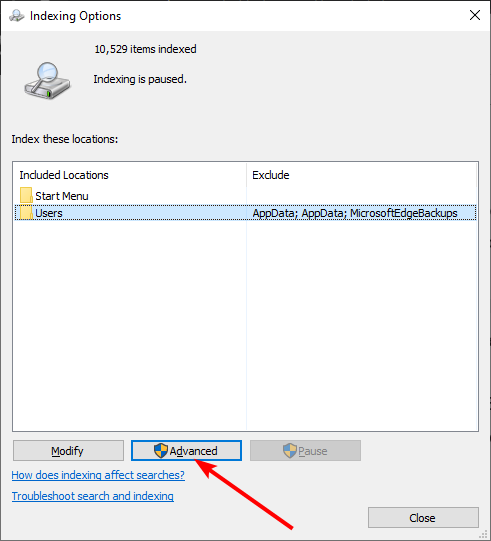
- If no, go to “Indexing Options” again and click “Advanced.”
- Scroll down and select the “Index properties and file contents” radio button.
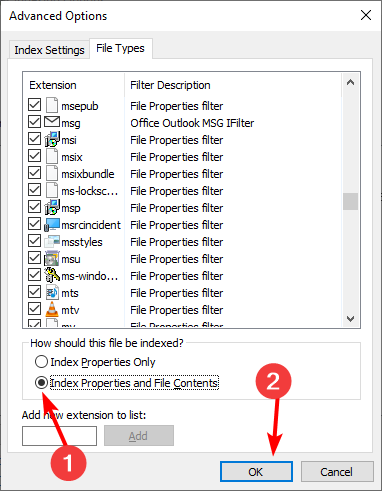
- Then click “OK.”
Method 4: Repair Corrupted Outlook PST File
In many cases Outlook 2007 search not working in Windows 11 because of Outlook PST file corruption. To fix the corruption, you can use the inbuilt scanpst tool or inbox repair tool. If it does not fix your file for any reason, you can use the professional Yota PST File Converter Tool on the Windows system.
This software helps you to repair PST file without scanpst or any other tools in a few minutes. It supports repairing corrupted, password-protected, and large PST files without missing or losing any kind of data. One of the important things about this software is that it does not require the installation of Outlook to repair the data file.
Method 5: Repair Corrupt Outlook Profile
Sometimes Outlook 2007 search not working in Windows 11 problem can be related to a corrupted Outlook profile. Repairing or rebuilding the profile may help resolve search issues.
- Close Outlook.
- Open Control Panel or you can press Windows + R, type “Ctrl,” and then press Enter.
- Go to Mail > View Profiles.
- Select your profile and click Properties.
- Click Email Accounts, select your account, and then click Repair.
- Follow the instructions to repair the profile.
That’s all!
Final Words
Here, we’ve explained all the possible reasons why Outlook 2007 search not working in Windows 11. We’ve also shared five top solutions to enable the search option in Outlook 2007 step by step. You can try the method that works for you and fix the problem of the search option not working in Outlook 2007.


