If you’re considering migrating from Office 365 to Zoho Mail, this blog will guide you step by step. Here, you’ll learn more about manual and alternative methods to migrate Office 365 to Zoho Mail. Later, you can choose the method that’s best for you. Let’s get started!
Before we move on to the solution, we’ll give you a brief introduction to both services and explain why users should consider Microsoft 365 to Zoho Mail migration.
Office 365 (Microsoft 365) is a family of productivity, collaboration, and cloud-based email services. It includes online services such as Outlook.com, OneDrive, Microsoft Teams, and related business products and services such as Exchange Server, SharePoint, etc.
Zoho Mail is a secure and reliable business email solution designed specifically for your company’s communication needs. It provides you with an integrated calendar, contacts, tasks, notes, and bookmarks right in your inbox.
What is the Need for Office 365 to Zoho Mail Migration?
There are many reasons why a user or business prefers Zoho Mail over Microsoft 365. Some of the main reasons to migrate Office 365 to Zoho Mail are:
- Budget-friendly: Zoho Mail offers affordable plans for small businesses.
- Simple User Interface: Zoho Mail has a friendly user interface so that users can easily manage their data.
- Integrated Apps: Zoho Mail also offers integrated applications like Zoho CRM and Zoho Docs.
- Custom Domains: With Zoho Mail, you can create custom domain-based email addresses for your business in just a few steps.
- High Security: It provides a secure email experience with advanced security. Zoho Mail offers two-factor authentication, encryption, and spam filtering facilities, so you can focus on your business without worrying about data loss or hacking.
So, these are the common reasons behind the Microsoft 365 to Zoho Mail migration. Now, let’s move to the solutions.
How to Migrate Office 365 to Zoho Mail Manually?
Basically, Microsoft does not offer any option to directly transfer Office 365 emails to Zoho Mail account. However, using two stages, you can perform this task. Follow the steps below for this:
Step 1: Export Emails from Office 365 to PST With Outlook
In this step, you’ll first need to install the Outlook application on your PC if it isn’t already installed. Then, configure your Office 365 mailbox with Outlook, if it is not already configured. Then, follow these steps for exporting Office 365 emails:
- Open the Outlook email client on your Windows computer.
- Click “Add Account” in the File menu.
- Next, enter your email address and password to connect.
- After configuration of Office 365 with Outlook, go to the File menu.
- Click Open & Export >> Import/Export option to export emails.
- Then click the “Export to File” option and press “Next.”
- Select your account and click “Next.”
- Now, select a location to save the PST file.
- Click on the Finish button.
- Outlook will export your Office 365 mailbox to the PST file.
After exporting emails, you need to import the exported file to your Zoho Mail account to accomplish Office 365 to Zoho Mail migration.
Step 2: Import PST to Zoho Mail using IMAP or Outlook
- Again, open your Outlook application on your system.
- Then go to the “File” tab and click the “Add Account” option.
- Enter your Zoho Mail account login credentials and click “Connect.”
- Next, enter your Zoho Mail account’s IMAP settings to configure it.
- Once configured, again go to “File” >> “Open & Export” >> “Import/Export.”
- Select “Import from another program or file” and click “Next.”
- Select “Outlook Data File (.pst)” and click “Next.”
- Choose your PST file to import and click “Next.”
- Now, select the newly added Zoho Mail folder.
- Hit the Finish button to start importing your emails.
That’s it!
This way, you can manually migrate Office 365 to Zoho Mail account. But this method also has some limitations.
Drawbacks of the Manual Method
- This method is lengthy and time-consuming, as it has two different stages to complete the Office 365 to Zoho Mail migration.
- The installation of the MS Outlook application is required to accomplish this task.
- Requires technical knowledge to configure the mail account properly.
- You may lose your folder structure after the migration.
To avoid all such limitations, you can choose the alternate method to migrate Office 365 to Zoho Mail.
How to Migrate from Microsoft 365 to Zoho Mail Account Automatically?
You can choose the Yota Office 365 Backup Tool, which allows you to directly transfer Office 365 emails to Zoho Mail account. This tool is simple to use; even a novice can easily accomplish this migration without technical skills. It is a standalone software that does not need any support from external applications such as Outlook.
Using this tool, you can migrate Office 365 to Zoho Mail account along with attachments. It also maintains the folder hierarchy even after the migration. The software gives you an option to transfer Office 365 emails in bulk directly to your Zoho Mail account.
To begin migrating from Microsoft 365 to Zoho Mail, all you need to do is add your account credentials. You don’t have to worry about losing or sharing your personal information, as the software is 100% secure and doesn’t store any data during the migration.
Steps to Migrate Office 365 to Zoho Mail Directly are as follows:
- Install the software on your Windows PC and click Open.

- Click Email Accounts and select the Add Account option.

- Enter your Office 365 account login details and click Add.

- Then select your emails and click Export, then select the IMAP option.
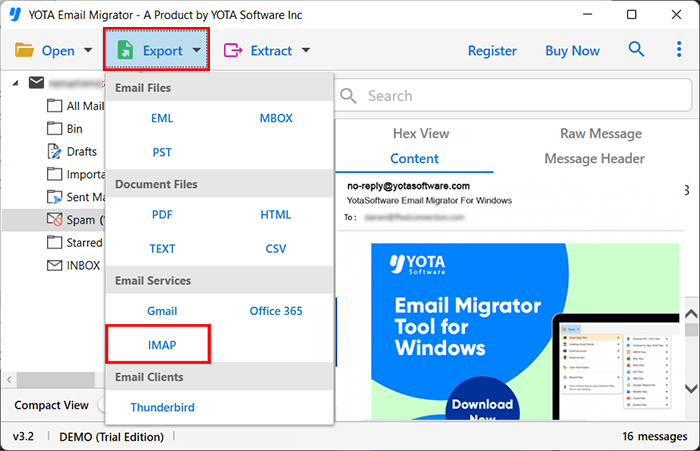
- Enter your Zoho Mail credentials and click on the Save button.

The Microsoft 365 to Zoho Mail migration starts immediately. You’ll receive a notification on your software screen when the migration is complete.
Final Words
If you are also planning to migrate Office 365 to Zoho Mail, then this post is helpful for you. Here, we mentioned two methods that help you migrate from Microsoft to Zoho Mail. You can choose any method that meets your needs.


