In today’s digital world, emails are very important for any business. For so many years Yahoo has been one of the most popular service to many users. However many users are now want to migrate Yahoo emails to Zoho Mail due to its simplicity and security reasons. Zoho is popular email service for its ad-free experience, integration with Zoho Workplace, and offers strong privacy standards to its users.
Quick Summary: In this article, we will discuss step-by-step guide to import emails from Yahoo to Zoho account. You can accomplish the task in three ways:
- Using IMAP Settings
- Via in-built Zoho Admin Console, for large migrations
- Using Yota Yahoo Backup Tool for quick and effortless migration
Why Migrate from Yahoo to Zoho Mail?
- Zoho Mail is more focused on business communication, offering collaboration tools.
- Provides better data privacy and compliance with GDPR
- Smooth integration with Zoho CRM and other workplace apps
- Professional ad-free interface for professional communication
- Stronger security with encryption and authentication
- Reliable technical support for business accounts
How Can I Manually Migrate Yahoo Emails to Zoho Mail?
You can transfer emails from Yahoo to Zoho Mail using multiple ways:
#Method 1: Using IMAP Settings
You can configure your account using IMAP settings.
Step 1: Enable IMAP in Yahoo Mail
- Log in to your Yahoo Mail account.
- Click the gear icon and select More Settings.
- Go to the Mailboxes section.
- Select IMAP and turn it ON.
- This allows Zoho Mail to fetch and sync emails from your Yahoo account.
Step 2: Add Yahoo Mail Account to Zoho
- Now, log in to your Zoho Mail account.
- In Zoho Mail, click the Settings icon.
- Select Add Account>> IMAP.
- Enter your Yahoo account details:
- Email Address: Your full Yahoo email (e.g., example@yahoo.com)
- IMAP Server: imap.mail.yahoo.com
- Port: 993 (SSL required)
- SMTP Server: smtp.mail.yahoo.com
- Port: 465 (SSL)
- Username: Your Yahoo email address
- Password: Use your Yahoo app password (recommended for security)
- Click Add to connect.
Step 3: Sync and Migrate Emails
- Once the account is connected, Zoho will start fetching emails from Yahoo.
- The sync process might take a few minutes to several hours depending on the number of emails.
- After syncing, you will see all your Yahoo emails in Zoho Mail.
Step 4: Migrate Contacts from Yahoo to Zoho
- In Yahoo Mail, go to Contacts.
- Select Export and choose vCard (.vcf) format.
- Now log in to Zoho Mail>> Contacts>> Import.
- Upload the exported vCard file.
- Yahoo contacts will now be available in Zoho.
That’s it! This is how you can easily move Yahoo emails to Zoho Mail.
Limitations of Manual Method
- You can only save one email at a time.
- IMAP setup may be difficult for non-technical users.
- Attachments or large folders may not back up properly.
- If IMAP is not set correctly, you may lose your data.
#Method 2: In-built Zoho Admin Console
If you want to migrate multiple emails, Zoho is providing a built-in migration tool that can easily migrate emails from Yahoo to Zoho in few steps. Follow the below steps:
- Sign in to your Zoho Mail Admin Console.
- Navigate to Data Migration.
- Choose IMAP Server Migration as the migration type.
- Enter Yahoo server details along with login credentials.
- Select the users or mailboxes you want to migrate.
- Finally. start the process to migrate Yahoo emails to Zoho Mail.
Drawbacks of This Method
- Requires an Admin account; regular Zoho users cannot use it.
- Process can be slow for large mailbox migrations.
- Attachments cannot be migrated.
- If Yahoo’s server connection is interrupted, you might lose your emails.
Direct Solution to Migrate Yahoo Emails to Zoho Mail
Yota Yahoo Backup Tool is a professional tool designed for moving emails from Yahoo Mail to Zoho with attachments. The tool is very simple and straightforward to transfer emails and other mailbox items from Yahoo account. The tool is capable to migrate bulk emails without losing any data.
You can also export selective emails from Yahoo to Zoho. This way you can move only the required emails using filters such as date range, sender, or subject, etc. Moreover, the tool maintains email integrity by preserving attachments, inline images, hyperlinks, etc. It offers 100% accuracy for Yahoo to Zoho migration. Free Demo of the tool is also available.
Steps to Transfer Yahoo Mail to Zoho Account are:
- Download and Install the tool on your PC.
- Click on Open>> Email Accounts>> Add Account.

- Enter Yahoo login details correctly and add the emails.

- Go to Export tab and select IMAP as saving option.
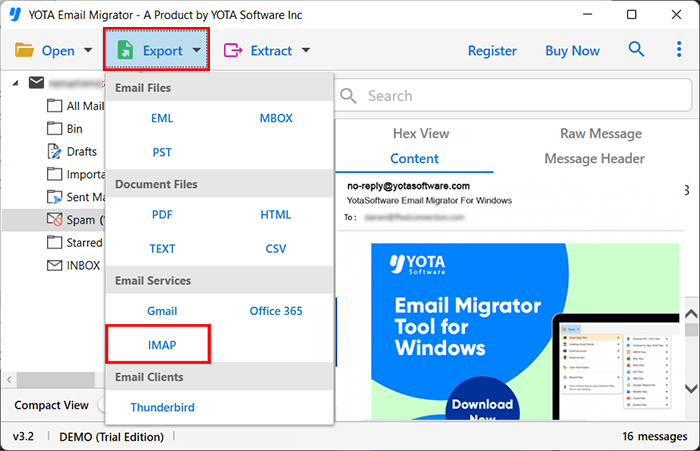
- Lastly, enter Zoho login credentials and hit the Save button.

All Done! This is how you can easily migrate Yahoo emails to Zoho Mail with attachments.
Benefits of Using Yahoo Migration Tool
- Bulk transfer of emails with attachments.
- Maintains formatting, metadata, and folder hierarchy.
- Pause & resume migration option.
- Supports direct transfer from Yahoo to Zoho without manual setup.
- User-friendly interface suitable for non-technical users.
Conclusion
In the above blog, we have discussed the three best methods for Yahoo to Zoho migration; manual and professional both. Now it’s up to you to chose the best. Although, manual methods are free, but they have some limitations. They are time consuming and also does not guarantee accurate results. That is why, expert recommends to try Yota Yahoo Backup tool. It is the most trusted and reliable utility to migrate Yahoo emails to Zoho account in bulk.