Are you struggling to import MBOX to Office 365? Do not panic, you’re not alone. Many users want to upload MBOX to Office 365 but get issues while doing it. To help those users, we have come up with both options: manual setup and an automatic solution. This guide will show you step-by-step instructions to migrate MBOX to Office 365.
But before discussing the solutions, let us know the reason behind this migration.
Reasons to Import MBOX to Office 365 Account
Office 365 email service comes with a range of features that make it better than other email clients. Now, we will look at some of the features that make Office 365 email an excellent choice for business and personal use.
- Security: Provides a secure and private environment for your email, meetings, and more.
- Conversation Analytics: Helps you track replies to your emails and allows you to follow up on conversations without having to dig through emails.
- Collaboration: Allows co-workers from different departments to communicate more efficiently by providing tools for organizing projects, tasks, conversations, etc.
- Flexibility: One of the best features of Office 365 is its compatibility with various devices. It is a cloud service and can be accessed on any device, including your computer, phone, and browser.
In the section below, we are going to first discuss the manual method, which is free.
How to Open MBOX File in Office 365 for Free?
Here we are using Thunderbird to import MBOX file to Office 365 account. Follow the steps below to achieve this:
- Install Thunderbird on your system (if not).
- Then open Thunderbird and click the “Skip this and use my existing email” option.

- Add your Office 365 account Email ID and Password, then click Continue.

- Now, restart your Thunderbird application and install the ImportExportTool NG add-on.

- After that, right-click on Local Folders > ImportExportTool NG > import MBOX file.

- Select the MBOX file to import.

- As soon as emails appear, right-click on the imported folder > Move To > Office 365 email.

That’s it!
This is a manual way to upload MBOX to Office 365 using Thunderbird application. However, this method has some restrictions as well.
Drawbacks of the Manual Method
- Time-consuming procedure
- No ability to import a bulk of MBOX files at once
- Emails cannot be filtered (e.g., by date or subject)
- Technical steps can be confusing for non-experts
- Large MBOX files can cause system crashes
To avoid all these limitations, you can use the automated method.
How to Migrate MBOX File to Office 365 Directly?
Yota MBOX Converter Tool is a reliable and well-reputed solution to import MBOX to Office 365 directly. The user-friendly interface makes it easy for anyone to use the program, even without any prior experience in handling such software.
The software supports MBOX files exported from all popular email clients like Thunderbird, Apple Mail, Pocomail, Postbox, Opera Mail, etc. It can import MBOX file to Office 365 in bulk, along with all email attachments, without affecting the usability of the files.
Steps to Upload MBOX to Office 365
- Start by downloading the Yota MBOX to Office 365 Migration Tool on your Windows system.

- Click on Open>> Email Data Files>> MBOX Files. Add and preview the files from the system.

- Now, click on the Export tab and select Office 365 as the saving option.

- Now, enter the login details of the O365 account and click Save to import MBOX file to Office 365.
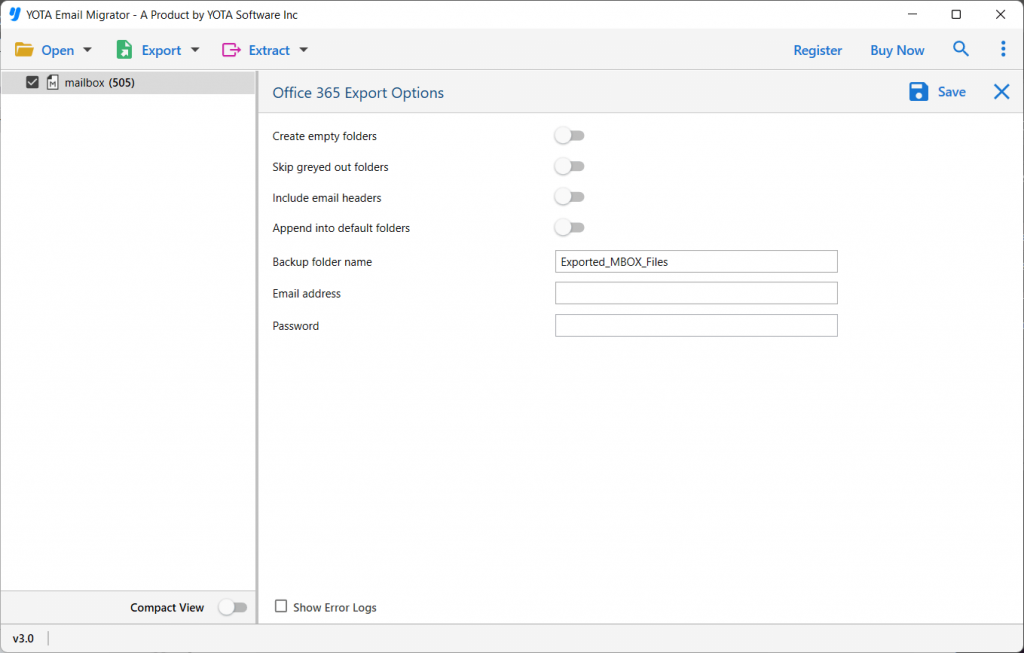
Done!
This is how you can upload MBOX to Office 365. Once the process is completed, you can easily access MBOX data in your O365 account without any hassle.
Watch How to Import MBOX into Outlook 365 Account
Prime Features of MBOX to Office 365 Migration Tool
- It’s easy and convenient for users with email migration needs because it requires only the login credentials to import MBOX file to Office 365.
- It lets you migrate emails from the MBOX folder without disturbing the original folder hierarchy.
- Also, allows you to migrate only selective files or email by applying filters based on date, time, etc.
- The meta details of emails, such as To, Cc, Bcc, and From headers, will be intact so that users can easily access their data after migration.
Conclusion
In this post, we have explained the two best ways to import MBOX to Office 365 user account. Now, it’s up yo you to choose the best method to upload MBOx to Office 365. However, if you want a hassle-free and risk-free process, try the Yota MBOX to Office 365 Converter. You can install the free demo version to explore its features.
Frequently Asked Questions
Q1. Will the folder structure remain intact after importing?
Ans. Yes, the software ensures the folder hierarchy remains unchanged during the process.
Q2. I want to transfer 500+ emails from MBOX to Office 365. Is this software capable?
Ans. Yes, you can easily transfer several emails from MBOX file to Office 365 account all at once.
Q3. Can I transfer selected emails only from MBOX file?
Ans. Yes, the tool offers filter options to migrate selected emails only.
Q4. Can I install this software on my Windows 11 PC to migrate MBOX to Office 365?
Ans. Yes, you can surely install Yota MBOX to Office 365 Migrator on all your Windows PC.


