Overview: In today’s blog, we will cover the most frequently searched query by users: “How to send emails from Gmail to WhatsApp?” If you are one of them, you have come to the right place. This blog provides you with step-by-step instructions to send Gmail emails to WhatsApp, making the process smooth and easy to share.
Here, we will share 3 methods that let you share an email from Gmail to WhatsApp. So let’s begin step by step.
Method 1: Send Email from Gmail to WhatsApp as EML
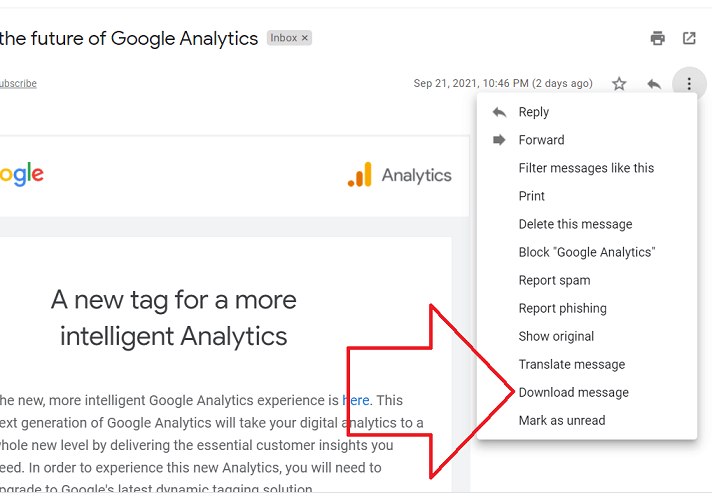
Gmail introduced the free Download Message option in 2020, which will make sharing emails through WhatsApp easy. By using this feature, you can easily send Gmail messages to WhatsApp. Here are the steps to send Gmail as an EML file format:
- First, open Gmail on your system and select the email you wish to send.
- Then click the three dots in the top right corner of the email.
- Select “Download Message” for the email, which will be saved in EML format.
- Go to web.whatsapp.com and scan the QR code to connect your WhatsApp.

- Pick the contact you want to send your Gmail emails.

- Drag and drop the .eml file into the chat, or click Attach > Document, and choose the saved email file.
The person receiving the emails will need the EML viewer to open the emails that you share in WhatsApp, because the EML file cannot be read by WhatsApp.
Method 2: Share an Email from Gmail to WhatsApp as a PDF
To make your shared emails read by WhatsApp easily then you can share emails in a PDF file format. Steps to send email from Gmail to WhatsApp are discussed below-
- Log in to your Gmail account and open the email that you want to share.
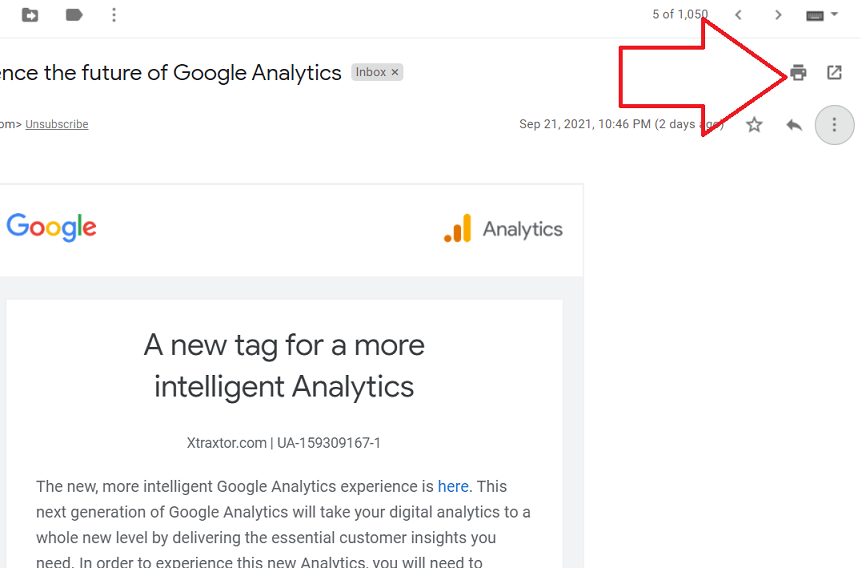
- Click the Print icon at the top corner of the email.
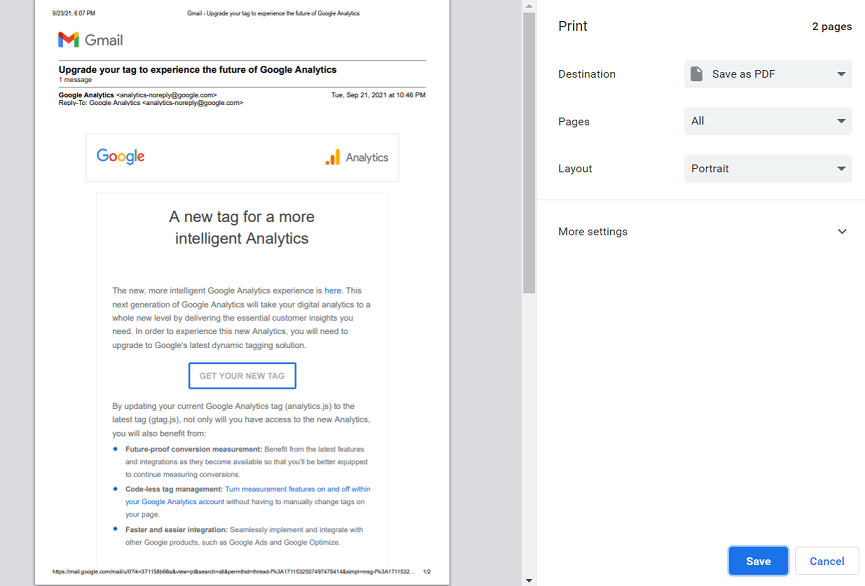
- When the print window appears, select Save as PDF and save it to your device.
- Open WhatsApp Web or your mobile app and send the PDF file as a document.
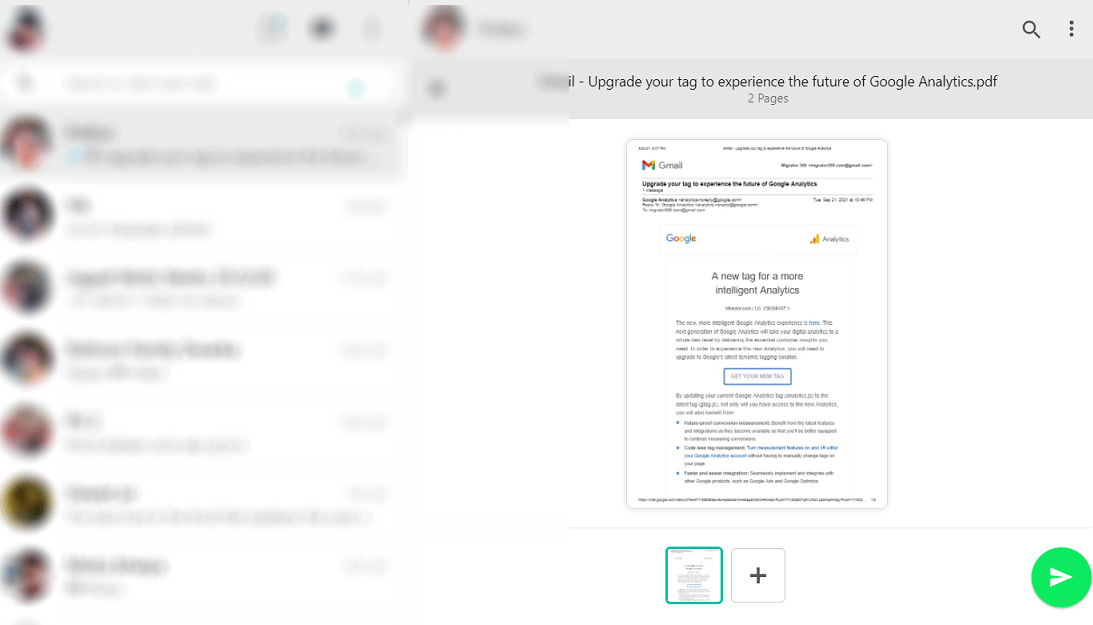
Done! This method is suitable for smartphones that can easily open the PDF file without the need for any additional apps. There are the above two ways to freely send email from Gmail to WhatsApp.
You can share methods with these methods, depending on how you want to be viewed. But his method comes with certain limitations that are discussed in the next section.
Loopholes of the Manual Method
The manual method also comes with some drawbacks that we discussed below-
- You can’t save multiple emails at once, which can create problems when sharing in bulk.
- All saved PDF files shared via Gmail include the Gmail branding/logo, which may not appear professional.
- Emails can only be stored in .pdf or .eml formats only so there is limited flexibility.
- The process is often slow and repetitive, especially if you have many emails to forward.
- Attachments are usually not included by this method; this will make the shared content incomplete.
So, if you want to instantly and effortlessly send email from Gmail to WhatsApp. It is the wise choice to use professional solutions. Look at the alternative solution in the next section.
Method 3: Send Gmail Emails to WhatsApp in Bulk Including Attachments
If you want to share an email from Gmail to WhatsApp instantly without the formatting issues. You can download and install the Yota Gmail Backup Wizard on a Windows PC. It will save Gmail emails in PDF and many other formats without much effort. It will also allow you to share only selected emails.
Steps to Send Email from Gmail to WhatsApp are as follows:
- Install the Gmail Backup Tool on your computer and click Open.
- Click on Email Accounts and then select the Add Account option.
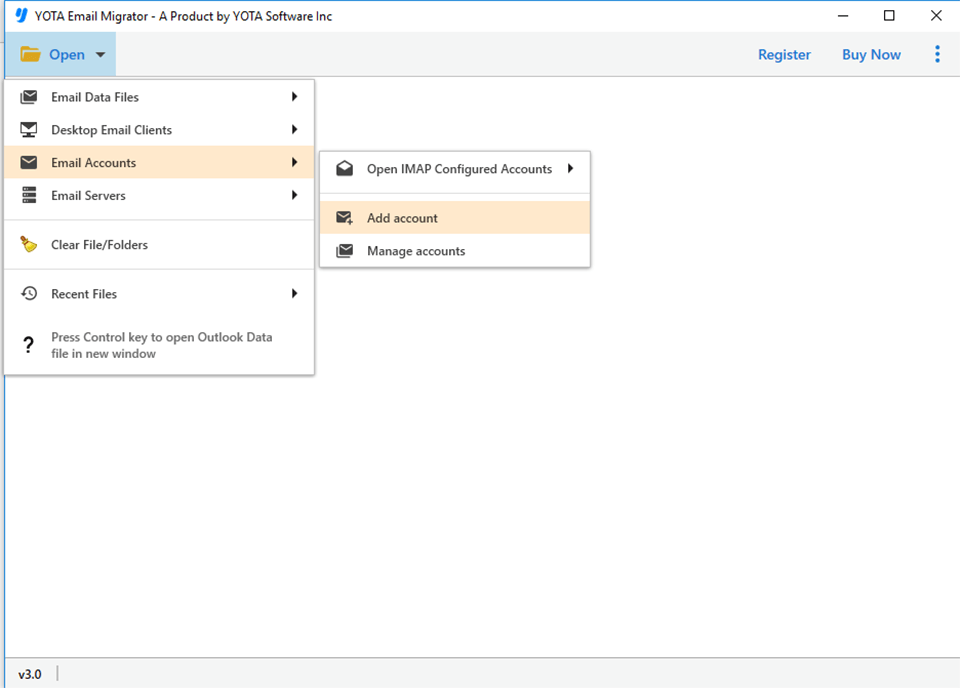
- Enter the Email ID and App Password of your Gmail account.

- Select emails and click on the Export option, then select PDF format.

- Click on the Save button to begin the process.

Now, open web.whatsapp.com on your browser and drag and drop the PDF files.
So, these are the three ways to share an emails from Gmail to WhatsApp.
Conclusion
It’s time to end the article! We will cover how to send email from Gmail to WhatsApp using both the manual and professional approaches. While the manual method is freely available, it can work well for small tasks. You cannot share multiple emails at once. So, the expert also recommended the automated solution to share all Gmail emails at once.
Frequently Asked Questions
Question 1: Is it possible to link my Gmail account directly to WhatsApp?
Ans: No, Gmail and WhatsApp are different platforms and not directly connected. However, you can use both on the same device or in the same browser.
Question 2: Can I open my Gmail emails in WhatsApp?
Ans: No, WhatsApp doesn’t support opening or reading emails. You can only share email content in WhatsApp in file format.
Question 3: Is it safe to share emails through WhatsApp?
Ans:Send email from Gmail to WhatsApp is generally safe if you trust the recipient, but always be aware of sending sensitive or personal information.
Question 4: Can Gmail attachments be shared on WhatsApp?
Ans: Yes, you can download attachments from Gmail and then send them as files or documents via WhatsApp.


