Summary: This blog post presents various methods for how to import MBOX to Outlook email client. We discuss both manual and automated methods that allow you to open MBOX file in Outlook.
TABLE OF CONTENTS
Before discussing the methods, let us know about MBOX and Outlook, and why users want to import MBOX file to Outlook client.
Commonly, users or organizations always use the best or most advanced email client to get their jobs done. MBOX is a well-known file format used by more than 20 email applications, including Thunderbird, Apple Mail, Google Takeout, and many more.
Undoubtedly, Outlook is the most popular email client, and it recently launched the latest version of Outlook 2021. This new edition comes with many advanced features that catch users’ attention. Because of this, many users want to import MBOX to Outlook.
Features Offered by the Latest Outlook 2021
- Search Box to find emails according to the needs
- Translate email messages in 70-plus languages
- Add ink to email messages and more…
Now, let us know how to open MBOX file in Outlook 2021.
How to Import MBOX to Outlook Manually?
There is no manual method to perform this task. However, via Gmail configuration, you can that helps you directly import MBOX file to Outlook.
To begin the process, you must first import the MBOX file into Thunderbird or other email applications that support the MBOX format. Then, configure Gmail with Mozilla Thunderbird and Gmail with Outlook. To do so, follow these steps:
Step 1: Gmail to Thunderbird Configuration
- Log in to your Gmail account and go to Settings.
- Here, click “Forwarding and POP/IMAP” and “Enable IMAP”.
- After that, open your Thunderbird application and go to “Account Settings”.
- Click on “Account Actions” and select the “Add Mail Account” option.
- Enter your Gmail account login ID and password.
- Now, the Gmail login window will appear; here, enter your credentials again.
- Hit “Allow” to proceed with the process.
- Click OK, and you are done with the configuration.
- After importing MBOX to the Thunderbird account via the ImportExportTool NG plugin.
- Copy emails from the MBOX file and paste them into a folder in your Gmail account. (Creating a new folder to paste emails is recommended)
Step 2: Gmail to Outlook Configuration
- Start the Outlook application and click on “File”.
- Click “Info” and select “Add Account”.
- Now, enter your Gmail account credentials and hit Connect.
- Here, you will get all Gmail emails in your Outlook account.
- Drag the folder to your Outlook folder.
Done! This is how you can import MBOX to Outlook manually. However, this manual method has some limitations as well.
Disadvantages/Limitations of the Manual Method
- You cannot transfer multiple MBOX files at the same time
- No option to transfer only selected emails
- The folder structure is not preserved
- Takes many hours to complete the task
- Likelihood of data loss or corruption
Automated Method to Open MBOX File in Outlook
The Yota MBOX converter wizard lets you import MBOX to Outlook account instantly. The software provides support to convert MBOX to PST file format, which can be easily imported into Outlook 2021 and later versions.
It enables you to transfer multiple MBOX files in a single go. The tool migrates emails, including their attachments, in their original form. Plus, it has no size limitations, so you do not have to worry about the large size of your mailbox.
The most important thing about the software is that it works with all MBOX files generated or exported from any supported application. You can extract phone numbers from MBOX file as well as extract attachments from MBOX file with this tool. Moreover, the tool has an auto-detect option that detects the data from the configured default MBOX-supported email applications.
Steps to Import MBOX to Outlook:
- Run the tool and go to Open. Click Email Data Files and select MBOX files.

- Preview emails and click Export, then select PST file format.
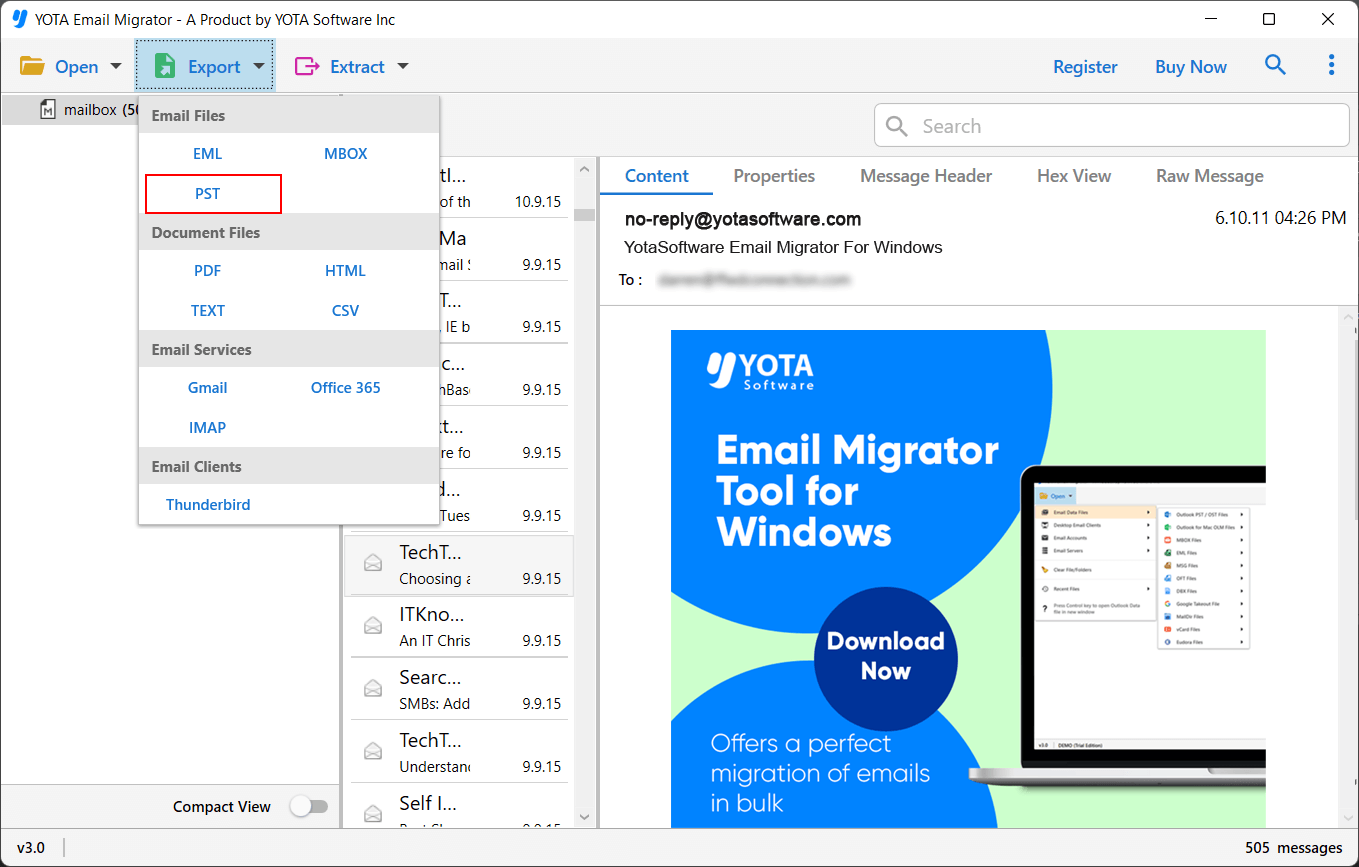
- Choose the path to store the output and click the Save button.

Done! The process starts immediately, and in just a few seconds, you will get a PST file from the selected location on your system.
Watch How to Import MBOX File to Outlook
Now, you need to upload the resultant PST file into MS Outlook 2021 to complete the task.
That’s it. This is the most successful and secure way to import MBOX to Outlook email application.
If you encounter with Outlook Import Export Greyed Out issue and are unable to import your file, then you need to check your Outlook version.
Final Words
If you are looking for a solution to import MBOX file to Outlook, this blog has discussed the best methods for you. Here, we mentioned the manual method, which is tedious and doesn’t work if you want to transfer multiple MBOX files. So, we also recommended the automated email converter to help you import MBOX to Outlook 2021 along with all email attachments.
FAQs
Q 1: Can I open MBOX file in Outlook?
Ans: No, Outlook does not have any option for importing MBOX. You will need to export the mailbox to the PST file format and then import the PST file into your Outlook account using the built-in import function.
Q 2: How can I import MBOX to Outlook with attachments?
Ans: The MBOX converter tool allows you to transfer the mailbox to Outlook, including all attachments with no size limits.
Q 3: Is MBOX compatible with Outlook?
Ans: No, the MBOX file format is not compatible with Outlook. Microsoft Outlook supports the .pst file format for exporting and importing mailbox data.