Are you looking for a reliable solution to migrate email from SiteGround to Gmail? Then you will get the proper answer here. In this blog, we will cover the two methods, manual and automated tool to accomplish the task effortlessly.
Migrating your emails can be difficult, especially when you have multiple email accounts and want to transfer a large number of emails. That’s why, you need a trustworthy solution to complete this migration without losing data.
Reasons for SiteGround to Gmail Migration
SiteGround is a popular web hosting company in the world, hosting over 2 million domains. It offers a popular email hosting for businesses and individuals who want to have their custom domain email address.
However, many users prefer Gmail for its modern features and reliable interface. Below are the few common reasons for migration:
- Gmail offers advanced search options, filters, labels, and more. These features can help the users to organize their emails better way.
- SiteGround offers limited storage space. On the other hand, Gmail offers up to 15 GB of free storage space, which can be upgraded with paid plans.
- Also, Gmail is integrated with various Google apps, such as Google Drive, Google Docs, and Google Calendar for better collaboration and communication among team members.
- Google’s advanced spam protection features can help users avoid unwanted emails and keep their inbox clean.
How to Add SiteGround Email to Gmail Manually?
- First, log into your Gmail account and click the Gear button.
- Click the Settings option from the drop-down list.

- Under the Accounts and Import option, select Add email account.

- Enter the email address you configured with your web host.
- In your SiteGround cPanel dashboard, go to Email Accounts.
- Then click on the More option.
- Click the Configure Email Client button in the drop-down menu.
- This will take you to that page where you will have complete information about your account.
- Scroll down to the Manual section. Here is some information about setting up your email account. You will need information from your secure SSL/TLS configuration.
- Return to the pop-up window, enter your email address, and click the Continue button. Now you need to add information about your account.
- Click the Add Account button to continue.
That’s all! This is how you can add SiteGround email to Gmail using the manual method.
As you can see, the manual method described above is very tedious and you need to be technically strong to complete this task. So you can choose any method manual or automated as per your needs.
Drawbacks of Manual Method
- Takes too much time for large mailboxes.
- Needs technical knowledge of server settings.
- High risk of data loss or errors.
- Does not maintain folder hierarchy.
- Cannot migrate contacts, calendars, or attachments.
How to Transfer SiteGround Mailbox to Gmail Automatically?
To move your emails without any data loss, you can use Yota Email Migration Tool. To use this tool, you don’t need to have any technical knowledge or expertise. The software is designed with a user-friendly interface that makes the migration process hassle-free and straightforward.
The software is designed to simplify the process and transfer all SiteGround emails to Gmail or Google Workspace directly. Moreover, the tool supports all major email providers. You can import mailbox into several email accounts. The tool can even preserve email attachments and folder structure during migration.
Steps to Migrate SiteGround to Gmail Account are as follows:
- Download and Install the tool on your PC.
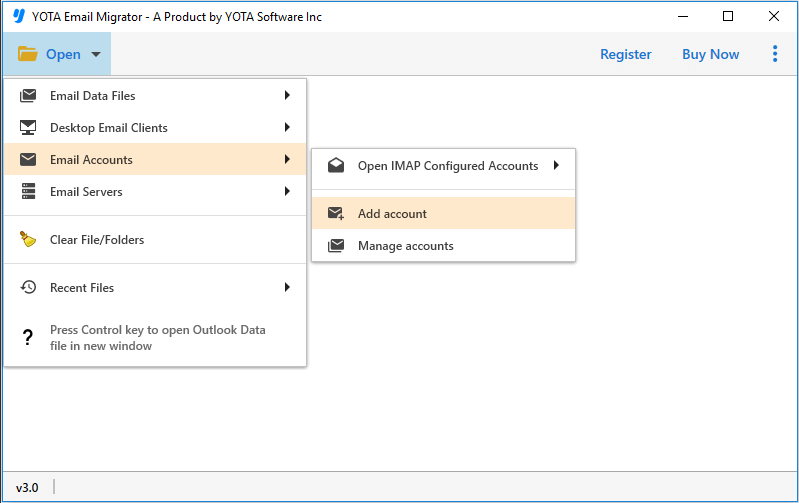
- Click on the Open tab and select Email Accounts>> Add Account.
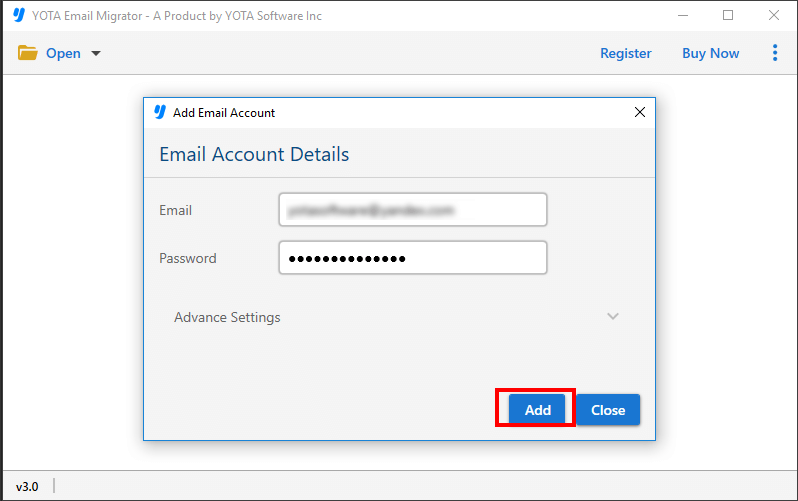
- Next, enter the login credentials of the SiteGround account and preview the uploaded files.
- Click on Export and choose Gmail from the multiple options.

- To finalize the process, provide the Gmail credentials and hit the Save button.

You are done now!
You can also watch the video to learn how to move emails to Google account.
Why Choose this Automated Tool?
- Bulk Mode: It is a time-saving feature that allows users to migrate email from SiteGround to Gmail in bulk mode. It eliminates the need to import individual files one by one as it can be a tedious task. All you need to select multiple files and transfer them all in one go.
- Selective Migration: This software allows users to selectively move specific data items such as emails, contacts, calendars, tasks, and notes from the mailbox. For example, if someone wants to export emails only and not other items, they can use this feature. This way users can avoid the risk of migrating unwanted data into the new mailbox.
- Maintain Email Properties: It can maintain the original formatting and metadata of emails such as to, from, subject, date, time, and attachments during the process. The tool also keeps the folder structure intact throughout the process.
- Supports Multiple Formats: The software supports multiple email formats so you can easily export SiteGround email to PST, EML, MBOX, PDF, and many more. It allows users to convert emails to their preferred email format. This way you can save emails to your PC in your desired format.
Commonly Asked Questions
Is it possible to migrate emails in bulk?
Yes, it is possible to transfer multiple emails to Gmail or Google Workspace using the professional tool.
Can I move emails from the inbox folder to Gmail?
The tool allows you to choose the folder from which you want to export emails like inbox, sent, draft, and more.
Will all my emails be migrated to G Suite?
Yes, all your emails including attachments, contacts, and other data will be migrated from SiteGround to G Suite account using a reliable migration tool.
Conclusion
So, now we hope that you will be able to move your emails from SiteGround to Gmail with attachments using the professional tool. As, you can see, manual method does not work for larger mailboxes. Email Migrator is the perfect solution to transfer all your emails, contact, attachments, etc. without losing your valuable data. It offers top-notch features and a wide range of data filters that make the process effortless and straightforward.
We highly recommend trying the free trial version of the tool that allows you to test its features and performance. Download the tool now for free and experience a seamless migration process.