Do you want to backup RoadRunner emails to a hard drive? If your answer is yes, you will get the perfect solution to your request. Here, we are going to explore the best way to download emails from RoadRunner Webmail to a PC. So, read the blog till the end.
RoadRunner RR, now known as Spectrum Webmail, is a popular email service used by users. One of the main advantages of Roadrunner email service is its reliability. This service is known for its stability and consistency, allowing users to access their emails at any time. Rr.com provides IMAP access to your Rr.com (RoadRunner/TWC) account, allowing you to connect to your email from your mobile device or desktop email client like Outlook.
Users don’t want to lose their data as it contains important information. So to secure your data, they want to create a RoadRunner backup to computer. Once they download their emails to the PC, they can easily access them even without internet and anytime. It is also easy to export RoadRunner emails to multiple email clients and email accounts.
How to Download Emails from RoadRunner Webmail to PC?
It is advisable to use a safe and secure Email Backup Wizard from Yota Software to backup RoadRunner emails to a hard drive. This utility, tested by tech experts, lets users seamlessly save RoadRunner emails locally and save attachments along with them.
The software provides a simple-to-use interface that can be accessed by any user without technical expertise. Additionally, it permits users to download RoadRunner emails to a computer on any version of Windows, including Windows 11. This is known as the best and most effective tool for creating a RoadRunner backup to the hard drive.
With the help of this wizard, one can download emails from RoadRunner Webmail to the desired location. You can simply browse and choose a location where you want to save the backup of your emails on your system. It lets you export RoadRunner emails to PDF, EML, MBOX, PST, and other file formats. Using PST, you can migrate emails from RoadRunner to Outlook email client.
Along with this, it provides support to directly transfer RoadRunner email to Gmail, Outlook.com, Zoho Mail, Amazon Workmail, and many more accounts. To smoothly finish this email migration, you only have to put the correct login details for your accounts. The software is 100% secure, and it does not store or leak a single piece of information from your account.
Steps to Backup RoadRunner Emails to Hard Drive are:
- Download, Install, and Run the Yota RoadRunner Backup Tool.
- Then go to Open and click Email Accounts > Add Account.
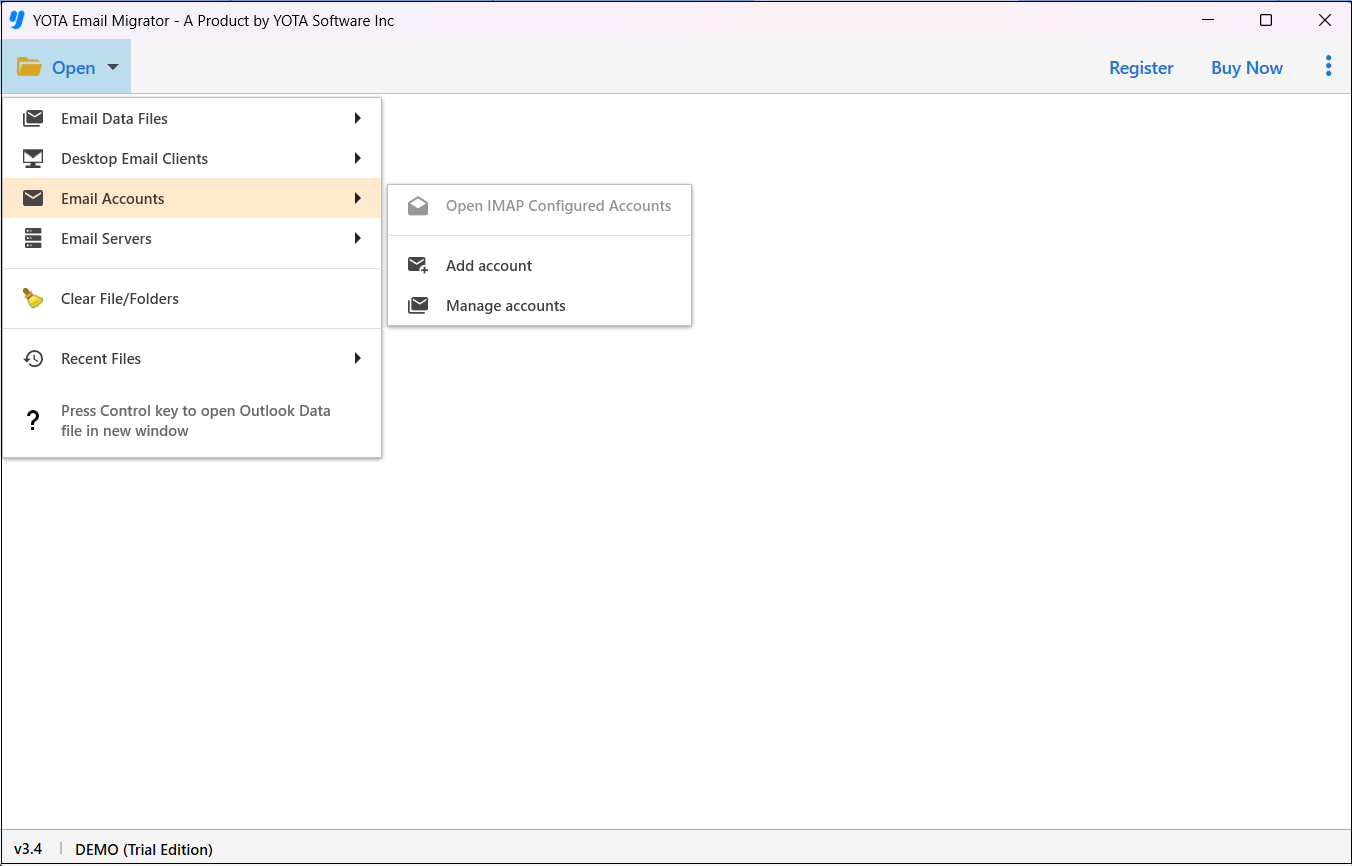
- Afterward, put the valid login credentials of the RoadRunner account.

- Select the folder and click Export, then select the desired format.
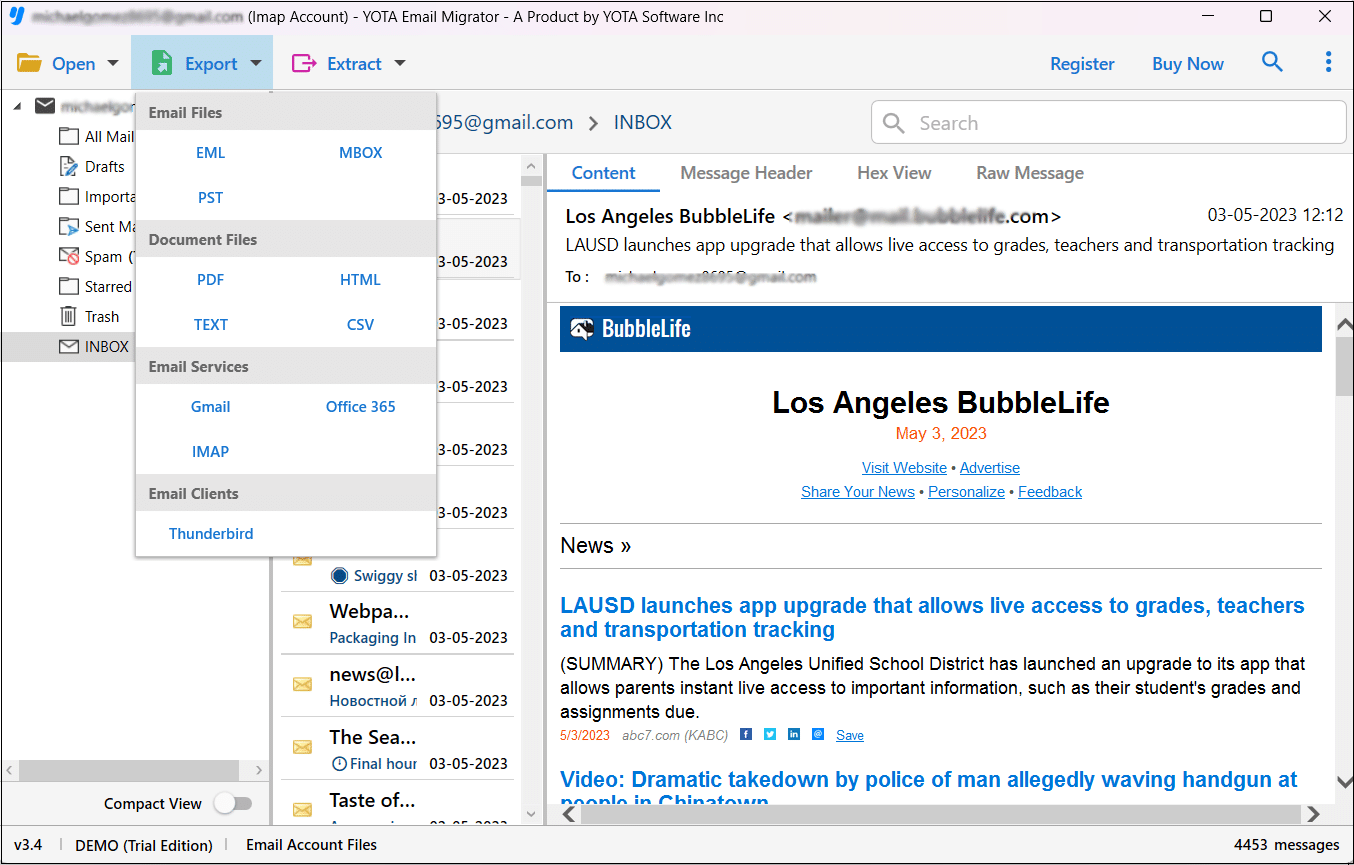
- In the last, click on the Save button to download RoadRunner emails to PC.

It’s completed!
To access your Rr.com email account from a desktop email program, you’ll need the settings below.
RoadRunner Email IMAP Settings
IMAP Settings
- Rr.com (RoadRunner/TWC) IMAP Server: mail.twc.com
- Port: 993
- Security: SSL / TLS
- Username: Your full email address
- Password: Your Rr.com password
SMTP Settings
- Rr.com SMTP Server: mail.twc.com
- Port: 587
- Security: STARTTLS
- Username: Your full email address
- Password: Your password
You can also watch the video below to learn how to backup RoadRunner emails to your PC in multiple file formats.
What are the benefits of using the RoadRunner Backup Tool?
- Support Various Saving Options: It supports multiple file formats and email services to backup RoadRunner emails to hard drive. You can enter the login credentials of your account to start the backup.
- Save Emails Locally: With this tool, you can download emails from RoadRunner Webmail to PC seamlessly. It also provides an option of saving emails at the required destination.
- Filter Data: Users can filter emails by time, date, from, cc, content, and attachments. It helps users to create RoadRunner backup to PC selectively.
- Maintain Data Originality: It keeps all your original data intact throughout the process. The software maintains email properties and folder hierarchy.
- Export All Emails: You can backup RoadRunner emails to hard drive from all folders at once. Moreover, you can select the desired folder from which you want to download emails.
- Compatibility With Windows: You can download emails from RoadRunner Webmail to PC on any version of Windows OS. It works well with Windows 11, 10, and other versions.
The Final Words
Creating a RoadRunner Backup to PC is the best and most effective solution to secure your data. Here, we have shared the expert way to backup RoadRunner emails to hard drive with attachments. You can download RoadRunner emails to computer without technical knowledge in just a few simple steps.


