Introduction: In this advanced world, managing multiple email accounts can be really overwhelming. If you are using Optimum email account and looking for the reliable way to transfer Optimum email to Gmail along with attachments, then you are at the right blog. In this comprehensive article, we will walk you through the two best methods to import emails from Optimum mail to Gmail. One is manual method and other one is professional tool.
Why to Transfer Optimum Email to Gmail?
Gmail is a popular email service which is very much popular all over the world. It offers some powerful features and benefits that can make the email communication simplified and effective. Below are the some reasons why people are looking to move emails from Optimum account to Gmail account:
- Users can access and manage all the emails in one place if they export emails from Optimum to Gmail.
- Gmail provides a lots of storage space for your emails.
- Gmail provides better integration with other Google services like Google Drive, Google Calendar, and Google Docs to increase the productivity.
Manual method to Transfer Optimum Email to Gmail
- Open your Gmail account and go to See all settings.

- Select the Accounts and Import tab.

- From the Check mail from other accounts, click Add a mail account.

- Enter your Optimum email address and click Next.

- Choose Import emails from my other account and click Next.
- Enter your Optimum username and password.
- In the POP Server field, provide all the details.
- Select options and click Add Account to finish.
Drawbacks of Manual Method
- The process might be slow for larger mailboxes.
- Cannot preserve the folder structure properly.
- This method cannot export attachments with emails.
- Might be complex for new users as it require correct port and server settings.
- No option for bulk email migrations.
Direct Solution to Import Optimum Email to Gmail Account
This IMAP Migration Tool is one of the best tool that will help you to transfer Optimum email to Gmail mailbox. With its powerful features and simplified panel, the software makes the process very easy and effortless. You don’t have to be technical expert to utilize the tool. It’s self-navigating interface guides you through each and every step and within few clicks you will be able to get the results.
The tool also allows to save Optimum emails into your PC including both inbox and archived messages. This ensures that nothing is left behind during the Optimum to Gmail import process. Even you can extract attachments from Optimum email in a separate folder if it is your requirement.
We understand the importance of an organized email system that’s why the tool has been designed in way that it can preserve the folder structure of your Optimum account when exporting emails to Gmail account. With its fast and optimized algorithms you can forward Optimum email to Gmail very quickly no matter how many files you have to migrate.
Steps to Import Optimum Webmail to Gmail are as follows:
- Download and Install Yota IMAP to Gmail Migration Tool on your PC.
- Click on Open tab and select Email Accounts>> Add Account option.
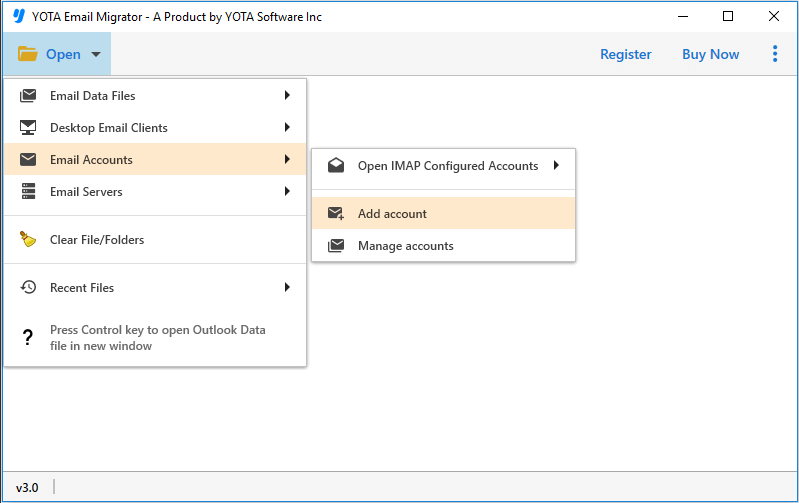
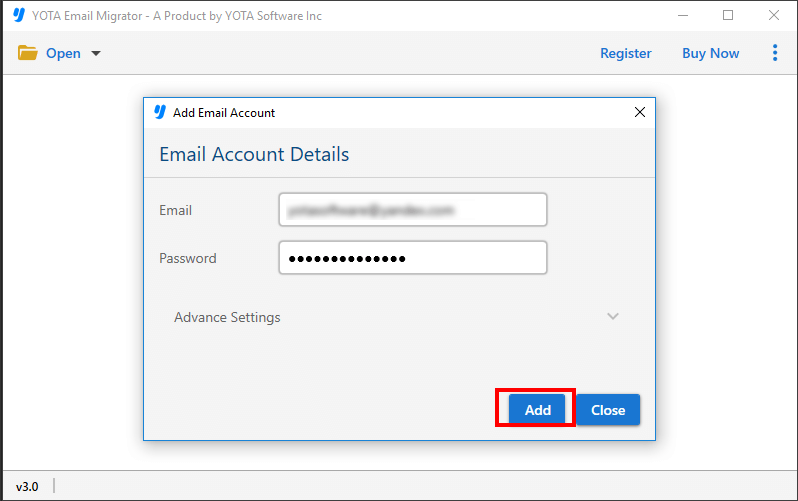
- After that, enter the login details of Optimum webmail account and upload the files.
- Next, click the Export option and select Gmail directly from the list.

- If you want, you can apply filter options for customized migrations.

- Finally, enter the login details of Gmail account and hit the Save button.

That’s it! This is how you can transfer Optimum email to Gmail account using few simple clicks.
You can watch the below video to export Optimum emails to Gmail account
Prominent Features of Optimum to Gmail Migration tool
- Seamless Tool: This tool simplify the entire process by providing user-friendly interface. All you need to follow few simple steps to transfer emails from Optimum to Gmail account. This straight-forward tool provide hassle free solution to all the users.
- Bulk Migration: If you have large mailbox to export, then this bulk mode option is for you. Using this feature, you can easily migrate multiple emails from Optimum mailbox in a single process. This tool is capable to move hundred or thousands of emails at once.
- Wide Range of Filters: There are many users who don’t want to import all the emails from Optimum to Gmail. This Email Converter tool provides an email filtering feature that allows you to selectively choose which emails to migrate. You can apply filters based on criteria such as date range, specific folders, or email subjects.
- Windows Compatibility: The tool can be easily installed on all the latest and older Windows OS including Win 11, 10, 8, 7, and other below versions.
Also Read: How to Export Emails from Optimum to Outlook PST?
Conclusion
So now when we have discussed all the important tips and tricks to transfer Optimum email to Gmail account, it shouldn’t be a challenging task. By following the above outlined process and utilizing the best Email Backup Solution, you can easily import Optimum email to Gmail including attachments.
I hope this article is helpful for you to migrate Optimum email to Gmail. If you have any further questions or need any help, you can contact our support team. They will resolve all your queries very quickly.
Frequently Asked Question
Can I transfer Optimum email to Gmail?
Yes, you can migrate email from Optimum to Gmail mailbox using few simple steps.
- Download Yota Optimum Migration tool.
- Click on Open tab and select Email Account>> Add Account.
- Enter Optimum login details correctly.
- Next, go to Export tab and select Gmail as saving option.
- Enter the Gmail login credentials and hit the Save button.
Can I transfer multiple emails and attachments from Optimum mailbox to other email accounts?
Yes, you can migrate from Optimum mailbox as many as files you want. There is no file size restrictions while handling the number of files.
I want to export few selected emails from Optimum to Gmail. Can I use this tool to do that?
Yes, for sure. This tool allows you to save emails selectively as per your requirement. You can choose different email filter options to import Optimum email to Gmail account.


