In this article, we will talk about one of the easiest and secure ways to migrate Exchange to IMAP server. Since we have received multiple user queries regarding migration from Exchange to IMAP, we have come up with a step-by-step guidance without losing a single data during the process. If you are also looking for the same, you should follow this blog.
Exchange Server is a Microsoft-developed mail and calendaring server that provides an enterprise-level email, contacts, calendar, and collaboration solution. It has Microsoft Outlook client support, web access, and ActiveSync capabilities for mobile devices.
IMAP is a standard email protocol that allows the user to access emails from multiple devices while keeping messages on the server. Email services like Gmail, Yahoo, Hotmail and other email clients support IMAP.
Reasons to Migrate Exchange to IMAP Server
- Users might want to switch from Exchange to IMAP-based email services like Gmail or other third-party providers.
- IMAP services are often cheaper than maintaining an Exchange Server.
- IMAP allows users to access emails from different platforms without relying on Microsoft-specific applications.
- Some users prefer IMAP for its simplicity and universal compatibility.
How to Export Emails from Exchange Server to IMAP Directly
Yota IMAP Migration tool has been designed with very simple and intuitive interface and can be used by both technical and non-technical users. You will get very accurate results utilizing this software. It lets you migrate emails from Exchange to IMAP server along with calendars, contacts, tasks, journals, notes, etc.
Also, it keeps the originality of the mailbox items during Exchange to IMAP migration. You need to follow a simple method to transfer emails from Exchange server to IMAP account while keeping the emails, folders, and attachments intact. It eliminates the complications of manual migration, making it a hassle-free process.
Steps to Migrate Exchange to IMAP Server are as follows:
- Install and Run Yota IMAP Migration tool on your PC.
- Click on Open>> Email Accounts>> Add Accounts option.

- Enter Exchange Server account details and choose the required folders to export.

- Next, go to Export and select IMAP directly from the saving options.
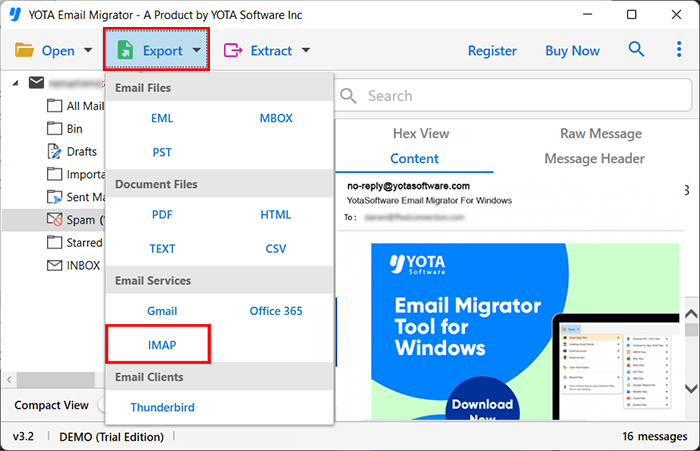
- Lastly, enter the IMAP login details and hit the Save button.

That’s all! You can easily migrate Exchange to IMAP account with few simple steps.
Features of Yota Exchange Migration tool
Simplified UI: This software is designed with an easy interface that can be easily operated by all novices and non-technical users. No complicated setting or technical knowledge is needed for it to migrate Exchange to IMAP server.
Bulk Migration: Users can migrate multiple emails and folders at the same time. This is very useful feature as it saves significant time and efforts by processing thousands of emails in a single operation.
Smart Filters: This is one of the most advanced features of the tool. You can apply filters that allows you to migrate specific emails only, based on subject, sender, attachments, or date range. Thus, it would save unnecessary data migration and only the required email would be migrated.
Keeps Folder Hierarchy Intact: The tool preserves the original folder structure during Exchange to IMAP migration, thus securing emails into their designated folders. The data does not need to be rearranged manually after the transfer.
Compatibility Across IMAP: This software supports all IMAP supported email services such as Gmail, Yahoo, Outlook, Zimbra, Roundcube etc. and even custom domains. Thus, it will be easy for the user to migrate their emails to different email clients.
Supports all Windows: This email migration tool works with all Windows OS including the latest one. Thus, the installation and operation are smooth without any requirements for added configurations or modifications to the system.
Conclusion
So, this is all about how you can migrate Exchange to IMAP server along with attachments. Many users are searching for a way to transfer emails from Exchange Server to IMAP and we have tried to explain every thing in detail. You can download the Free Demo of the tool that allows the you to migrate 10 emails from each folder at a time. For unlimited migrations, you need to buy the license for this toolkit. Contact us for more information through email or chat.