Are you still struggling while migrating emails from Becky! Internet Mail to Outlook? Then don’t worry! In this guide, I will share the best tips and tricks to migrate from Becky to Outlook email client effortlessly. So keep reading.
But before that, let’s learn about both email services and the reasons behind this migration.
Becky! Internet Mail by RimArts Co., Ltd. is a Japanese email client. You can create multiple mailboxes and multiple profiles for each mailbox, allowing for flexible mailbox management among users with multiple email accounts. POP3, IMAP4, and SMTP are also supported.
On the other hand, Microsoft Outlook is a desktop email client for Windows and Mac systems. Thousands of users use it to manage emails, contacts, calendars, tasks, and much more. Microsoft regularly releases new versions of Outlook, featuring new features and enhanced security.
Why Import Becky! Internet Mail to Outlook?
Multiple reasons behind Becky to Outlook migration. Some of the main reasons are explained here:
- Becky Mail is incompatible with other installed applications.
- It crashes or becomes unresponsive frequently.
- The email client does not meet user expectations.
- It does not appear in Windows Settings or Control Panel.
- After uninstalling the program, some associated processes continue to run on your computer.
Let us know the manual method first.
How to Migrate from Becky to Outlook?
To import Becky! Internet Mail to Outlook, you need to execute two steps.
- First, you have to export Becky Mail emails in MBOX format.
- Then, convert MBOX to PST file format for Outlook.
In the section below, I will explain both methods step by step.
Phase 1: Save Emails from Becky! Internet Mail to Computer
Becky offers an export option to download mailbox data to a desktop in .mbox file format. Follow the steps below for this:
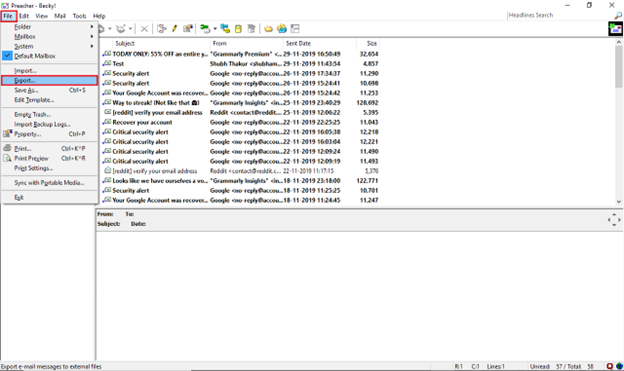
- Open Becky! Internet Mail on your computer.
- Select “Export” from the “File” menu.
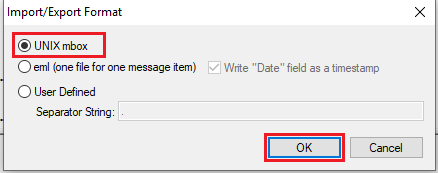
- Then, select “UNIX mbox” on the “Import/Export Formats” tab and click “OK.”
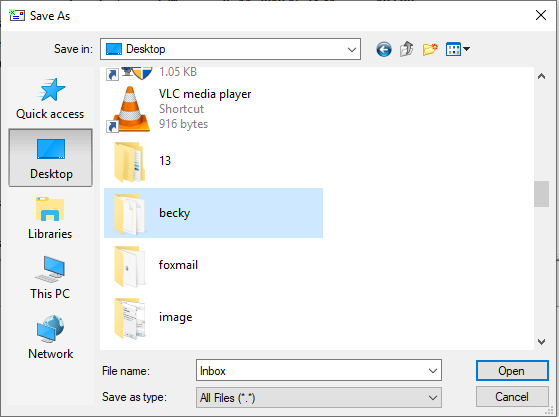
- Next, choose a location to save Becky! mailbox to your computer.
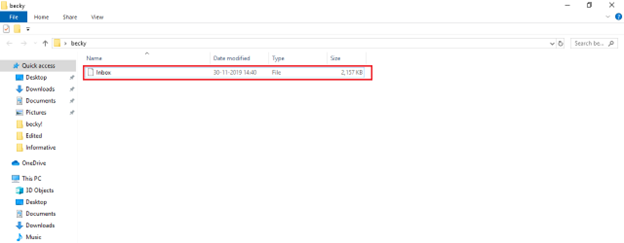
- Your Becky! Internet Mail emails will now be saved in MBOX format.
Now, you need to convert your Becky Internet emails to PST format to migrate from Becky to Outlook.
Phase 2: Export Becky! Internet Mailbox to PST Format
To import Becky! Internet Mail to Outlook, the next step is to export the Becky! Mailbox (mbox file) to the PST file format. For this, Yota MBOX to PST Converter is the best choice. It lets you convert multiple emails at once without losing the originality of your data.
The software also does not need the installation of MS Outlook to start the conversion. Additionally, you can view MBOX file in multiple modes before conversion. You can also choose a destination to save the exported file on your system.
To start, download the tool and install it on Windows 11, 10, 8, or 7 machines.
Steps to Migrate from Becky to Outlook are:
- Run the MBOX file to PST conversion tool.
- Click Open > Email Data Files > MBOX File.

- Select the folder and preview your file.

- Click Export and select PST as a saving option.
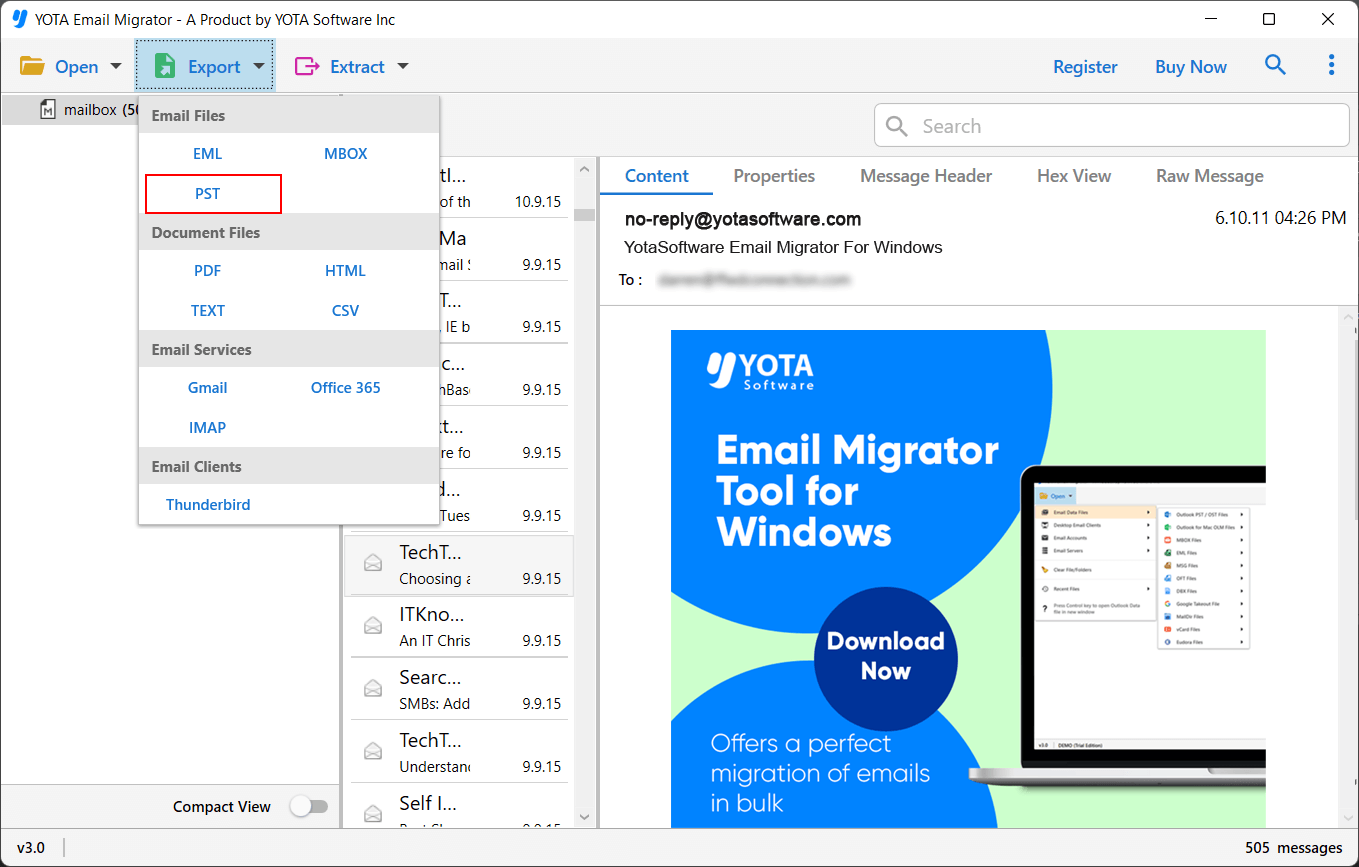
- Set a location to store the file and click Save.

All done!
After conversion, you can import your exported file into Outlook using the import option. However, if your import export option greyed in Outlook, then you can update your Outlook version.
So these are two stages you need to follow to import Becky! Internet Mail to Outlook.
Advantages of the Tool
- Let’s you migrate from Becky to Outlook by exporting the mailbox file to PST format.
- Does not require the installation of Microsoft Outlook and other programs.
- Support exporting unlimited emails from Becky! Internet Mail with accuracy.
- Maintains the hierarchy of folders and email properties even after the conversion.
- Compatible with all the latest versions of Windows, such as Windows 11, 10, etc.
- Offers a demo version for testing the performance before investing
Conclusion
In the above post, I described the solution I tried to migrate from Becky to Outlook application. First, I exported my mailbox file in PST format and then imported it into Outlook. While the whole process is somewhat cumbersome, it worked for me. Therefore, I recommend this solution to anyone who wants to import Becky! Internet Mail to Outlook email client.
FAQs
Can I import Becky! Internet emails into Outlook directly?
There is no direct import option. You must first export your Becky! emails in .mbox format and then convert them to the PST file format supported by Outlook.
How do I migrate from Becky to Outlook?
You can first download Becky! Internet emails to your desktop and then export the downloaded .mbox file to the .pst file format. This will allow you to import Becky! emails to Outlook.
Can I convert multiple emails to PST format at once with this tool?
Yes, you can easily convert any number of emails from Becky! Internet Mail to PST format.