Introduction: Do you want to migrate Frontier email to Outlook client? If your answer is yes, then congratulations you are on the right blog. Here we will provide you with the best ways to migrate emails from Frontier to Outlook. So keep reading on till the end.
Frontier Mail is an email service provided by Frontier Communications Inc., which provides telecommunications, digital television services, security, and broadband Internet services in the United States.
Why Migrate Frontier Email to Outlook?
Some of the main reasons to migrate emails from Frontier to Outlook are listed here:
- Outlook works seamlessly with Microsoft 365, OneDrive, Teams, and other Microsoft tools. So users can easily manage their work and personal email in one place.
- Using Outlook, you can manage multiple email accounts in one place without any interruption.
- It offers a modern email experience with multiple advanced features such as organizing your email, integrating calendar management, syncing contacts, and tracking tasks.
- Outlook lets you sync your email, contacts, and calendar events across multiple devices, including PCs, tablets, and mobile phones.
- It has advanced security features that protect your email from spam, phishing, and cyber threats.
- From time to time, new versions of Outlook are released with improved security and additional features, making it one of the best email applications.
So these are the common reasons why a user needs to migrate Frontier email to Outlook.
Manual Method to Set Up Frontier Email in Outlook
- Launch Outlook and click on the File tab from the top-left corner.
- Click Info and then click the Add Account option.
- Click the Advanced Options dropdown menu. Check “Let me set up my account manually”, and then click Connect.
- Select the IMAP option as Account Type.
- Enter the following details in the Incoming Mail section:
Server: imap.frontier.com
Port: 995
Place a check next to This server requires an encrypted connection (SSL/TLS) - Enter the listed details in the Outgoing Mail section:
Server: smtp.frontier.com
Port: 465
From the Encryption Method dropdown menu, select SSL - Afterward, click on the Connect button.
- Next, enter your full email address in the Username field, and your password in the Password field.
- Click OK.
That’s all!
If the manual method is lengthy and complicated for you, you can simply go to the automated method which is mentioned in the next section.
Automated Solution to Migrate Emails from Frontier to Outlook
Use Yota Email Backup Tool to quickly migrate Frontier email to Outlook application. It is an easy-to-use solution that even a benginner can easily access and accomplish this task without technical expertise. The software only takes a few minutes to transfer emails from Frontier Webmail to Outlook.
One can backup Frontier emails to the computer in multiple email format. It provides you an option to export Frontier emails to PST file format supported by Outlook. After exporting emails, you can import the PST file into Outlook application via the import/export option. You can also store the exported PST file at the desired path or create a new folder on your PC.
Using this wizard, you can also transfer Frontier email to Gmail, Outlook.com, Yahoo Mail, AOL Mail, Rouncube, Rackspace Webmail, Bluemail, and many more accounts. To do this email migration task smoothly, you will only need to put the login credentials of your accounts.
The software allows you to migrate Frontier email to Outlook ijn just a few simple clicks without any data loss. It has an option to export multiple emails from Frontier to PST at the same time. Also, you can export only specific emails from your account by using the filter option.
To migrate emails from Frontier to Outlook, first download the tool and install it on Windows 11, 10, 8, and later versions.
Steps to Migrate Frontier Email to Outlook are as follows:
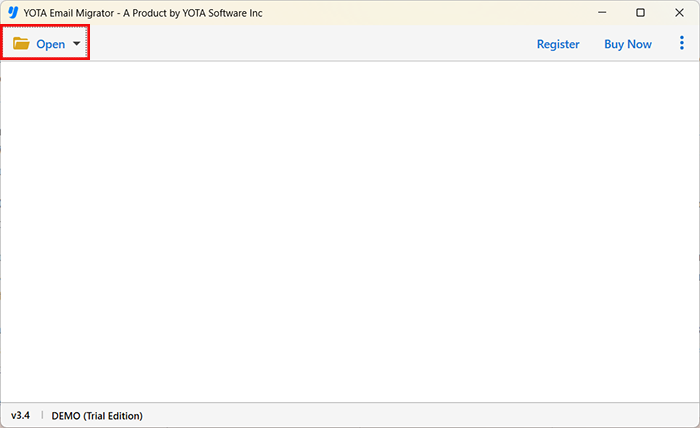
- Run the Yota IMAP Backup Wizard and hit the Open tab.
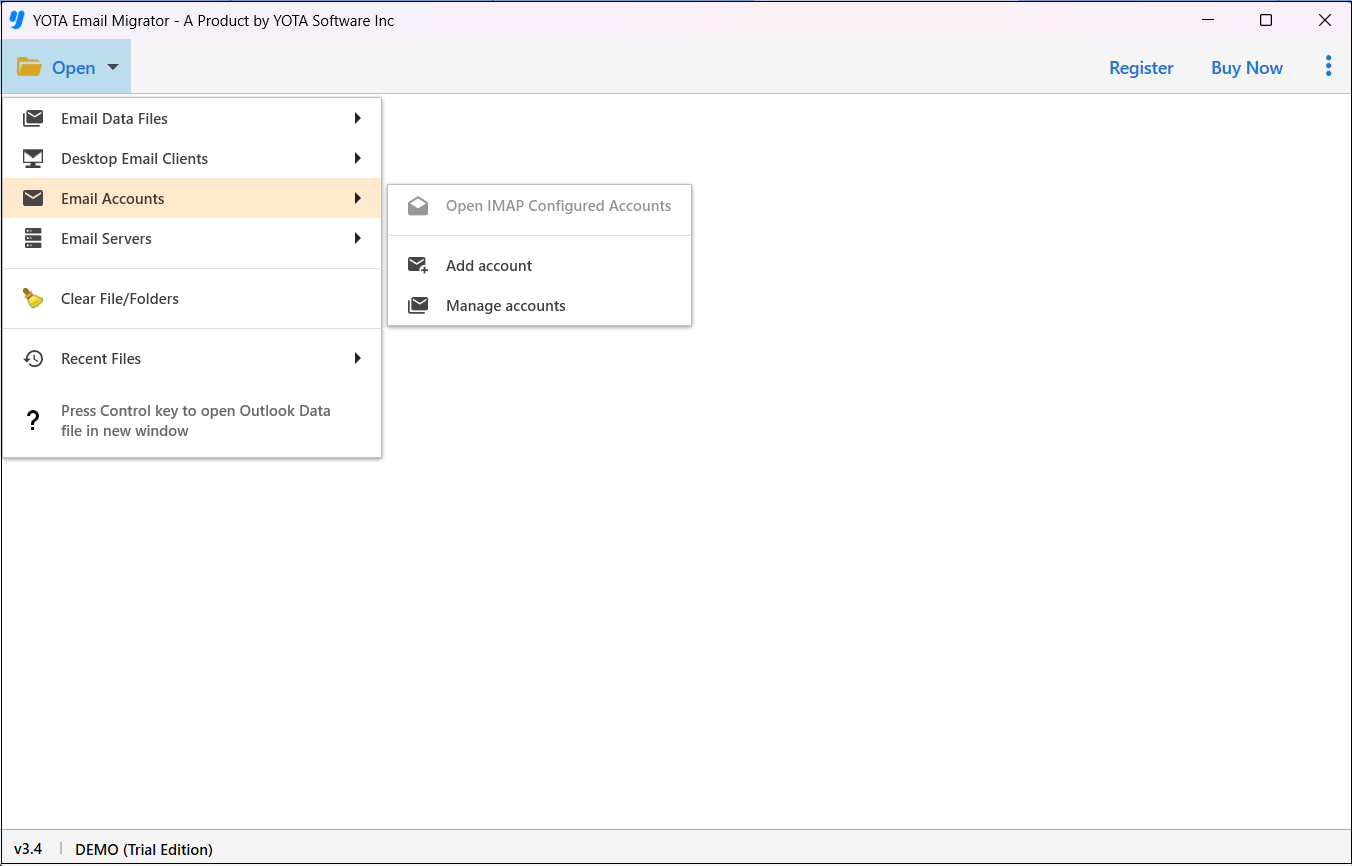
- Click Email Accounts and then click the Add Account option.
- Enter the login credentials of Frontier Webmail and select emails.

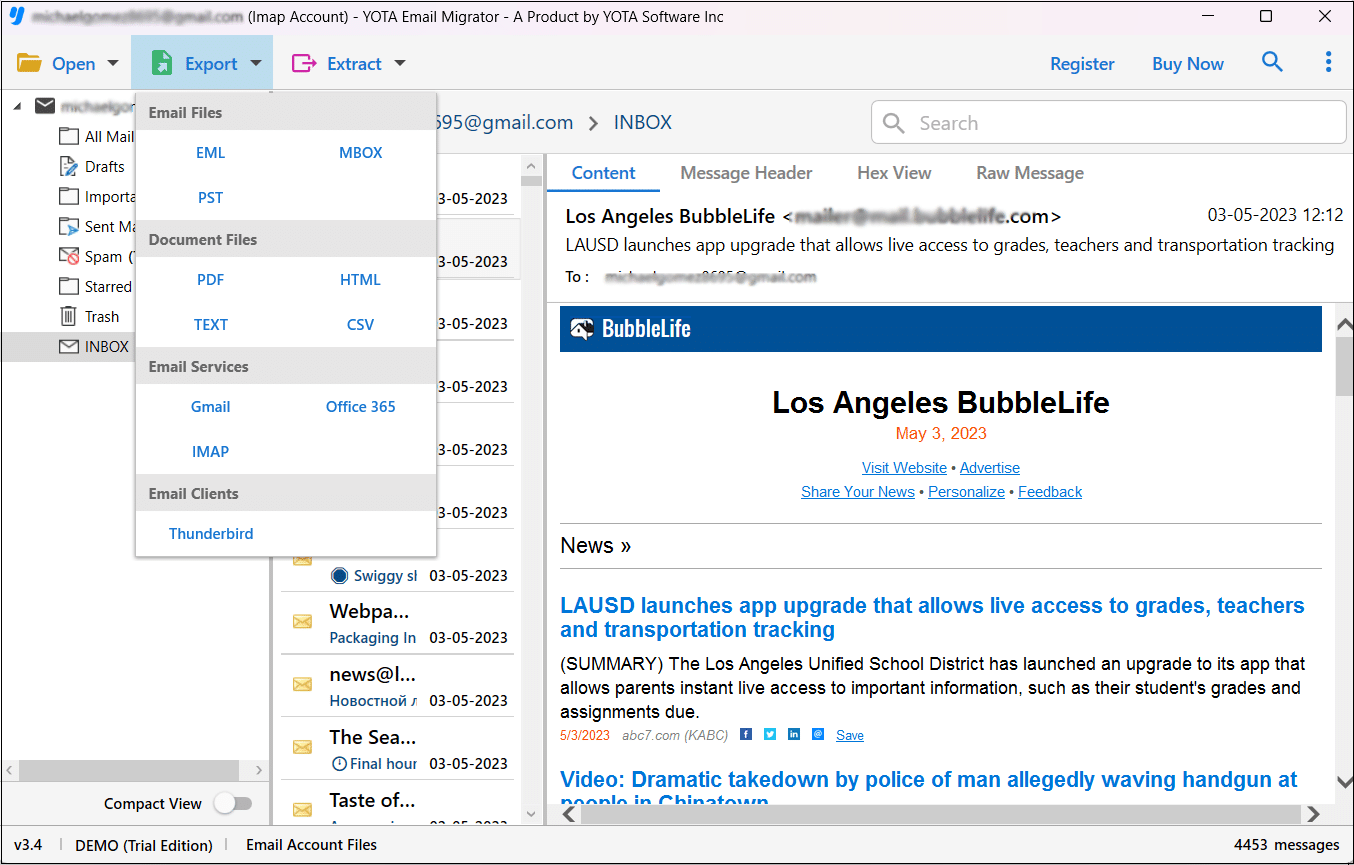
- Click Export from the top and select PST from the multiple saving options.
- Choose a path for storing output and click on the Save button.
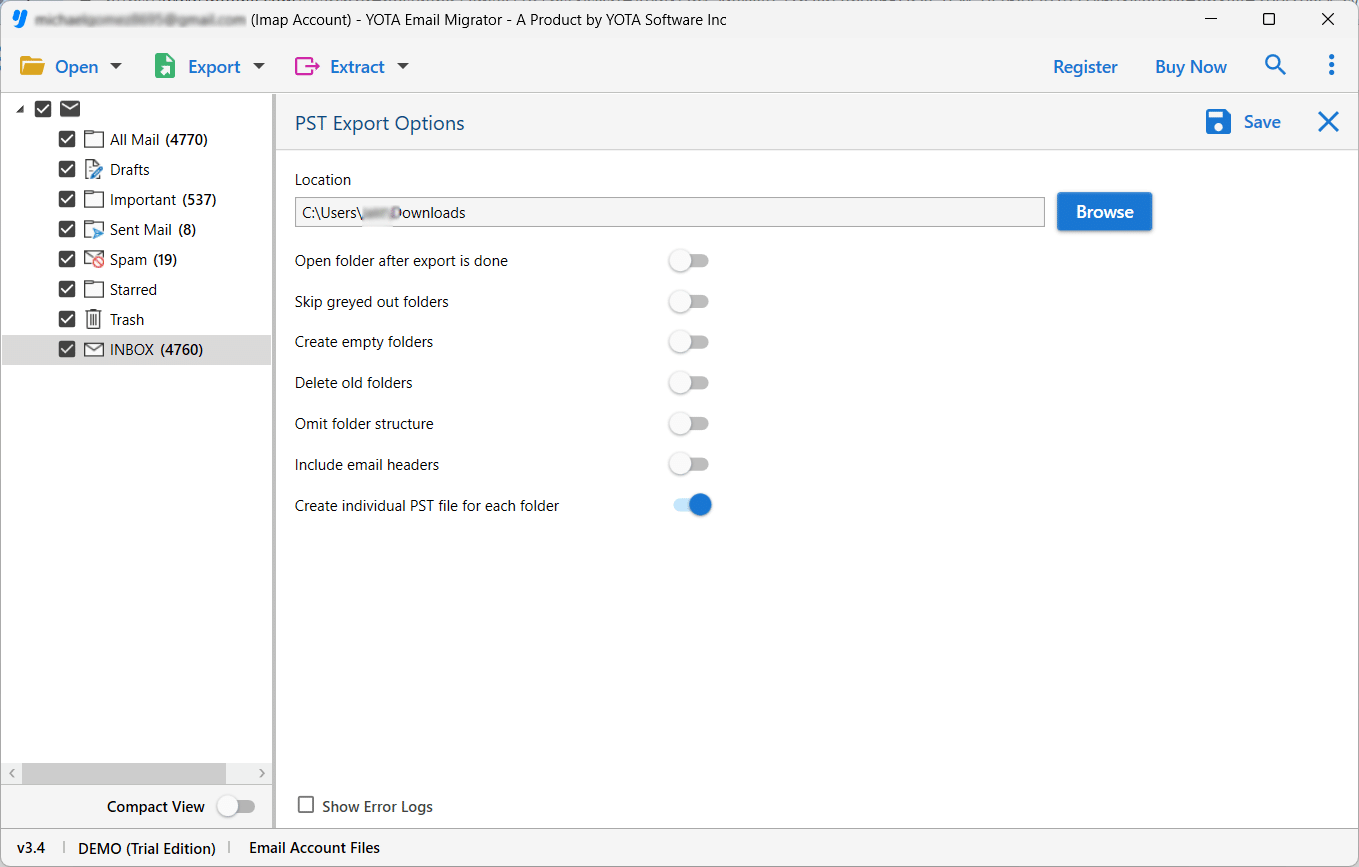
Finished!
The software only takes a few minutes to export Frontier emails to PST file format. Once the task is completed, you will get a message on the screen.
After getting PST file, Open your Outlook application and start importing the PST file using the inbuilt import option.
Final Words
In this post, we have explained two possible methods to migrate Frontier email to Outlook. You can choose any of the methods according to your needs. However, if you have multiple emails and want to instantly migrate emails from Frontier to Outlook without data loss, you must use an automated tool. This works with all versions of Windows and is free from all types of viruses.