Microsoft Outlook is a popular email client widely used by users for personal and professional work. But sometimes there is errors occur in Outlook that disturb the working. In this article, we will discuss the reasons and best solutions to fix the Outlook PST is not a personal folders file error.
Before proceeding to the solutions, let us first know the reasons for Outlook.pst is not a personal folder file error.
Reasons Behind the Error “Outlook PST is Not a Personal Folders File”
The error occurs while sending and receiving emails. That “Outlook.pst is not a personal folders file” in Outlook usually occurs due to the following reasons:
- Corrupt PST File: The PST (Personal Storage Table) file can become corrupted, causing Outlook to fail in recognizing it as a valid file.
- File Compatibility Issues: If the PST file was created in an older version of Outlook, newer versions may not always be able to properly access it.
- File Location Problems: Sometimes, if the PST file is moved or relocated improperly, Outlook may fail to recognize it as a valid personal file folder.
- Permissions Issues: Lack of proper permissions to access the file or the folder containing the PST file can cause this error.
- Outlook Profile Issues: A corrupted Outlook profile might not be able to properly handle the file, causing this error to appear.
These are some reasons PST is not a personal folders file error. Now, let us know the solutions to fix this issue.
How to Fix Outlook PST is Not a Personal Folders File Error?
4 manual ways help you resolve Outlook.pst is not a personal folders file issue. In the section below, we will discuus all methods step by step. If these methods are unable to resolve this error, you can then proceed to the automated solution.
Method 1: Create a New PST file
- Open Control Panel on your system and search for Mail.
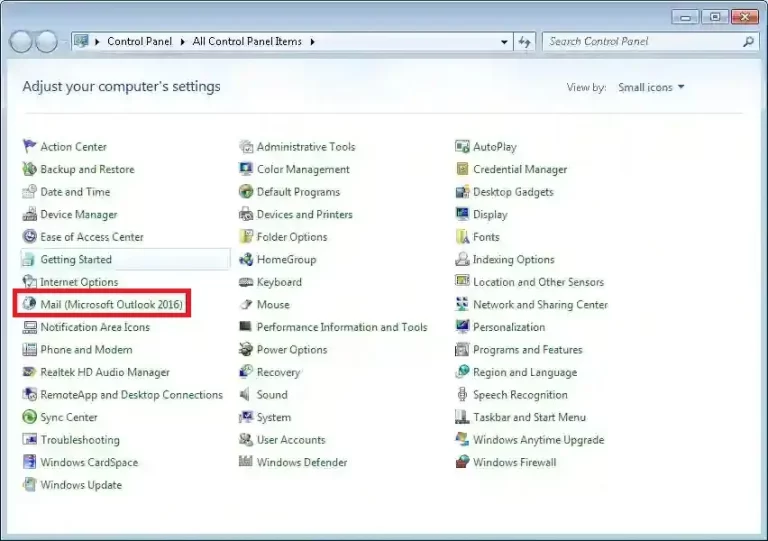
- After that, click on the Mail Setup > Show Profiles.
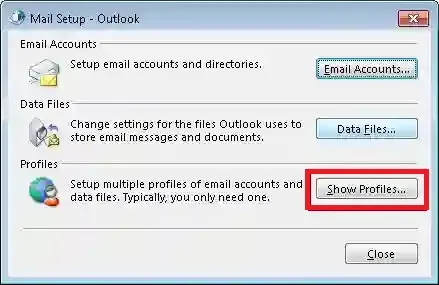
- Hit Add, then enter a name for your new profile and click OK.

- Go to Mail > Data Files, select your new profile, and set it as the Default.
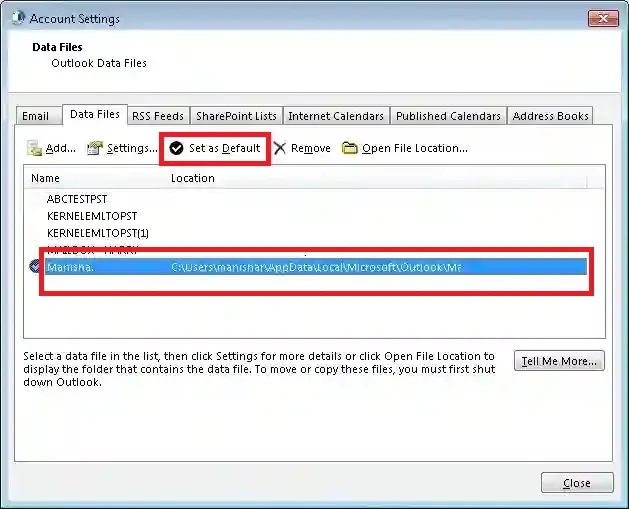
- Restart Outlook to apply the changes.
Method 2: Repair Outlook
- Open Control Panel and click on Programs and Features.

- Find Microsoft Office, then click Change.
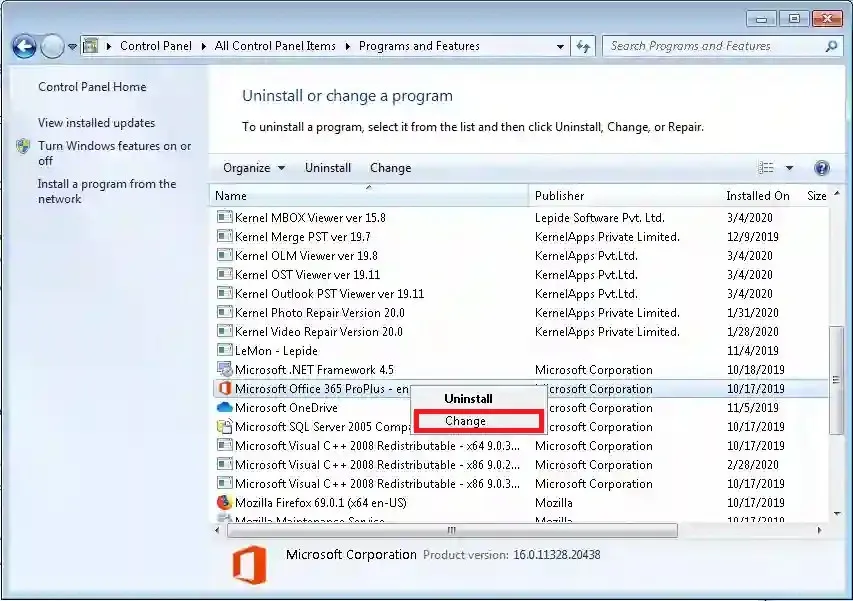
- Choose Quick Repair and click Repair.
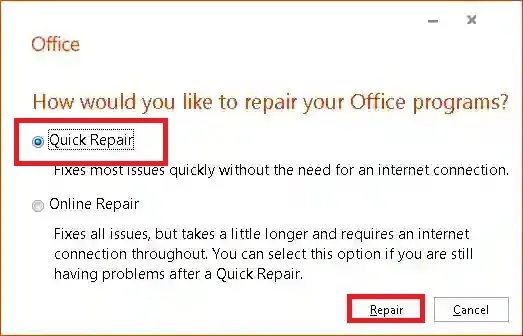
- Wait for the repair process to finish, then restart the Outlook application.
Method 3: Import Files to IMAP Server
- Open Outlook and go to File menu.
- Then click Open & Export > Import/Export option.

- Select Import from another program or file and click Next.
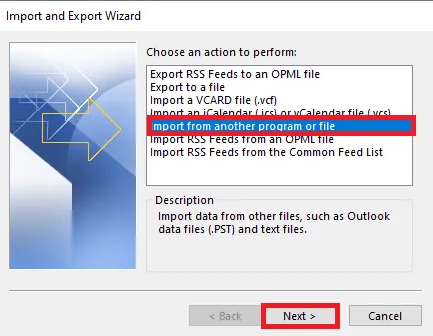
- Choose Outlook Data File (.pst) and click Next.
- Now, browse your PST file and again click on the Next button.

- Select the folders to import and click Finish.
Method 4: Use scanpst.exe Tool to Fix Corrupted File
- First of all, close the Outlook application.
- Then go to the File Manager and search for scanpst.exe.
- Run the tool and select the PST file you want to repair.
- Click Start to repair the file.
- Then restart Outlook.
Limitations of Manual Methods
These manual approaches come with certain drawbacks-
- Severe corruption may not be fixed by these methods.
- PST files larger than 2GB cannot be repaired by these methods.
- These methods can be time-consuming and may require technical knowledge of Outlook and the Control Panel.
To avoid all these limitations, you can move to the automated tool mentioned in the section below.
Professional Tool to Fix Outlook PST is Not a Personal Folders File Error
To solve Outlook.pst is not a personal folders file error, you can use the Yota PST file converter tool on your Windows system. It offers a smooth solution for managing and resolving Outlook issues like this one. The tool comes with advanced algorithms to efficiently repair PST file without scanpst tool in just a few minutes. It also provides a live progress report, ensuring you stay updated on the process.
This tool is free from viruses, malware, and ads. It ensures safe, secure migration without any data loss. Additionally, the tool automatically detects the default Outlook profile, making the Outlook migration process seamless. You can directly migrate your Outlook data to any IMAP-supported service, such as Microsoft 365, Yahoo Mail, Zoho Mail, G Suite, AWS Webmail, and more.
Prominent Features of the Tool
Its user-friendly interface comes with a variety of powerful features designed to benefit users. It can easily resolve the “Outlook PST is not a personal folders file” error with minimal effort and time. Some other key benefits that make it the best choice among similar tools include the following-
- You can choose specific email folders to migrate, without transferring unnecessary emails.
- It supports migration to a wide variety of platforms such as export Outlook to Thunderbird ,G Suite, O365, etc.
- You can migrate from a PST file without needing Outlook installed, making it versatile for different setups.
- The tool preserves all the important data like sender, receiver, timestamps, and folder hierarchy during the migration.
- It supports all versions of Outlook from 2010 to 2021 and works on various Windows versions, including Windows 11.
This software seems to be a comprehensive solution that can help you transfer Outlook profile data, including emails, contacts, calendar items, and more, to over 210+ different services.
Bottom Lines
In the section above, we discussed the reasons and methods to fix the Outlook PST is not a personal folders file. Manual methods can help resolve this issue. But they are often time-consuming and come with the risk of data loss. Therefore, we recommend using a professional tool to efficiently solve the Outlook.pst is not a personal folders file error. The software is a reliable option that can help you resolve the issue without compromising your data. You can start by trying the demo version to test its effectiveness before proceeding to the full version.