Microsoft Outlook is one of the most widely used email programs worldwide for managing emails, calendars, and tasks. However, as with any software, technical issues can occur, such as sync issues and local failures in Outlook. These errors interrupt workflows, cause communication delays, and can lead to data loss if not addressed on time. It’s important to understand why these local errors occur and know how to resolve them. This article describes practical steps for resolving sync issues local failures folder in Outlook for smooth usage.
Understanding Outlook Sync Issues and Local Failures
Sync issues occur when there is a mismatch between the data your Outlook application has and the server it connects to. For example, you may notice that emails you’ve sent from your desktop don’t show up on your phone or that changes to your calendar don’t appear on other devices. Lots of IMAP, POP3, or Microsoft Exchange types of accounts can suffer from these issues.
Local failures are found in data maintained locally on your device, such as emails, attachments, or calendar entries. Generally, these errors occur because Outlook is unable to save or open data from local files such as OST or PST files. And due to this you might encounter missing or corrupted emails or be unable to access attachments.
Reasons for Sync Issues and Local Failures in Outlook
- Poor Internet Connection: Outlook requires a stable connection to sync data with the server.
- Corrupted Profile: Outlook profiles store user data and preferences. If these are damaged, sync issues may occur.
- Outdated Software: Using an older version of Outlook can lead to compatibility problems with servers or operating systems.
- Large Mailbox Size: Overloaded mailboxes can slow down synchronization.
- Add-in Conflicts: Third-party add-ins sometimes interfere with Outlook’s performance.
- Corrupted OST or PST Files: These files store your emails and other data. Corruption in these files can cause local failures.
How to Solve Sync Issues and Local Failures in Outlook?
You can follow the below-mentioned solutions to fix sync issues local failures folder in Outlook:
1. Check Your Internet Connection
Sync problems are usually caused by slow or spotty internet connectivity. Make sure that your device is connected to a stable network. Use a wired connection if you can, as it is more reliable.
2. Update your Outlook Application
To ensure optimal performance, use the latest version of Outlook. To check for updates:
- Open Outlook.
- Select File > Office Account > Update Options, and then select Update Now.
3. Create a New Outlook Profile
If your Outlook profile is damaged or corrupted, it can cause various sync issues and local failures in Outlook. Follow these steps to create a new Outlook profile to resolve the sync issues local failures folder in Outlook issue:
- Open the Control Panel and search for Mail. Click on it.
- In the Mail Setup window, click Show Profiles and then click Add.
- Enter a name for the new profile and click OK.
- Configure your email account by entering the necessary details for IMAP, Exchange, or Office 365. Then click Next and Finish.
- Under the Mail Setup window, select Always use this profile, and choose the newly created profile from the drop-down menu.
Click OK and restart Outlook.
4. Disable Security Applications
Antivirus applications or firewalls may also block Outlook files while scanning, which causes sync issues and local failures in Outlook. If it is the cause, you can temporarily disable security software and update the folders in Outlook. If it works, the software might be the issue. If this is the case, add Outlook and its processes to your security software’s exceptions list or switch to a program that plays more nicely with Outlook. That ensures a seamless app performance without putting your device at risk.
5. Reduce Mailbox Size
Large mailboxes can slow down synchronization. To manage your mailbox:
- Delete unnecessary emails, especially those with large attachments.
- Use Outlook’s Archive feature to move old emails to a separate file.
- You can also use the email backup tool to save emails to your PC.
6. Disable Faulty Add-ins
Add-ins can extend Outlook’s capabilities, but they may also clash. To disable add-ins:
- In Outlook, click File > Options > Add-ins.
- Click Manage Add-ins and remove unnecessary add-ins, if any.
- Restart Outlook and check if sync issues and local failures in Outlook have been resolved.
7. Repair OST or PST Files
Outlook has a built-in repair tool called scanpst.exe to fix issues in PST files. To use it:
- Locate the tool (usually found in the Office installation folder).
- Run scanpst.exe and browse to select the corrupted file.
- Click Start to begin the repair process.
For OST files, you can delete the file and let Outlook rebuild it:
- Close Outlook.
- Navigate to the OST file location (found in File > Account Settings > Data Files).
- Delete the OST file.
- Reopen Outlook, which will automatically recreate the file.
8. Rebuild the Search Index
If search results in Outlook are incomplete or incorrect, rebuilding the search index can help:
- Open the Control Panel and go to Indexing Options.
- Click Modify and select Outlook as an indexed location.
- Click Rebuild.
After synchronizing Outlook, if you find that some items are still missing in the new OST file, you can recover them from your backup OST file. Using a tool like Yota OST Converter, you can extract emails, contacts, attachments, and other data from the backup OST file and save them on your PC, which can be easily accessed by users.
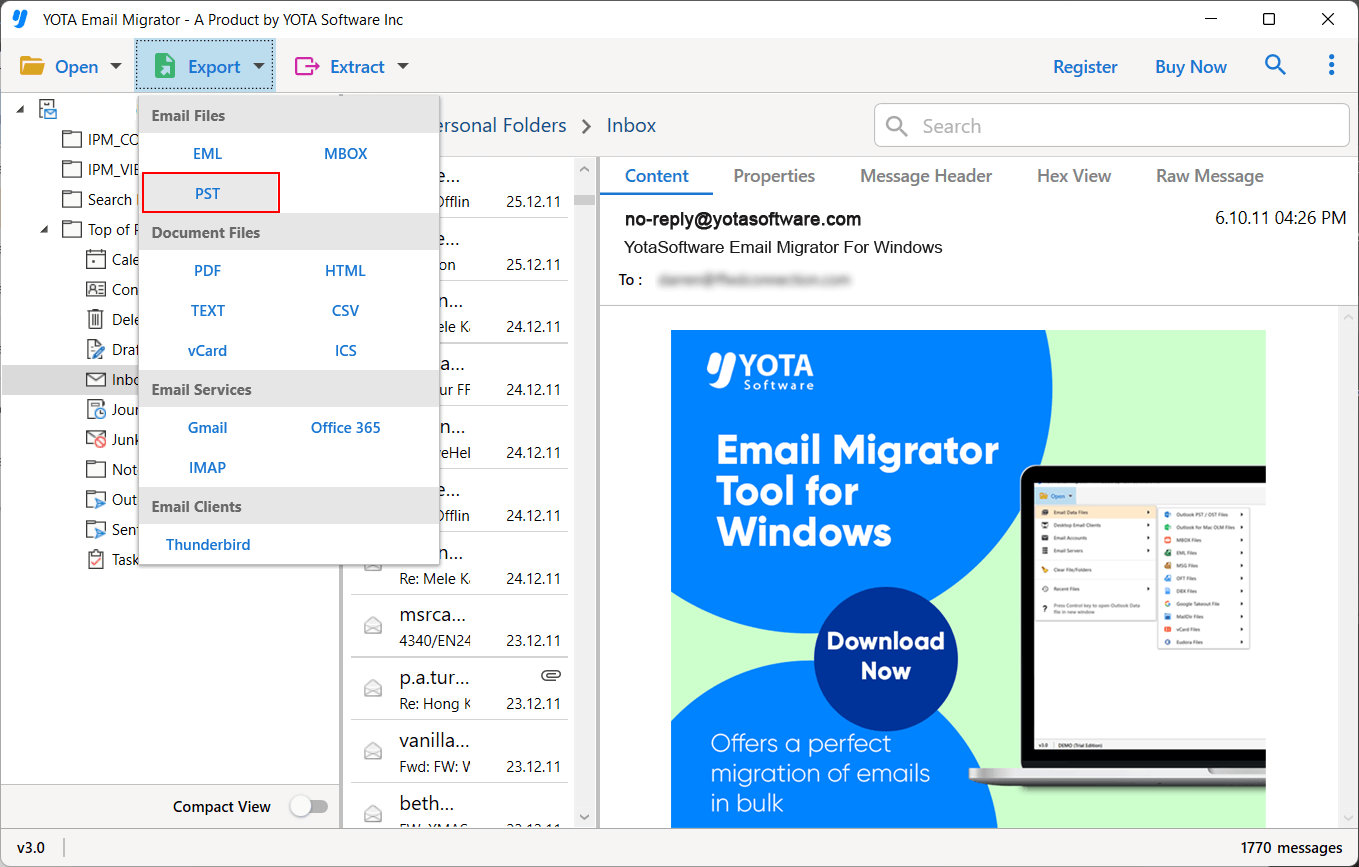
In addition to exporting OST files to PST, this email converter offers advanced features like direct import OST to Office 365 or Gmail, making it ideal for businesses and individuals migrating to cloud-based platforms. Its user-friendly interface allows even non-technical users to handle the process effortlessly, accomplishing the task in just a few clicks. This makes Yota OST to PST Converter a reliable solution for anyone needing to manage their Outlook data effectively.
Conclusion
At last, sync issues and local failures in Outlook must be fixed by making sure that your profile is correctly configured, your software is up to date, and your internet connection is stable. Here, we have discussed the common causes and effective solutions for these sync issues local failures folder in Outlook issues. Even if your OST file is corrupted or inaccessible, you can recover all your data by using the email converter tool. Following the above methods, you will easily fix sync issues and local failures in Outlook and continue without any further problems.
Read More: Save Outlook Emails When Leaving a Job