Introduction: In today’s digital work, migrating from one email service to another is common for business or personal needs. Likewise, many users want to migrate Google Workspace to Zoho Mail. If you are looking for the same, keep reading this post. Here, we will provide the manual and automatic methods for Google Workspace to Zoho migration with complete steps.
Before discussing the methods, first, let us learn a little about both services and why users want to move from Google Workspace to Zoho Mail.
Google Workspace, or G Suite, is a suite of cloud computing, productivity, collaboration tools, and software. It includes Gmail, Contacts, Calendar, Meet, Chat, Drive, Docs, and more. This app offers 15GB of storage and many other subscriptions, but is primarily suitable for large businesses.
Zoho Mail is designed for secure and professional email communication, suitable for both business and personal use. It offers features such as calendars, contacts, task management, and collaboration tools.
Reasons for Google Workspace to Zoho Mail Migration
The main reasons why users need to migrate Google Workspace to Zoho Mail are listed below:
- Zoho is a secure platform with greater data protection and security.
- It is a reliable, ad-free, and cost-effective email service
- Zoho Mail is the best option for small and medium-sized organizations.
- Offers rapid sharing and data access with full user control.
- Zoho Mail provides collaboration directly from your inbox.
- It offers custom domains, customization options, and powerful tools.
So, these are the common reasons to move Google Workspace emails to Zoho Mail account.
Now, let us proceed with the methods.
How to Migrate Google Workspace to Zoho Mail Manually?
Before proceeding, let us clarify that there is no built-in option offered by Google Workspace to perform this migration. Here, we are using Zoho to begin the Google Workpsace to Zoho Mail migration. Follow the below listed steps below for this:
- Sign in to the Zoho Mail admin console.
- Go to Email Management and click the Add Migration option.
- Then, enter the following server details:
- Specify a name for the migration and select Apps as the protocol type.
- For the server type, select G Suite and then select the preferred elements.
- After that, click the “Authenticate G Suite Account” button.
- Now, enter your Google Workspace account credentials.
- To authenticate, click “Verify” and select the “Add Accounts” tab.
- Next, specify a username and destination for the data migration.
- Finally, select additional options and click the Add and Close button.
That’s it!
This is how you can manually migrate Google Workspace to Zoho Mail account. However, it has some limitations as well.
Limitations of the manual approach
- Large emails with attachments cannot be moved manually.
- The process is difficult, and there is a risk of data loss if you take incorrect steps.
- There is no option to move selected files or items.
- A smooth Google Workspace to Zoho migration requires a high level of technical expertise.
What if a user needs a simple solution with bulk migration functionality? Don’t worry! You can choose the alternative method described in the next section.
How to Migrate Google Workpace Data to Zoho Mail Automatically in Bulk?
Yota Google Workspace Backup Tool is an advanced solution to migrate Google Workspace to Zoho Mail account. It offers a simple interface that is easily accessible even by a beginner with zero technical skills. The software is powerful enough to move multiple emails from your account at a time. Apart from that, it offers a filter option that lets you migrate selective or required items from your account.
Additionally, the tool requires only login credentials of your accounts. You can directly import Google Workspace data to Zoho Mail account with attachments. It is a Windows-based tool that successfully installs on Windows 11, 10, 8, and 7.
With this tool, you will not only migrate from Gmail to Zoho Mail, but you can also transfer data from your account to any IMAP-based email service. This software keeps the originality of your data even after the Google Workspace to Zoho Mail migration. So you don’t need to worry about losing your email formatting and folder structure.
Steps to Migrate Google Workspace to Zoho Mail Directly are:
- Download and install the Email Backup Tool on your Windows computer.
- Click on Open > Email Accounts and select the Add Account option.

- Then enter your Google Workspace account login credentials.

- Choose the data and click Export, then select IMAP as a saving option.
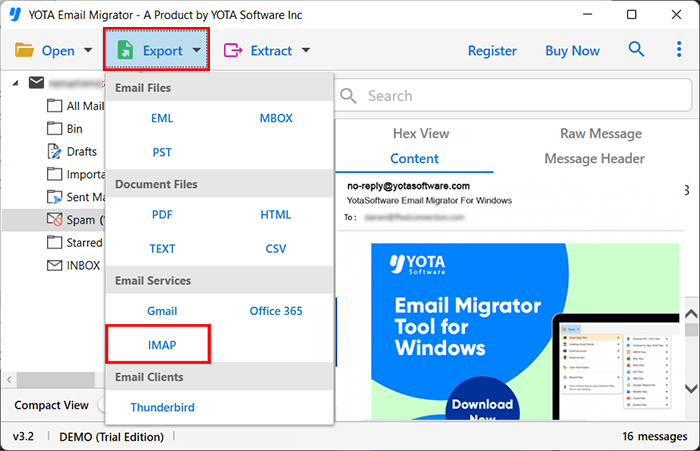
- Now, enter your Zoho Mail account credentials and click on the Save button.

Finished!
This is an easy and secure way to move Google Workspace data to Zoho Mail account with attachments in just a few clicks.
Final Thoughts
Data migration is not an easy task if you don’t know the right steps. To help users, we have presented the two best ways to migrate Google Workspace to Zoho Mail. The manual method is suitable if you have a non-technical background, limited data to migrate, and plenty of time for the process. Alternatively, you can use the alternative method to quickly and directly import Google Workspace data, along with attachments into your Zoho Mail account. Moreover, you can perform the Google Workspace to Zoho migration in bulk or selectively, so choose the method that suits your needs.