Users want to transfer Gmail account to another person for many reasons, like business, personal, and many more. If you are also one of those who are looking for a solution to transfer Gmail account to someone else. Then you have landed on the right page. In this easy guide, we will explore the solutions to move Gmail account to someone else and change the Gmail account ownership.
Gmail is one of the most widely used email services in the world. It will offer users access to emails, contacts, calendars, and cloud storage all in one platform. It can be used for both personal and professional purposes. In some cases, users need to transfer ownership of a Gmail account to another party. When you are switching jobs, handling someone’s business, and for many other reasons. Gmail provides better organization and easy transfer Gmail data. It will ensure data integrity and security.
Keep reading this article to know the reason why users need to transfer Gmail account to another person, and also the solutions to accomplish this task.
Reasons to Transfer Gmail Account to Someone Else
- Employee transition: When someone leaves a company and their email account needs to be handed over by the new employee.
- Business ownership change: During the sale or transfer of a business, Gmail account access and data may need to go to the new owner.
- Delegating responsibilities: To allow someone else to manage emails, contacts, or tasks on behalf of the original account holder.
- Account consolidation: merge emails and data from multiple Gmail accounts into one for better organization.
- Switching to a new email: Users may move their data to a new Gmail address for branding, privacy, or simplicity.
- Maintaining access to important data: Ensures critical emails, files, and contacts are not lost when transfer to a new account.
Manually Transfer Gmail Account to Another Person
You can manually transfer Gmail account to someone else. Here we will discuss the step-by-step instructions to perform this task.
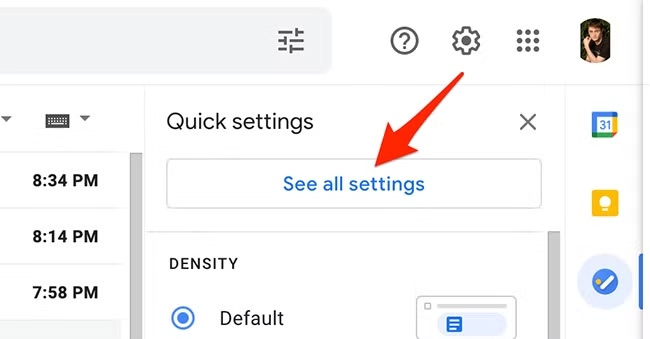
- Open your Gmail account and click the Gear icon in the top-right corner.
- Select the option See all settings.
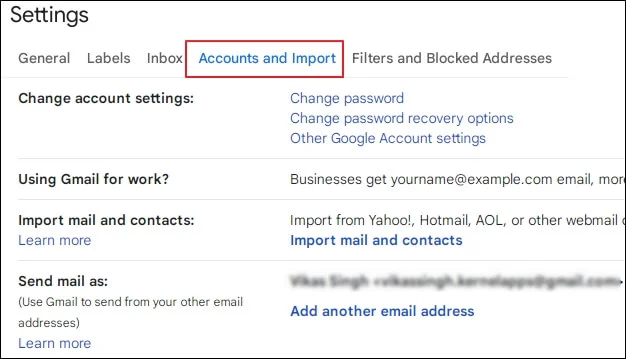
- Now, go to the Accounts and Import tab.
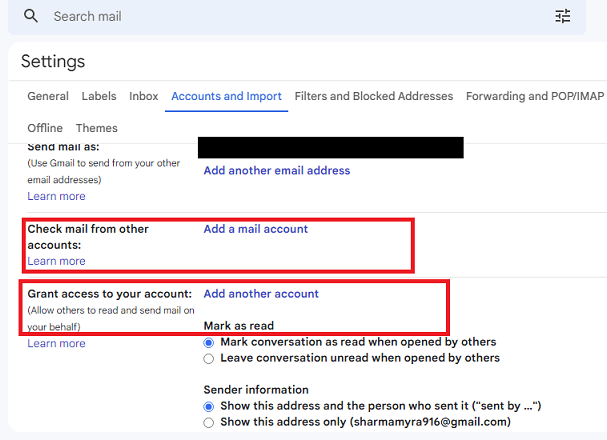
- Scroll down to the Grant access to your account section.
- Click on Add another account.
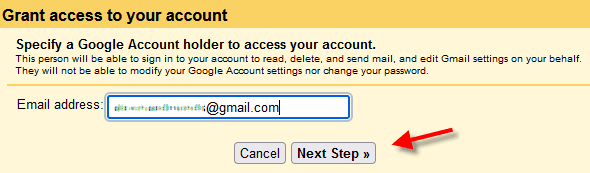
- Enter the Gmail address of the person you want to grant access to.
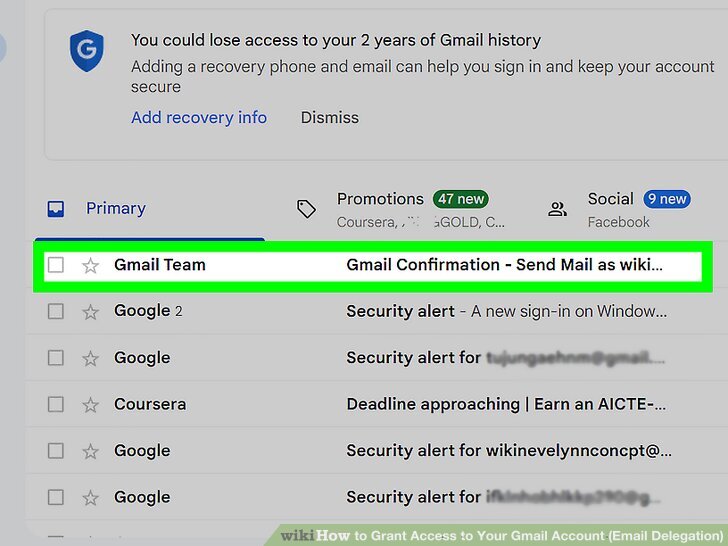
- Then that person will receive a confirmation email. They must accept it to complete the setup process.
Once the emails are confirmed, the delegate can access your Gmail and send emails on your Gmail account. Their name will appear in the sender info.
But this method comes with certain limitations. It is time time-consuming process. In the upcoming section, we will discuss some major limitations of this manual process.
Loopholes of the Manual Process
Gmail delegation can be a convenient way to give someone temporary access to your inbox, but it is not a complete transfer of ownership and comes with several limitations.
- One of the major drawbacks is that the folder and label hierarchy may not be preserved during migration.
- These methods do not support transferring important data types such as contacts, calendars, chats, tasks, and notes.
- Key folders like Drafts, Sent Items, and custom labels may also not be moved properly with this method.
- There is also no guarantee the process will work smoothly, as delegation can sometimes fail or result in sync issues. It can cause some errors during delegation.
- There are always security risks that increase if access is not correctly revoked when no longer needed.
These limitations make manual methods unreliable for users seeking a full and secure Gmail transfer. So, it is the wise choice to use the expert solution to transfer Gmail account to another person.
How to Move Gmail Account to Someone Else Directly? – Expert Solution
To transfer Gmail account to someone else, you can use the Yota Gmail Backup Wizard on your Windows PC. This helps users move a large number of emails in bulk without any file size restrictions. It lets you migrate from one Gmail account to another account. The software supports exporting Gmail emails into different file formats like PST, MBOX, EML, and more. With this software, you can move selected Gmail mailbox data while keeping your folder structure and emails in hierarchy.
It also allows you to move Gmail emails directly to other platforms like Outlook, Thunderbird, Office 365, or Yahoo Mail. The tool comes with filters for selective transfer and supports multiple Gmail accounts. You can even test the features with a free trial version before making a decision.
Steps to Transfer Gmail Account to Another Person are as follows:
- Install Email Backup Tool on your Windows computer.
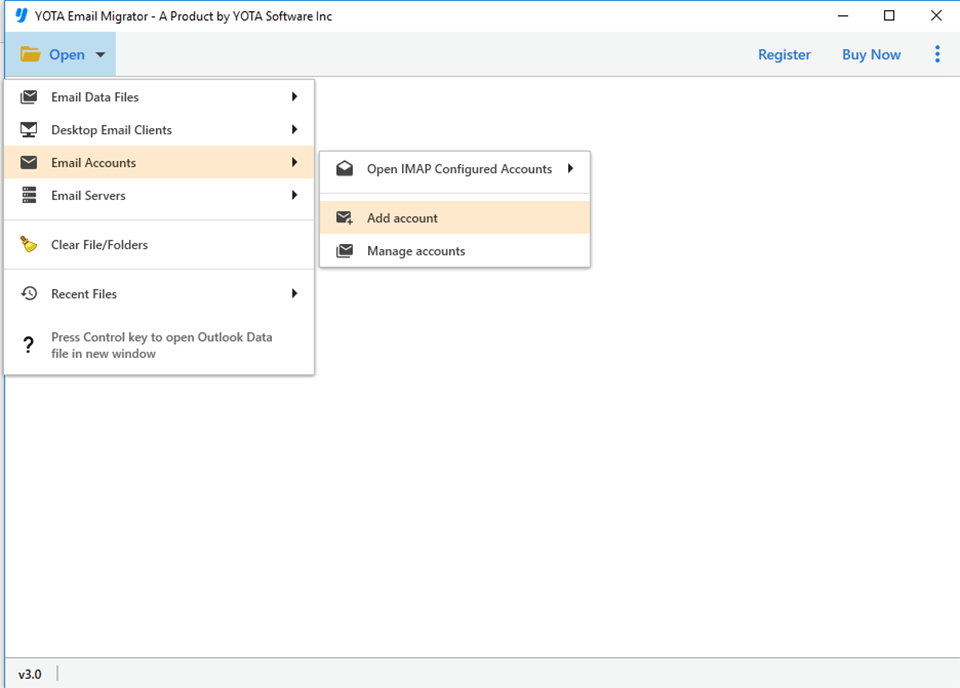
- Then click on Open > Email Accounts > Add Account.
- Enter your Gmail account email ID and app password.

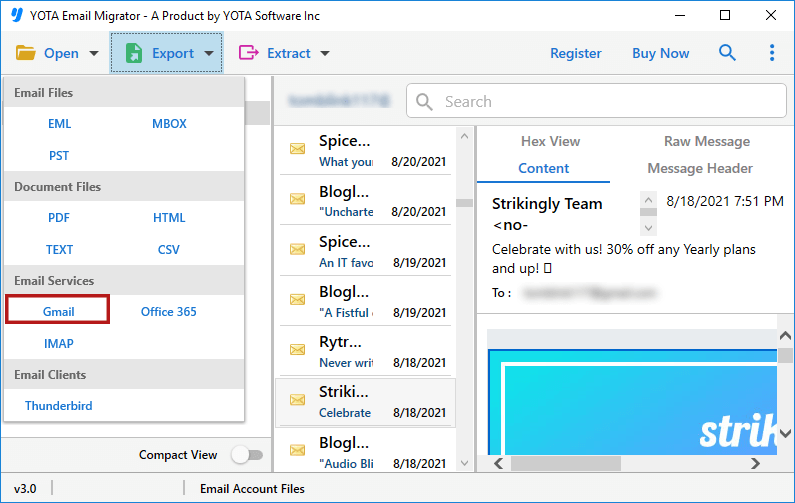
- Go to the Export option and select Gmail from the saving list.
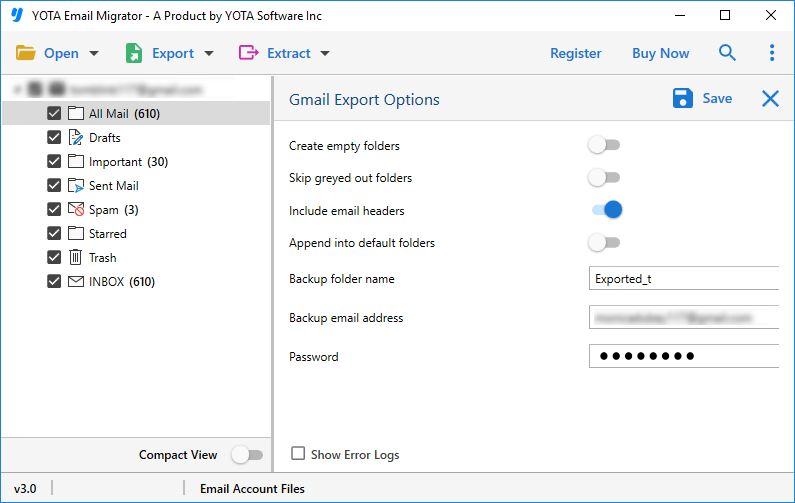
- Enter the credentials of your Gmail account and click on the Save button.
Done! Once the process is completed, you can open your destination email account and access all the transferred Gmail emails with their original formatting and maintain the folder structure.
Highlighted Qualities of Gmail Backup Wizard
- This tool will backup several Gmail accounts without the need for Gmail IDs and installing other software.
- It allows users to preview the full emails in multiple modes before moving.
- You can pause and resume the transfer Gmail account to another person without losing the data.
- It exports contacts, emails, calendars, and other details with the original structure.
- This tool supports all Windows versions like Windows 11, 10, 8, 7, and supports 32-bit & 64-bit.
- This will locate the specific emails by date, sender, subject, or keyword before backup.
- It is the best email migrator to save Gmail emails in various file formats like PST, MBOX, PDF, EML, OLM, and more.
- Helps you extract all attachments from Gmail in just a few clicks.
- Maintain original folders, subfolders, and hierarchy during transfer.
- It preserves email integrity, keeps To, From, CC, BCC, subject, headers, and formatting unchanged.
- There are no size limitations to backup unlimited Gmail emails.
Summing Up
In this blog, we have explained both manual and automated methods to transfer Gmail account to another person. You can choose the method that best fits your needs. The manual method lets someone access your Gmail to read, reply, send, and delete emails or manage contacts. However, for a faster, safer, and more complete transfer. Our experts recommend using an automated tool. It helps you transfer Gmail account to someone else in bulk and selective mode.