Summary: Are you finding a solution to transfer Juno email to Outlook application? If so, you are on the right path. This blog will tell you the top two solutions to transfer emails from Juno to Outlook email client. So keep reading the post and find the best solution to your request.
Juno Online Services is a US-based Internet service provider. It originally offered a free email service but has since expanded its offerings. Juno.com provides IMAP access to your Juno.com account so you can access your email from your desktop email program or mobile email app.
Why Transfer Emails from Juno to Outlook?
- Microsoft Outlook offers smooth integration with other Microsoft 365 applications.
- It helps you manage and access all your emails from different accounts in one place.
- By transferring Juno emails to Outlook, you can access your emails offline anytime.
- Outlook has enhanced security features to help protect your data.
- It also offers new updated and new versions from time to time with advanced features.
So these are some common reasons to transfer emails from Juno Mail to Outlook application.
Now, let us move to the methods for Juno to Outlook migration one by one.
Manually Transfer Juno Email to Outlook
To sync or add Juno email in Outlook, follow the below-listed steps:
- Open the Outlook application on your system.
- Click the File tab in the top-left corner.
- Select Account Settings from the drop-down menu.
- Click Account Settings again.
- In the Account Settings window, click New.
- Enter your Juno Mail email address and click Connect.
- Select IMAP as the account type.
- Enter the IMAP settings for your Juno email account.
Juno.com IMAP Server: imap.juno.com
Juno.com IMAP Port: 143
IMAP Security: SSL
Juno.com SMTP Server: smtp.juno.com
Juno.com SMTP Port: 465
SMTP Security: SSL - Then enter your Juno mail account password and click Connect.
- Outlook will check your data. Once the validation is complete, you will see the message “Account added successfully.”
- Click Finish.
That’s it!
Drawbacks of Manual Solution
- Synchronizing with Outlook takes a very long time. Sometimes synchronization takes hours or even days.
- Users must have the technical knowledge to correctly transfer Juno email to Outlook.
- Additionally, there’s no option to transfer only specific emails. You’ll need to transfer all of your emails.
Professional Solution to Transfer Emails from Juno to Outlook
To seamlessly and quickly transfer Juno email to Outlook, you can use the Yota Email Backup Wizard on your PC. It offers a simplified user interface that even accessible to any non-technical user. The software lets you export Juno emails to PST file format which is supported by all versions of Outlook. After exporting emails in a PST file, you can simply import it into your Outlook application.
The tool provides you an option to export only specific emails from Juno to PST by filtering emails by subject, from, to, date, time, etc. It also can export multiple Juno Mail emails to PST file at a time. Moreover, the software offers multiple features and one of the best is that it maintains the original formatting of your emails during the email conversion. Along with this, it preserves the hierarchy of folders and sub-folders the same as before conversion.
You can also transfer emails from Juno to Outlook along with all attachments in just a few minutes. It is a standalone solution that does not even need the installation of Outlook to export Juno emails to PST file format. You can simply download and install this tool on any version of Windows such as Windows 11, 10, etc.
Steps to Transfer Juno Email to Outlook are as follows:
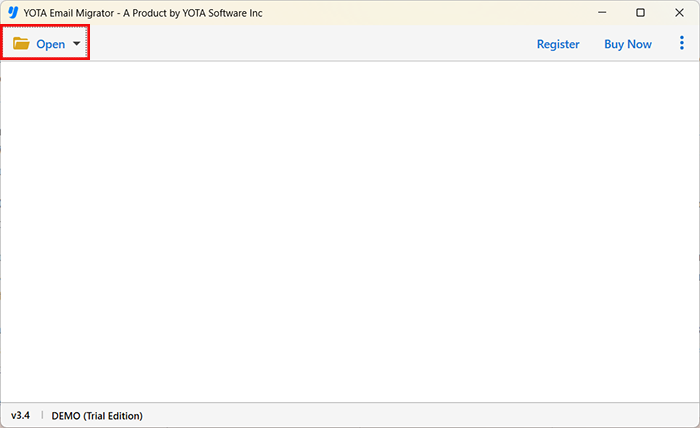
- Launch the Yota IMAP Backup Tool and hit the Open tab.
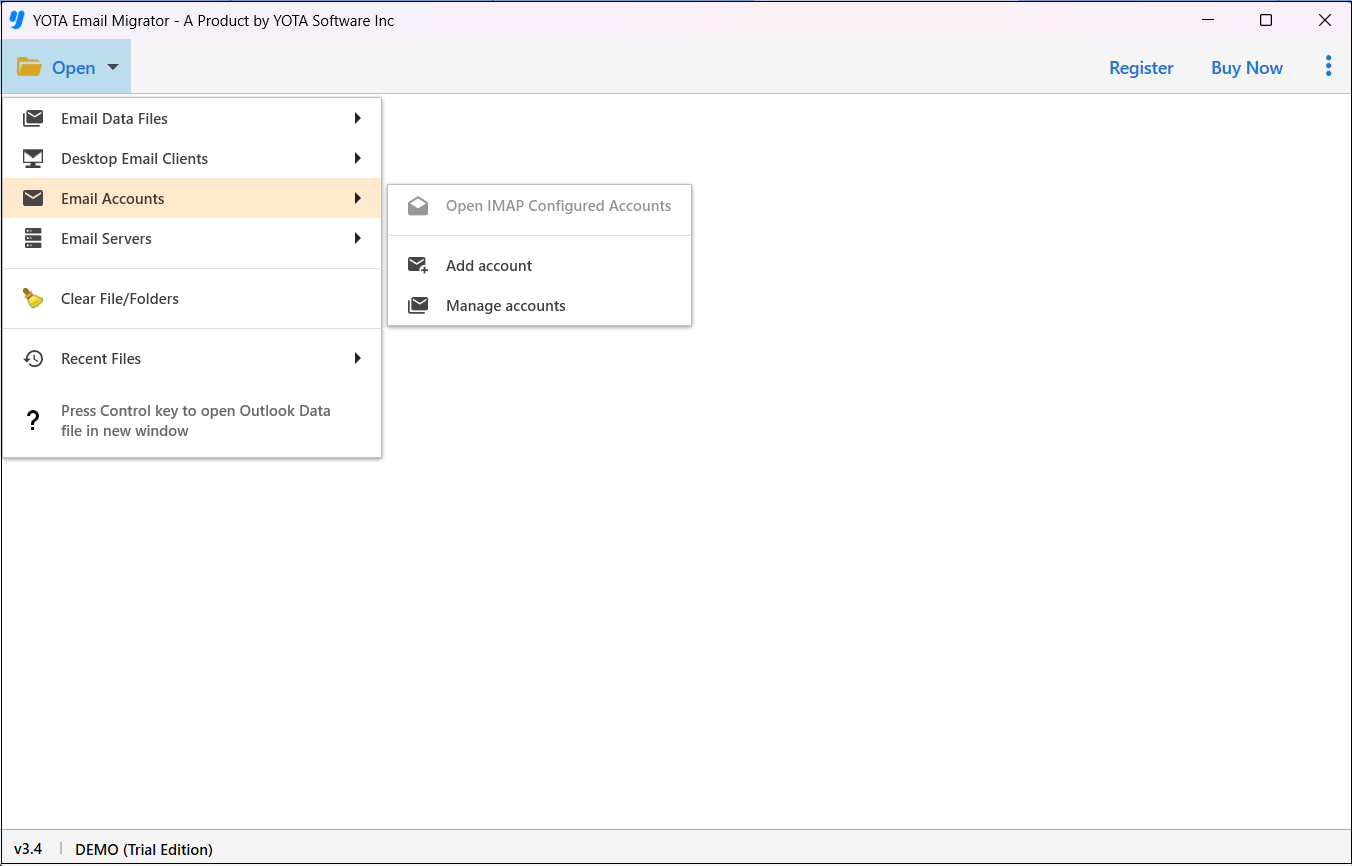
- Click on Email Accounts and select the Add Account option.
- Now, enter the Email Address and App Password of Juno Webmail.

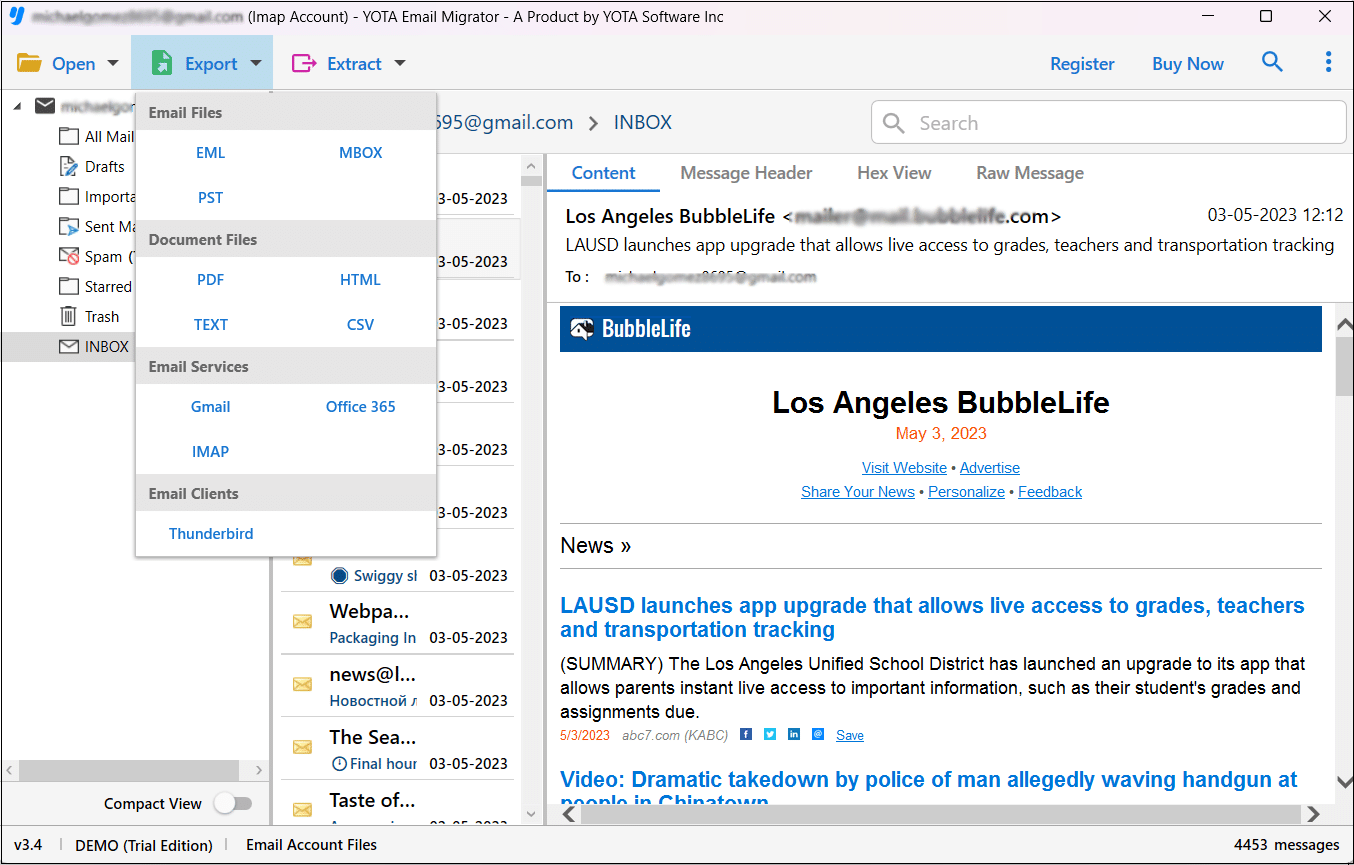
- Select the mailbox folder and click Export then select PST format.
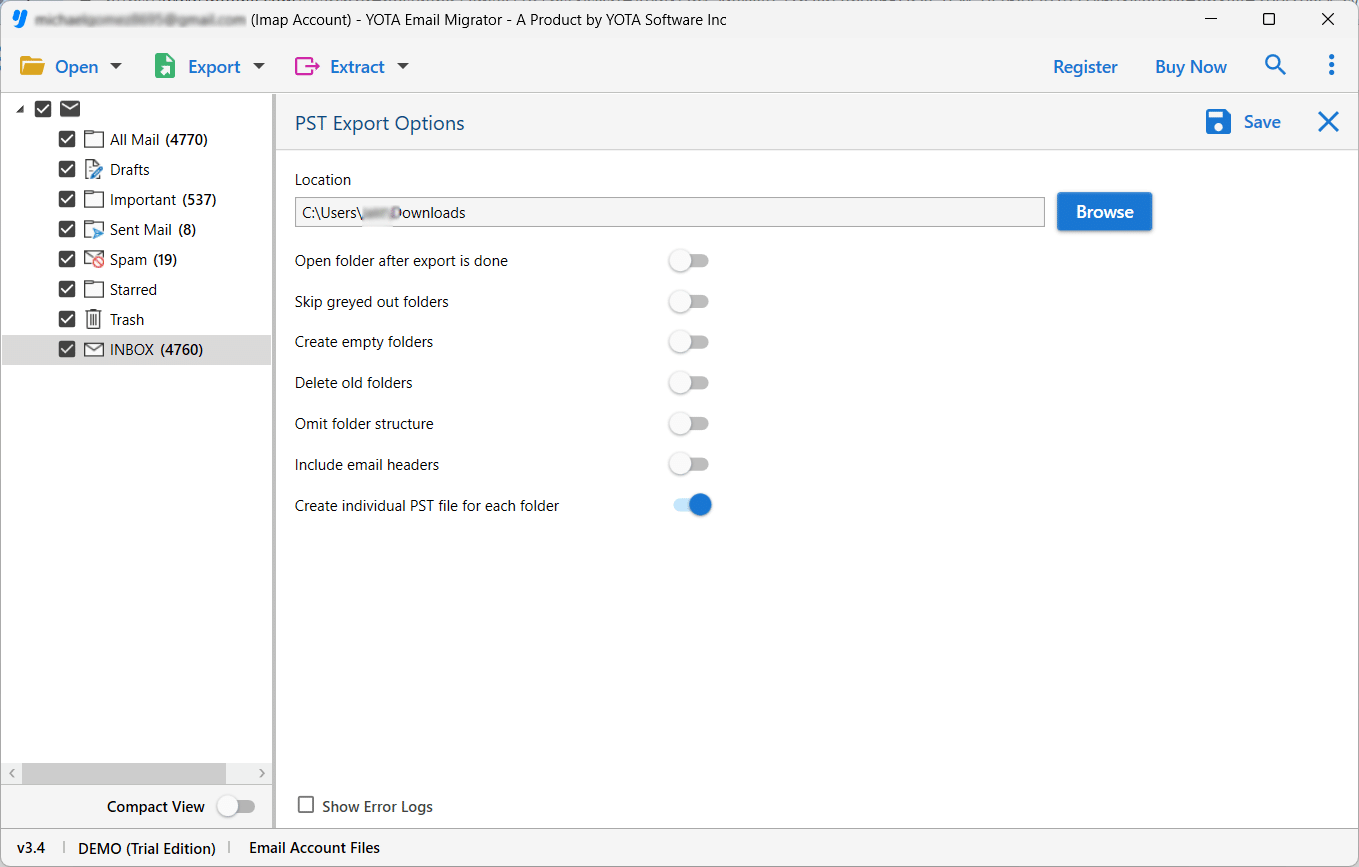
- Choose a path for storing PST file and click on the Save button.
Once your emails are exported in a PST file, you can import it into Outlook to transfer Juno email to Outlook.
Follow these steps to import PST file into Outlook:
- Open Microsoft Outlook and Go to the “File” tab at the top of the ribbon.
- Click “Open & Export” and then “Import/Export”.
- In the “Import and Export Wizard”, select “Import from another program or file” and click “Next”.
- Choose “Outlook Data File (.pst)” and click “Next”.
- Browse to the location of the .pst file you want to import in Outlook.
- Select the PST file and click “Next”.
- Click on the “Finish” button to start the import process.
Conclusion
Here, we’ve introduced two methods that let you transfer Juno email to Outlook. The manual solution is free but time-consuming and requires technical expertise for a smooth migration. The automated email migration tool allows you to export Juno emails to PST file format and then import the exported file into Outlook. This allows you to transfer emails from Juno to Outlook in minutes without any technical knowledge.


