Are you planning to transfer Mediacom emails to Gmail, but are not sure how to move your emails? Then don’t worry! You’re not alone. Many users want to migrate emails from Mediacom to Gmail account. Gmail provides more powerful features, better security, and a user-friendly interface. Whether you’re looking for more storage space, easier access across many devices, or smooth integration with Google services. Gmail is a smart choice over traditional email providers like Mediacom.
In this blog, we’ll explain to you two reliable methods to import Mediacom emails to Gmail: one is a free manual method, and the other is an automated IMAP to Gmail Migration solution.
Why Migrate Emails from Mediacom to Gmail?
Mediacom is known mainly as a cable and internet provider in the U.S. But it also provides email services to its subscribers. However, its email system has basic functions, so many users want to transfer Mediacom emails to Gmail for advanced features. Here are some common reasons why users import Mediacom emails to Gmail-
- Gmail provides 15 GB of free storage.
- It will give strong security features to keep your data safe and secure.
- Gmail boasts a simple, clean, and user-friendly design.
- If you move your Mediacom emails to Gmail, you can access them from anywhere and on any device.
- Gmail also integrates with other Google tools like Drive, Calendar, and Meet.
- It provides a Powerful search to find emails quickly.
How to Transfer Mediacom Emails to Gmail Manually (Free)?
Follow the steps below to manually migrate emails from Mediacom to Gmail:
- Log in to your Gmail account.
- Then, click the gear icon in the top right and select “See all settings.”

- After that, go to the “Accounts and Import” tab.
- Click on the Import mail and contacts.

- Enter your Mediacom email address and click Continue.

- Now, enter your Mediacom password and IMAP server settings.
- Once Gmail verifies the information, click on the “Start Import.”

Done! Now Gmail will start copying all your emails from the Mediacom account. But this process is time-consuming and lengthy.
Points to be Noted-
- This method is free, but it can take several hours or sometimes even days, depending on how many emails you have in your Mediacom account.
- You cannot choose specific folders or select only specific emails. It imports everything.
- Attachments with the emails and some formatting might not transfer perfectly in some cases.
How to Import Mediacom Emails to Gmail Account Directly?
Use the Yota IMAP Migration Tool on your Windows PC that lets you transfer Mediacom emails to Gmail account directly. You can move all emails or just select specific folders with this tool. It also offers filters to move emails according to the date, subject, sender, and more. The best part is that it will keep your folder structure the same in Gmail.
This wizard comes with advanced features that make migrating emails from Mediacom to Gmail quick and easy with just a few clicks, and you’re done. Also, you can backup Mediacom emails to your computers at the desired destination in multiple file formats like PDF, PST, EML, TXT, and more. After converting your emails in PST, you can add Mediacom email to Outlook application.
Along with formats, it supports all IMAP-based email providers. You cannot only transfer Mediacom emails to Gmail but also import Mediacom emails to Office 365 account, Mediacom to Thunderbird, and many more accounts in a direct way. Additionally, the software keeps your emails in their original formats and structure. It also maintains all your important details as it is. Now, let’s walk through how the tool works step by step in the section below.
You can download and install the software by clicking the link below-
Steps to Transfer Mediacom Emails to Gmail are as follows:
- Download and launch the Mediacom to Gmail Migration Tool.
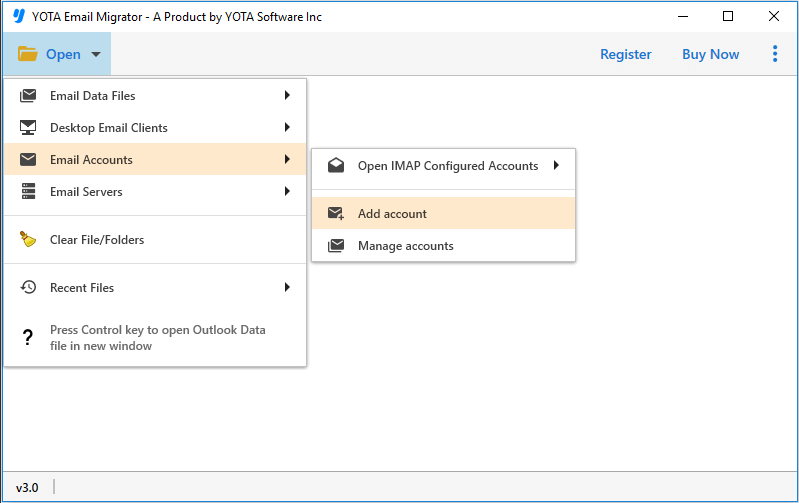
- Click on Open>> Email Accounts>> Add Account to proceed.
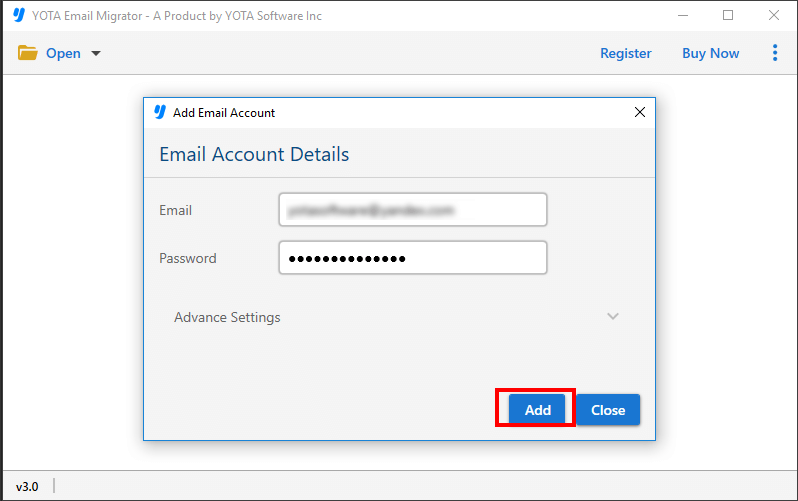
- Enter your Mediacom login details, such as email address and app password.
- Click on Export and choose Gmail as the saving option to import Mediacom emails to Gmail.

- Enter your Gmail account details and click on the Save button to begin the migration.

That’s it!
Advantages of the Mediacom to Gmail Migration Tool
- This tool has an easy-to-use interface that makes migration from any IMAP server to Gmail easy. There are no technical skills required. You can just follow the simple steps to transfer Mediacom emails to Gmail.
- Whether you have hundreds or thousands of emails, this tool can handle the large volumes of data smoothly. There are no file size limitations or restrictions, and the software won’t crash even with the bulk migrations.
- Besides migrating emails from Mediacom to Gmail, this Email migration tool allows you to transfer emails to many other platforms like Microsoft 365, Hotmail, Yahoo Mail, and other IMAP-supported services without any data loss.
- You don’t need to move everything. This tool lets you choose specific folders or emails to migrate according to your needs. It is the perfect tool to avoid any issues and only transfer the specific emails.
Conclusion
Email plays an important role in both personal and professional communication, but importing Mediacom emails to Gmail can often be complex and frustrating with the manual method. Thankfully, the Mediacom to Gmail Migration Tool is designed to simplify this process. This software offers a smooth and direct way to transfer Mediacom emails to Gmail account.

