In today’s post, you will learn about the best methods to transfer Runbox email to Outlook. So, if you have the same need, read the blog till the end. Here we will discuss the manual and the automated method that helps you transfer emails from Runbox to Outlook. So let’s begin.
Before that, let’s learn a little about Runbox and Outlook and also why users want to perform this email migration.
Runbox is a comprehensive email service that can be used in web browsers, email clients like Thunderbird, Outlook, Apple Mail, and even on your mobile phone. The reliability and versatility of the Runbox email server setup make it a key factor for success in today’s modern, data-driven world.
Outlook for Windows helps you connect and coordinate your world. Users can write emails, stay organized, and get quick access to their favorite Microsoft apps. You can manage multiple accounts, including email, calendar, contacts, and more, all in one place. It also launches a new version with advanced features and better security.
Manually Transfer Runbox Email to Outlook
- To add a new account, go to File > Add Account.
- Enter your Runbox Webmail email address.
- Click Advanced options and select Let me set up account manually.
- Then click Connect.
- On the next screen, select the service type IMAP.
- Enter your account details and Runbox’s server details.
Incoming mail server (IMAP): mail.runbox.com
Port: 993
Encryption method: SSL/TLS
Outgoing mail server (SMTP): mail.runbox.com
Port: 465
Encryption method: SSL/TLS
- Afterward, then click Connect.
- Outlook will confirm that your account has been set up. If you get an error, cancel the process and follow the instructions again.
That’s it!
This process takes many hours or days to complete the account configuration task. You also must have technical knowledge to add Runbox email to Outlook without any interruption or data loss issues.
Expert Way to Transfer Emails from Runbox to Outlook
You can use the Yota Email Backup Wizard on your system to instantly transfer Runbox email to Outlook. It offers a simple interface so that any beginner can migrate emails from Runbox Webmail to Outlook without taking any help from tech experts. The software allows you to backup Runbox emails to the local PC in multiple file formats so that you can even access emails in several email applications and devices.
With this tool, you can export Runbox emails to PST file format and then import them into Outlook. It offers an advanced option for exporting multiple Runbox emails at once. You can also filter your emails by subject, date, time, and other criteria to export only the emails you need. This saves valuable time and storage space.
This is a completely secure software that never stores or discloses any information from your account during email conversion. You can fully trust this tool, and it allows you to transfer Runbox email to Outlook with 100% accuracy. Additionally, it maintains all email properties (to, from, cc, date, time, links, and more) and folder hierarchy even after the conversion.
Most importantly, the tool lets you export emails from Runbox to PST without installing the Outlook application on your PC. It is a standalone utility that is capable enough to accomplish this task by itself. Along with this, it supports each and very version of Windows including Windows 11, 10, etc. You can install the tool on any 32 & 64-bit machines.
To seamlessly export Runbox emails to PST to finish the transfer emails from Runbox to Outlook task, download the tool on your PC. Then follow the below instructions.
Steps to Transfer Runbox Email to Outlook are as follows:
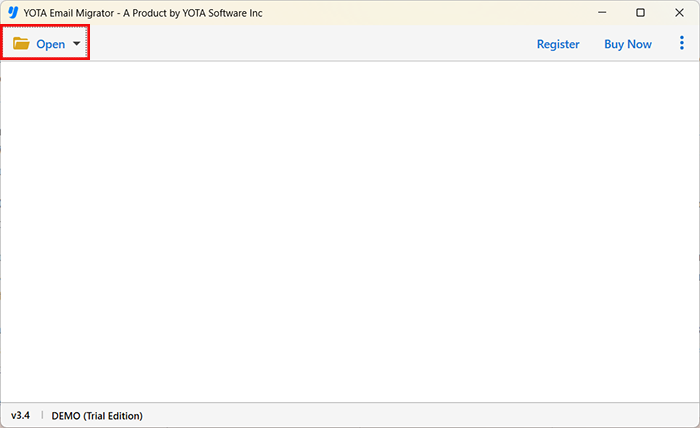
- Install the Yota Runbox to PST Tool and hit the Open tab from the top.
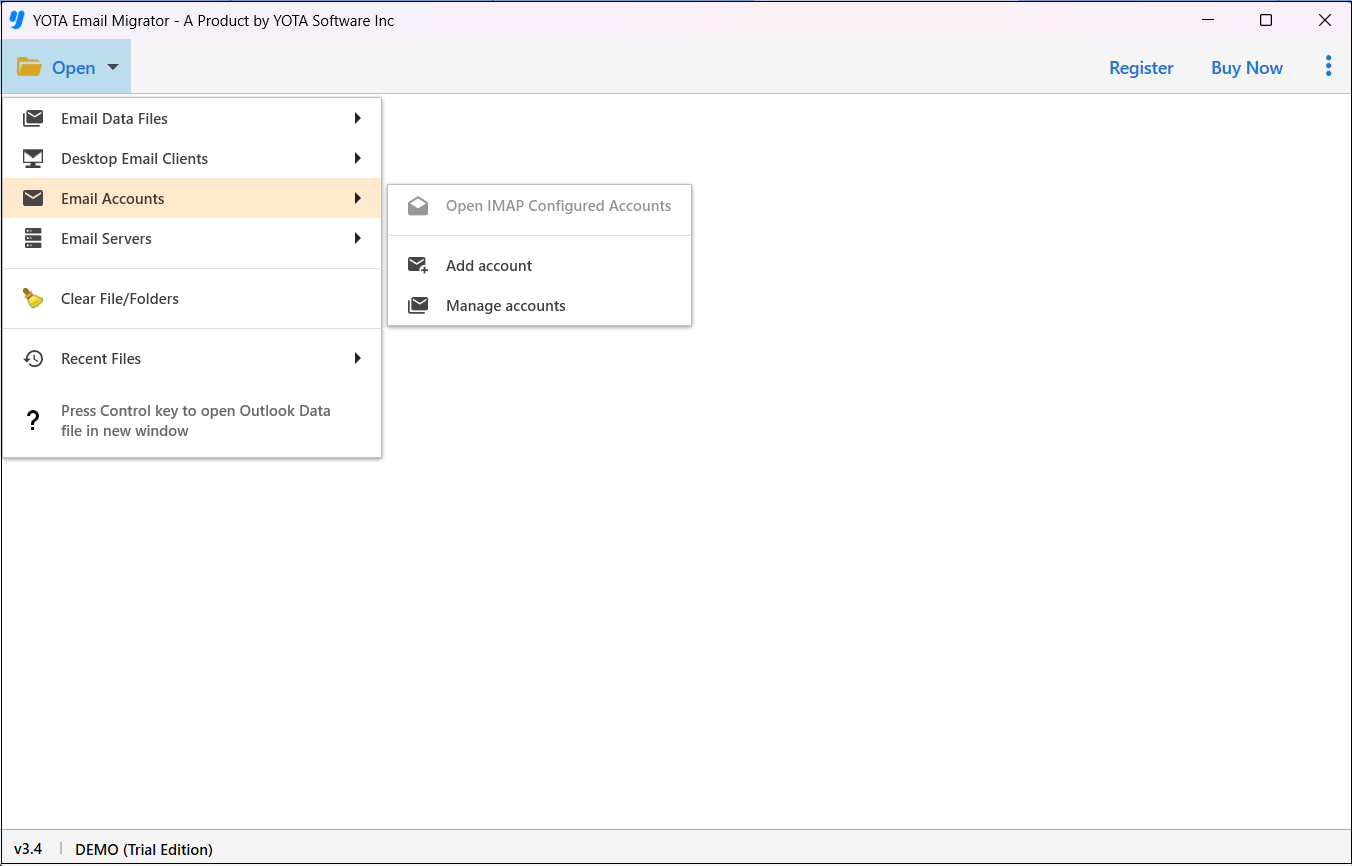
- Click on Email Accounts and select the Add Account option to proceed.
- Enter Runbox Webmail Email Address and App Password then select emails.

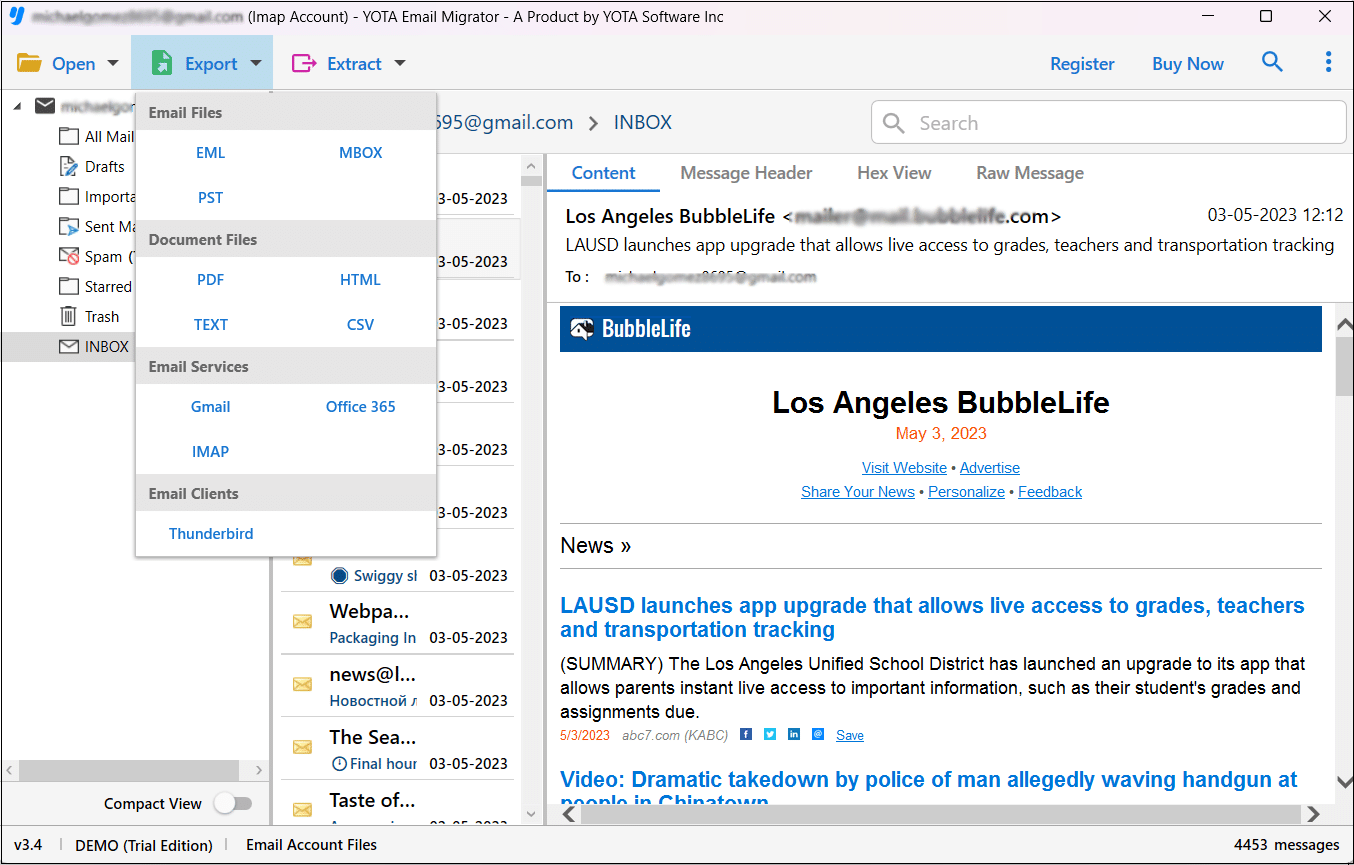
- Click on the Export option from the top and select PST as a saving format.
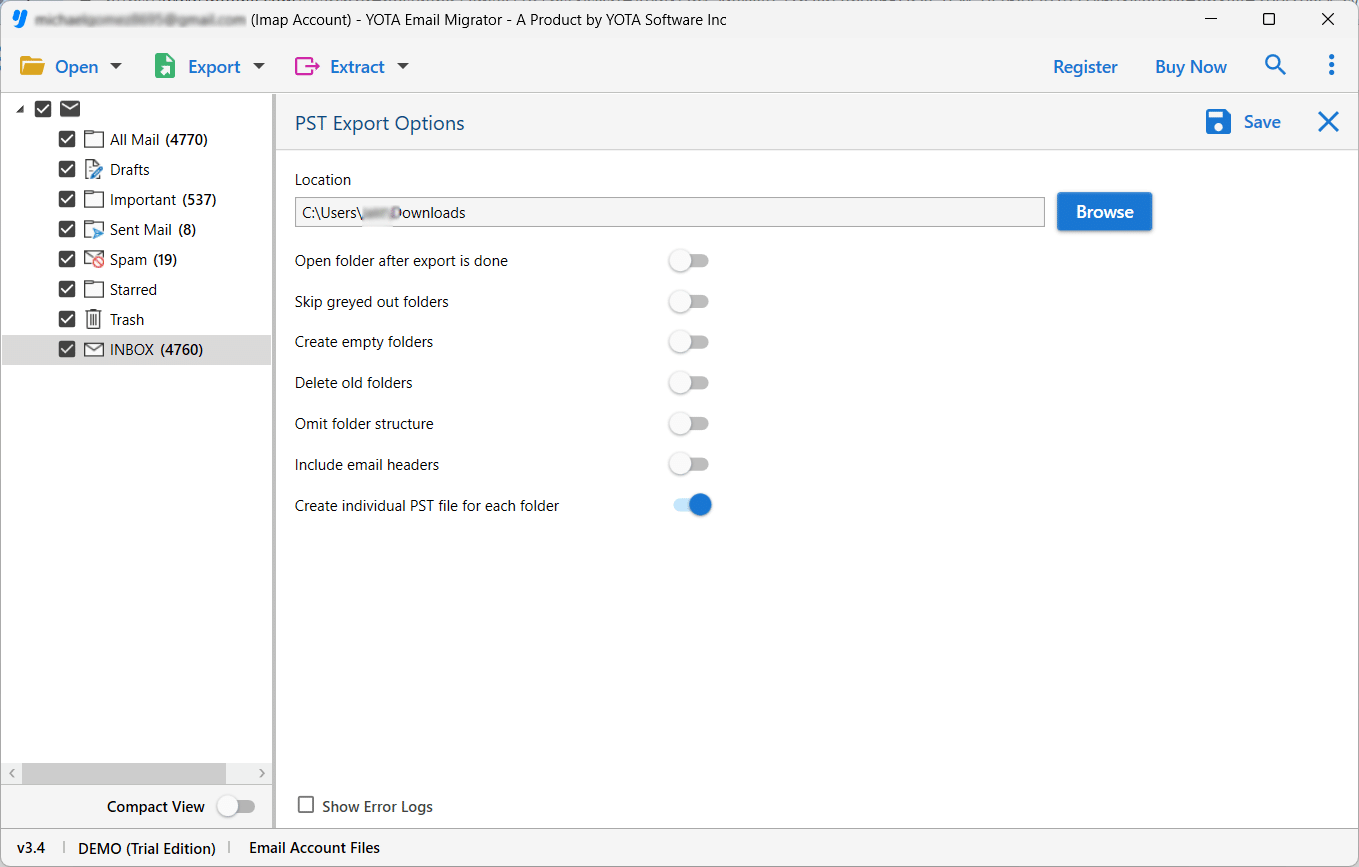
- Now, choose a path for storing the PST file and click on the Save button.
You are done now!
This is the easiest and fastest way to transfer Runbox email to Outlook by exporting Runbox emails to PST file format.
Once your emails are exported in PST file, you can easily import the file into Outlook 2021, 2019, 2016, 2013, and 2010 via the import/export option.
However, if you are facing Import Export Greyed Out Outlook Windows, you can first check the version of your application.
Final Words
In the above post, we have shared 2 top solutions to transfer Runbox email to Outlook application. You can go with any solution that meets your needs. However, to quickly transfer emails from Runbox to Outlook without any technical expertise, it is advisable to use the automated IMAP backup tool. This allows you to export Runbox emails to PST and then you can import the PST file into your Outlook account using the inbuilt option.


