Want to import emails from IMAP to Zoho account, but don’t know how to start? Well, don’t worry, you are not alone. There are so many users who are looking to transfer IMAP emails to Zoho Mail without losing data. In this guide, you will get the two easy methods to migrate IMAP emails to Zoho. One is the manual method using Zoho in-built import option and the professional method using Yota IMAP Migration Tool.
Why to Import IMAP Emails to Zoho Mail?
Zoho Mail is highly secured email platforms and beneficial for many businesses. Users might want to import emails from IMAP to Zoho due to various reasons:
- To keep your data safe in Zoho’s encrypted platform.
- The interface of Zoho is business-friendly.
- It provides ad-free and clean panel.
- Users get integration with Zoho apps like CRM, Docs, Projects, etc.
- To maintain access to older conversations and attachments.
Method 1: Import Emails from IMAP to Zoho Mail Manually
Zoho Mail offers a built-in Import/Export feature that allows you to manually migrate IMAP account to Zoho Mail. Follow the steps to move IMAP emails:
- Login to Zoho Mail using your account credentials.
- Click on the Settings icon in the top-right corner.
- Go to Email Accounts>> Add Mail Account.
- Select IMAP as the account type.
- Enter your IMAP account details:
- Incoming Server (IMAP): e.g., imap.gmail.com
- Port Number: 993
- Encryption: SSL/TLS
- Enter your username and password.
- Once connected, Zoho will start syncing emails from your IMAP server.
Limitations of Manual Method
- Slow for large mailboxes.
- Requires manual setup and technical details.
- No selective migration.
- Risk of losing data if internet is unstable.
If you have a large number of emails or multiple accounts to migrate, then manual method is not a good choice. You should try a professional utility to export emails from IMAP to Zoho Mail.
Method 2: Professional Tool to Transfer IMAP Emails to Zoho Account
Try Yota IMAP Migration Tool to migrate IMAP to Zoho Mail directly. This software allows you to transfer multiple emails in bulk hence saves you a lot of time and efforts. It also retains all meta properties of emails, images, etc. and make sure that you will not lose a single bit of data during IMAP to Zoho migration.
The IMAP to Zoho Migration tool is designed with simple and straightforward panel so even without having any technical knowledge anyone can easily operate the tool. The tool comes with free demo edition that can help you to export 10 emails per folder. Download the tool to test the efficiency of the tool.
Steps to Import Emails from IMAP to Zoho Mail are:
- Install IMAP Migrator on your computer.
- Click on Open>> Email Accounts>> Add Account.

- Enter your IMAP account credentials.

- Once your IMAP account loads, go to Export and select IMAP.
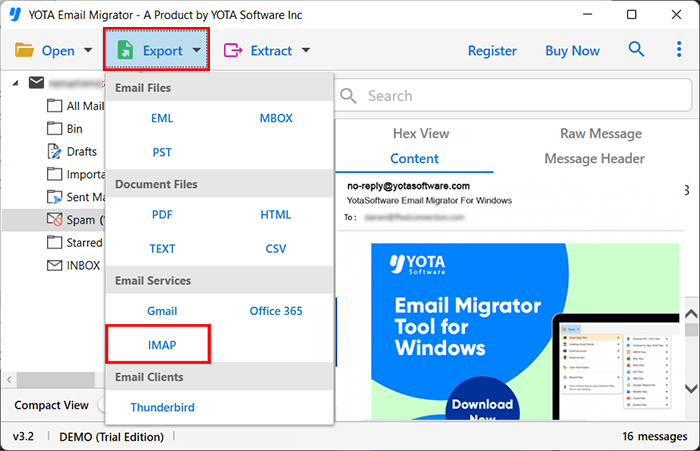
- Now, enter your Zoho Mail login credentials. Click on Save.

Done! The tool will instantly start the process to transfer emails, attachments, and contacts from your IMAP account to Zoho Mail with accuracy.
Advantages of IMAP to Zoho Migration Tool
- You can import emails from IMAP to Zoho Mail with attachments.
- It supports bulk migration, so you can move all your IMAP emails at once.
- Keeps the original folder structure, formatting, and attachments intact.
- Offers a safe and reliable way to transfer IMAP to Zoho Mail with 100% accurate results.
- A simple and standalone tool and no extra setup or technical skills needed.
- Preserves emails, attachments, contacts, and other details during the process.
- Fast and efficient tool that saves your time and effort.
- Ensures complete data security throughout the migration.
- Provides filter options by Date Range feature to move selective emails only.
Best Practices Before Migrating IMAP to Zoho Mail
- Take a backup of your IMAP mailbox locally before migration.
- Double-check your IMAP server settings and passwords.
- Make sure your Zoho Mail account has enough storage space.
- If you have a business domain, configure IMAP access in Zoho Admin Panel.
- Perform a test migration with a small folder before bulk transfer.
Conclusion
Importing IMAP emails to Zoho Mail is easier than it looks. If you’re transferring a few emails from mailbox, the manual method works fine. But if you’re having large data or multiple accounts to export, an automated IMAP Migration Tool will be a better choice. You can choose the method that best fits your need.
Frequently Asked Questions
Can I import IMAP emails to Zoho Mail for free?
Yes, Zoho has it import feature that will let you import emails from IMAP to Zoho. However, automated tools gives faster and more reliable results.
How long does the entire process take?
It depends on your mailbox size and internet speed. Small mailboxes can be moved in few minutes, but large number of emails could take a few hours.
Do I need to keep my IMAP account active during migration?
Yes, please make sure that your IMAP account stays active and accessible until the email migration process is completed.