If you are having trouble with the “Outlook inbox showing unread messages but none exist” issue, don’t worry! In this blog, we will discuss the reasons why does my Outlook show unread messages and the best possible solutions to fix this problem. So let’s start with a step-by-step guide.

Outlook is the world’s most widely used email client for managing emails, storing contacts, and creating notes or tasks. It offers many advanced features and security, but it is also true that users face many problems with Outlook from time to time. One such problem is that the Outlook inbox shows unread emails but there are none.
Before moving to the solution to fix it, let us know the reasons behind this issue.
Why Does My Outlook Show Unread Messages?
There are many causes of Outlook inbox showing unread messages but none exist issue. Some of them are listed below:
- Server sync issues
- New email notifications
- Email filter issues
- Number of junk or spam emails
- Deleted email messages
So these are the most common reasons for this issue. Now, let us know the solution to fix Outlook inbox shows unread emails.
How to Fix Outlook Inbox Showing Unread Messages But None Exist?
5 methods are available that can be used to solve why does my Outlook show unread messages problem. These solutions are:
- Investigate server availability
- Change Mail to Keep Offline setting
- Reset Outlook default settings
- Disable automatic archive settings
- Repair your Outlook Profile
In the following section, we will discuss each method step by step.
Method 1: Investigate Server Availability
If your Outlook inbox showing unread messages but none exist, you can check your connection to the server. For this, go to the bottom right corner of the Outlook interface.
Method 2: Change Mail to Keep Offline Setting
You can follow the steps below to fix Outlook inbox shows unread emails problem by changing mail to keep offline setting:
- Go to the File tab and select the Account Settings option.
- Then double-click your Microsoft Exchange account on the Email tab.
- In the Change Account dialog box, adjust the mail to keep the offline slider at the number of months you want, or set it to All to sync all email messages.

- Then click the “Next” button and click OK to restart Outlook and save the changes.
- Now, click on the Finish button.
- Finally, restart your MS Outlook email application.
Method 3: Reset Default View Settings
Follow these steps to fix Outlook inbox showing unread messages but none exist by testing the default view settings:
- First, open your MS Outlook application.
- Go to the View tab and select the Reset View option.
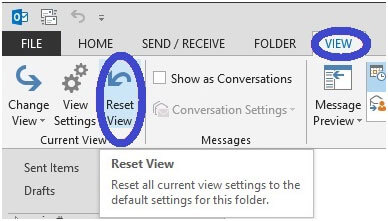
- A confirmation pop-up will appear asking if you want to reset the view. Click Yes to confirm the changes. This will reset your Outlook email display settings.
- Now, open your Outlook inbox and start the “Send/Receive” process to check if the email is being received as expected.
Method 4: Disable Auto Archive Settings
If Outlook show unread messages, you can disable auto archive settings by following these instructions:
- Open your email client, right-click on the Inbox folder, and select the Properties option.
- Then, select the “Do not archive items in this folder” option in the Inbox Properties window.
- Lastly, click OK to save your changes.
Method 5: Repair your Outlook Profile
If you are still getting the error Outlook inbox shows unread emails when there are none, repairing your Outlook profile may help. Follow the steps below to achieve this:
- In Outlook, click File > Account Settings > Account Settings.
- Then click on the Email tab.
- Now, select your account and choose Repair.
- After that, follow the next steps.
- At the end, restart your Outlook application.
Expert Solution to Fix Outlook Inbox Showing Unread Messages But None Exist
As we know, MS Outlook stores all its email messages, contacts, calendars, tasks, and other items in PST file format, which is the main data file. If the PST file is corrupted, you may face the Outlook inbox shows unread messages. So, to fix this, you need to repair your corrupted PST file. For this, you can use the Yota PST File Converter Tool on your Windows PC. It allows you to repair PST file without scanpst and get a healthy PST in just a few minutes.
If you are still facing why does my Outlook show unread messages problem, then it is advisable to save all emails from Outlook to hard drive or local computer. To create a backup of your emails, you can use the Yota Email Backup Tool on your PC. Creating a backup is the best way to secure your important emails and access them at any time.
Apart from that, if you want to switch from the Outlook email client, then it is advisable to go with the best email migration tool. This allows you to transfer Outlook emails to another account securely, Outlook to Thunderbird, and other email clients. Moreover, you can import Outlook emails to several email accounts with this tool.
Final Thoughts
The above blog has explained the best techniques to solve the problem of Outlook inbox showing unread messages but none exist. We also discussed the reasons why does my Outlook show unread messages. If you want to back up your important emails on the computer or migrate emails from Outlook, we also recommend the best tool here.
FAQs
Question 1. Why is Outlook showing unread messages when there are none?
Answer. Multiple reasons exist behind the Outlook inbox showing unread messages issue but none exist, such as:
- Sync issues
- Outdated mail cache
- Server settings
- Corrupted PST file
Question 2. How do I find hidden unread messages in Outlook?
Answer. Follow these steps to find Outlook hidden unread messages:
- Click on the “Search Current Mailbox” box at the top of your inbox.
- Type “isread:no” and press Enter or
- Click the “Unread” button in the Refine group on the menu bar.


